
Is your printer refusing to work because the Print Spooler service keeps stopping automatically on Windows 11 or 10? This common issue can be really frustrating, especially when you need to print something urgently. The Print Spooler is the background service that manages all print jobs, and if it crashes or stops, your printer won’t respond. The good news is, there are simple fixes to get it running smoothly again. In this blog, we’ll explain why this happens and guide you through easy steps to solve the problem, so you can get back to printing without interruptions.
🛠 Step-by-Step Fixes
Follow these in order; after each one test if the spooler stays running and printing works.
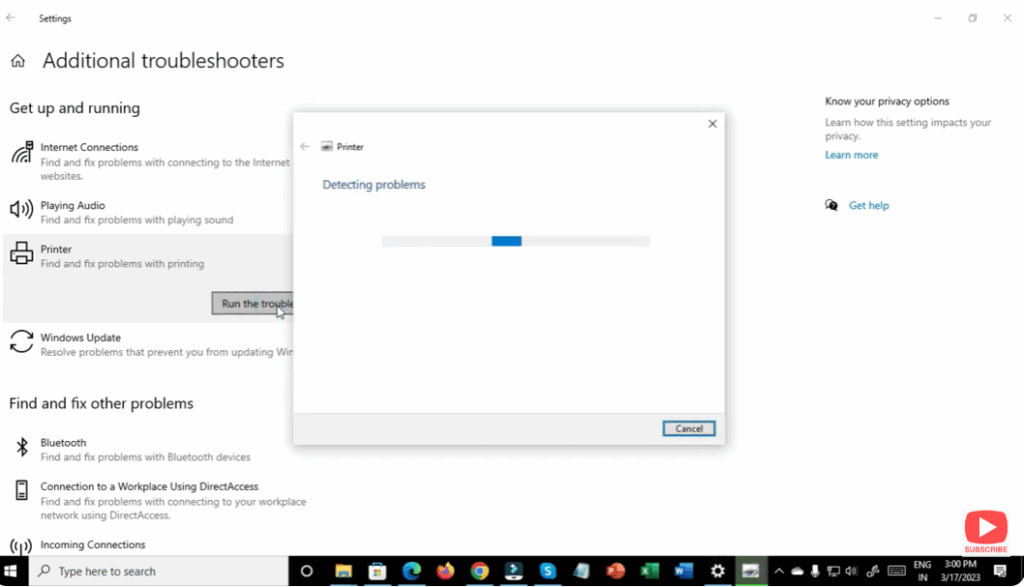
1. Run Built-in Printer Troubleshooter (Windows 10/11)
- Go to Settings → System → Troubleshoot → Other troubleshooters.
- Under Printer, click Run.
- Let Windows attempt to detect & fix issues.
- After the wizard finishes, reboot and test the spooler.
2. Clear the Print Queue & Spooler Files
- Stop the Print Spooler service (via Services or command:
net stop spooler). - In File Explorer navigate to
C:\Windows\System32\spool\PRINTERS. - Delete all files in that folder (but not the folder itself).
- Start the service again (
net start spooler) and test printing.
📝 Summary
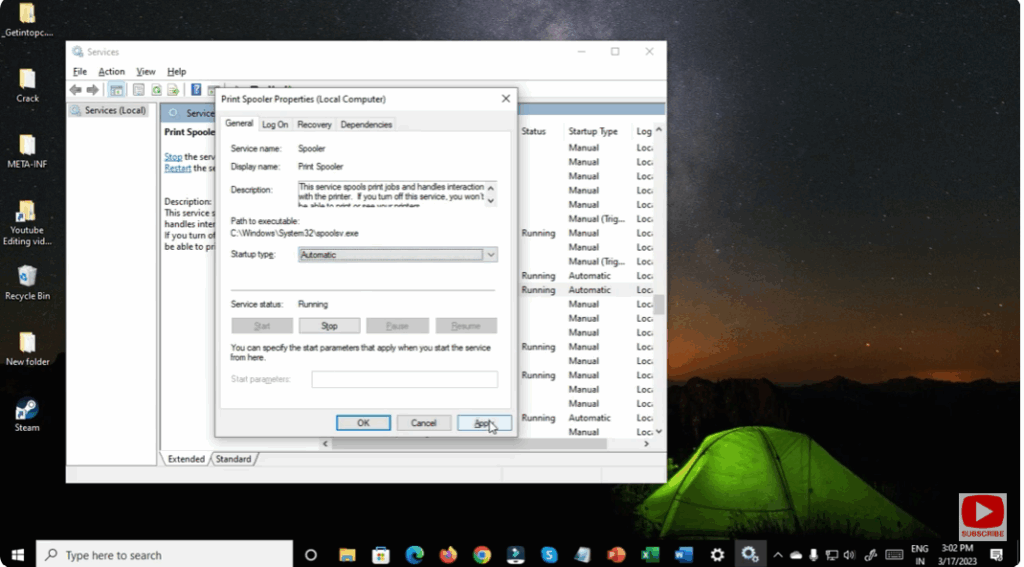
When the Print Spooler keeps stopping in Windows 10 or Windows 11, it typically comes down to: service configuration, stuck print queue files, corrupted drivers/print processors, or system update issues. By setting the spooler to automatic, clearing its queue, removing old drivers, cleaning the registry, updating drivers, running the troubleshooter, and ensuring Windows is updated—you’ll solve the majority of cases.






