
Installing the latest version of Python on Windows 10 or 11 is straightforward and opens up powerful programming possibilities for beginners and experts alike. Python’s official installer makes setup easy with just a few clicks, including adding Python to PATH for command-line access. In this blog, you’ll learn the complete step-by-step tutorial to download, install, and verify the newest Python version safely on your Windows PC.
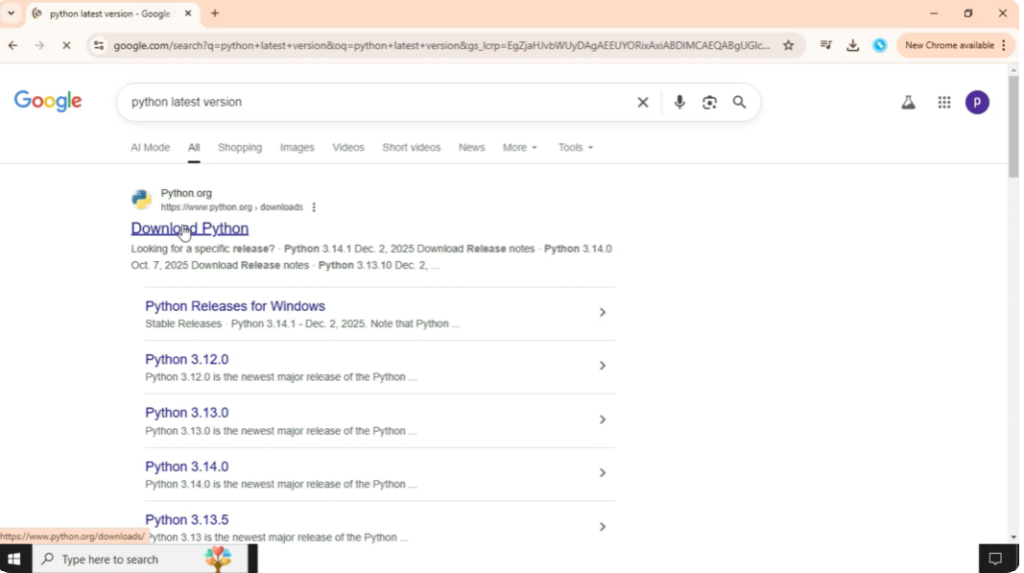
Firstly, open Google on your browser. Then click on the search bar and type Python latest version and press enter. You will see several results, but click on the first website, which is python.org. This is the official website for Python, so it is always safe and trusted.
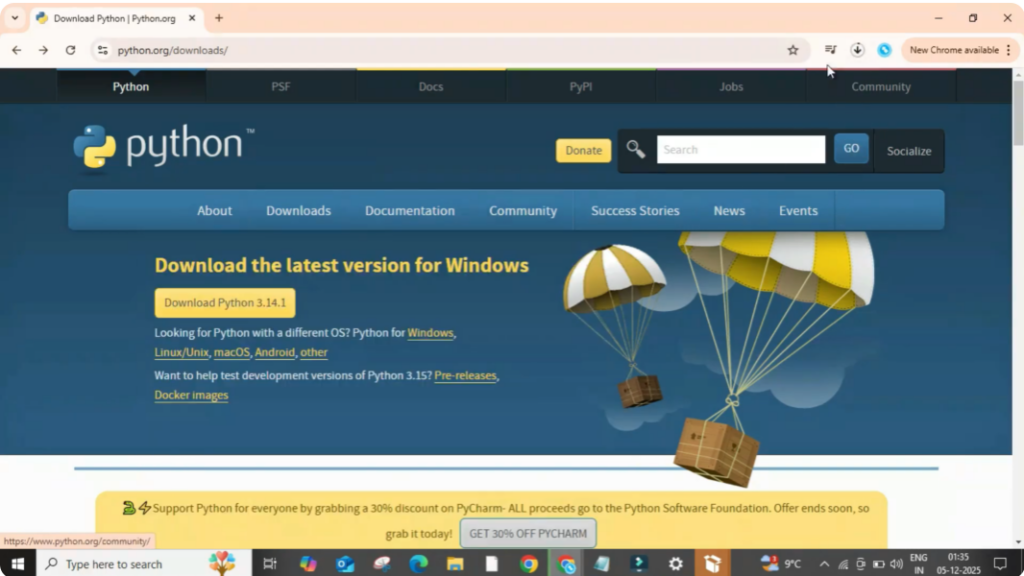
Once the website opens, you will see a download button on the homepage. Click on download Python 3.14.1 or whichever version is the latest at that time. Now the file will start downloading. So wait for a few moments until it completes.
When the download finishes, click on the setup file to open it. A Python installer window will appear on your screen. Here click on install now. Before clicking, you can also check the option add Python to path which helps you run Python from the command prompt easily.
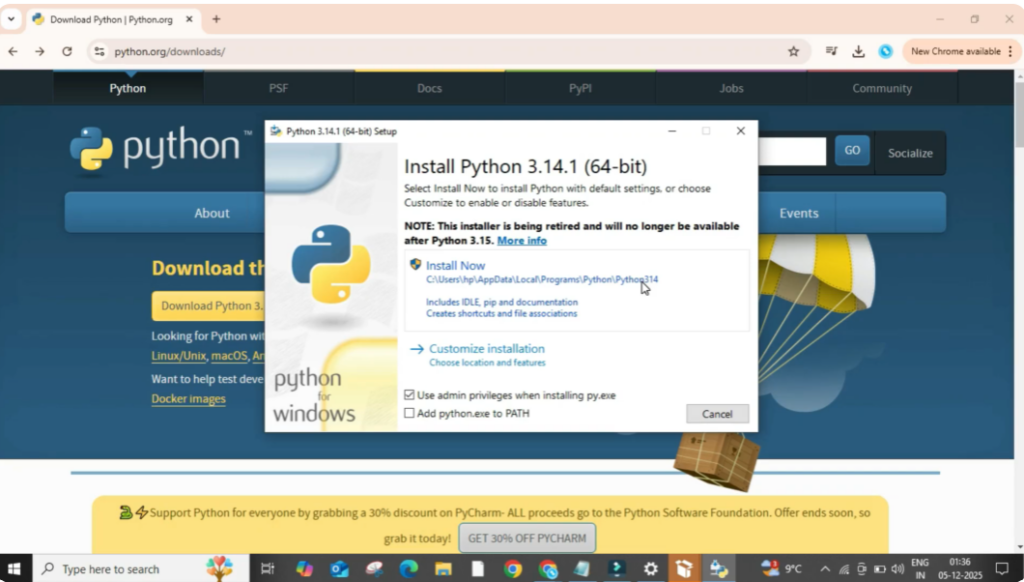
After that the installation will begin. Just wait for a minute while all the files and modules are installed on your system. Once it completes you will see a message saying setup was successful. This means Python has been installed correctly. You can close the window now.






