
Lost your WhatsApp chats and don’t have a Google Drive backup? Don’t worry—you still have a chance to get them back! In 2025, there are new and easy ways to recover your messages without needing cloud storage. Whether you accidentally deleted chats or switched to a new phone, this blog will guide you through the latest methods to recover WhatsApp chats without Google Drive. No tech skills needed—just follow the simple steps and you might be able to restore your important messages, photos, and files in no time. Let’s get started!
Method 1: Using File Manager
- Go to your File Manager.
- Open Internal Storage.
- If you’re using a Redmi phone, you’ll see an interface like this.
- Tap the three dots and select Show Hidden Files.
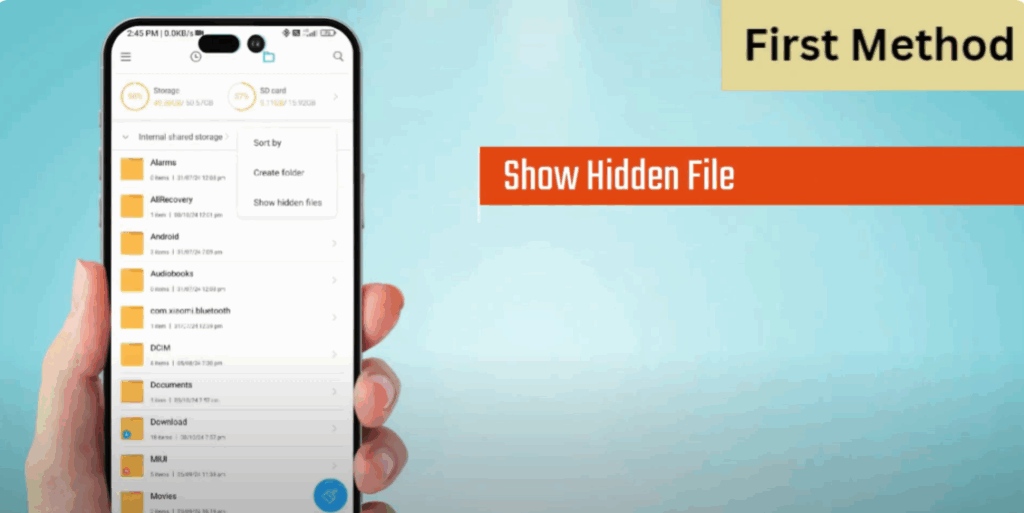
- Now navigate to:
Android > Media > com.whatsapp > WhatsApp > Databases - Hold any file for a few seconds and click on More Options.
- Select Rename and enter a new name.
- Click OK to save.
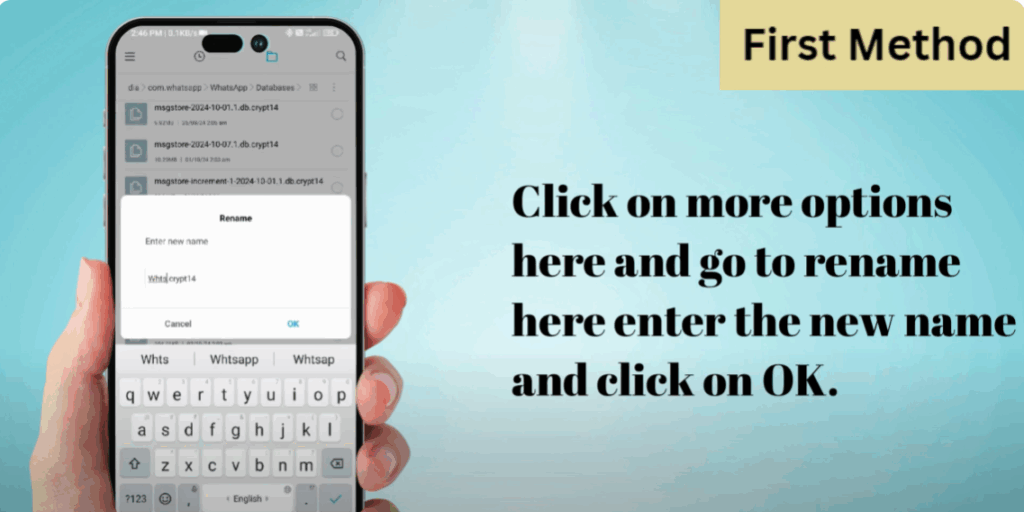
By renaming the folder, you might be able to recover deleted WhatsApp messages — but it’s not 100% guaranteed.
Method 2: Copy and Backup the Database
- Go to My Files again.
- Find and open the Databases folder.
- Select the data file, click on More, and choose Copy.
- Now go to Backup and Paste it there.
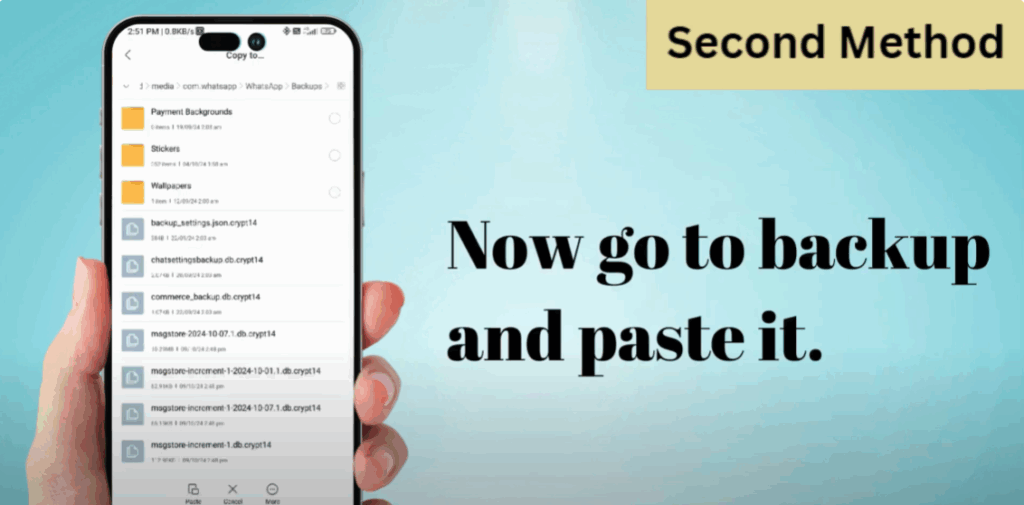
Doing this might help you recover some deleted chats. However, it’s still not certain that you’ll get all messages back. Watch every step carefully to avoid mistakes.
Method 3: Using Google Drive Backup
- Open Google Drive.
- Click on the three-line menu in the top left corner.
- Select Backups.
- Find your WhatsApp Backup and click on the three-dot menu next to it.
- You’ll see an option to Delete Backup.
- Once deleted, you’ll get a notification suggesting to uninstall WhatsApp and reinstall it.
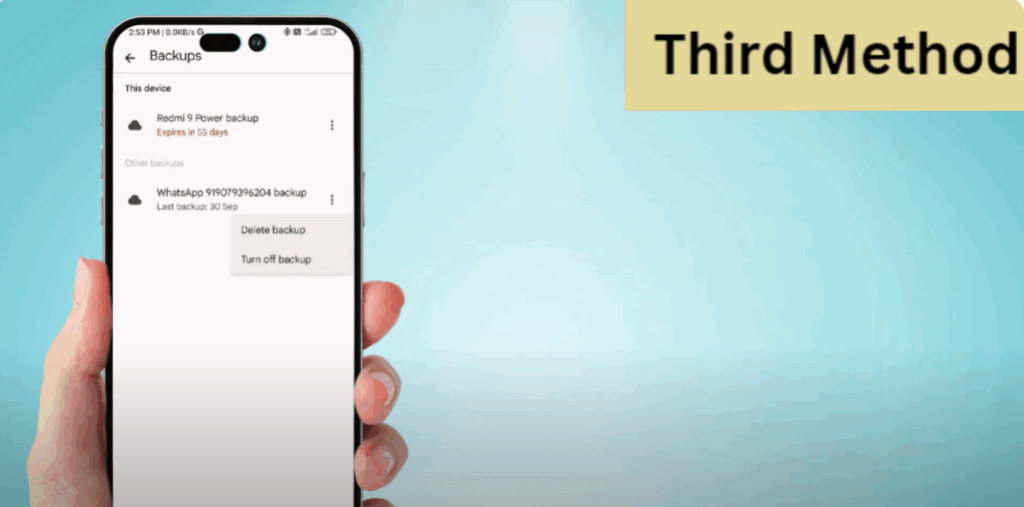
After reinstalling, you might be able to recover some deleted chats — but remember:
👉 This process will delete all your existing documents, and WhatsApp does not yet have a full recovery system for deleted messages.
If WhatsApp ever releases an update that allows recovery, I’ll make a new video on it.
⚠️ Important Note
I recommend not trying these methods repeatedly, as doing so might cause you to lose important files permanently.






