
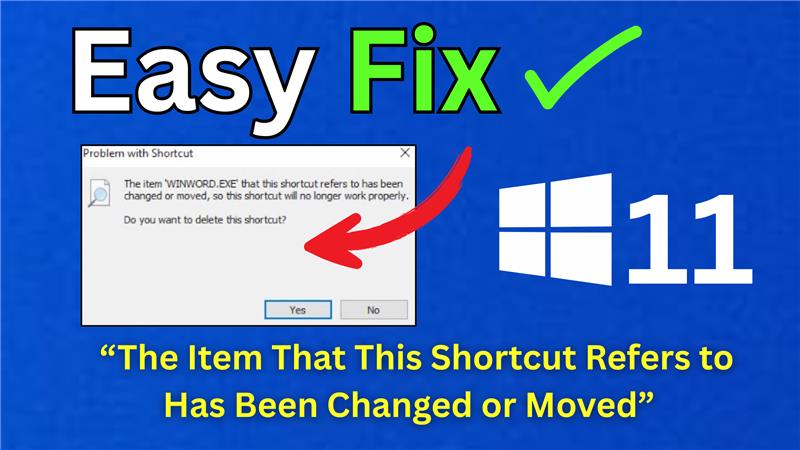
Hi friends, welcome back to my channel Tech Gitter. In today’s video, I’ll show you how to resolve the shortcut error in Windows 11 that says “the item that this shortcut refers to has been changed or moved.”
Step 1: Create a New Shortcut
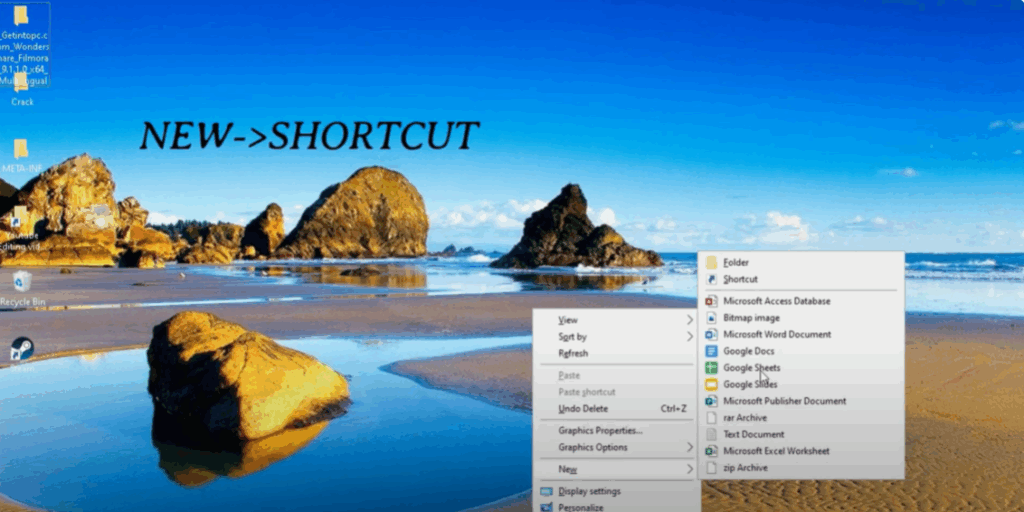
Come to your PC screen and again to create a new shortcut, you need to right-click on an empty area of your desktop, select New, and then select Shortcut.
Step 2: Enter Item Location
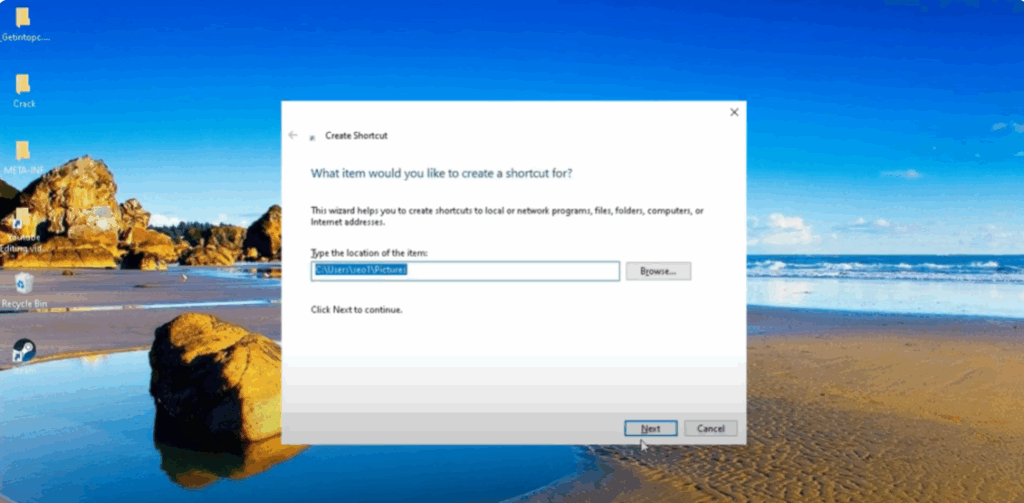
Now type in the location of this item. You can paste it or you can choose the Browse button and then navigate to the file directory.
For example, let’s say this was a picture shortcut. I’m just going to go ahead and select the picture icon here and then select OK.
Step 3: Name the Shortcut
Next, you can name the shortcut whatever you want and select Finish.
And there you go guys, we have just created a new shortcut. So pretty straightforward process.






