
The Roblox app getting stuck or not responding on Windows is a frustrating issue that many players face. You click to play, but instead of loading smoothly, the game freezes, lags, or simply refuses to respond. This can happen for different reasons like system glitches, outdated files, or internet problems. The good news is, most of these issues can be fixed with a few simple steps. In this beginner-friendly blog, we’ll explain how to fix Roblox when it’s stuck or not responding on Windows, so you can get back to gaming without interruptions.
1. Check Roblox Server Status
Before making any changes on your computer, it’s important to ensure that the issue isn’t from Roblox’s end.
- Open any web browser.
- Type status.roblox.com.
- If you see a green message stating “All Systems Operational,” the Roblox servers are working fine.
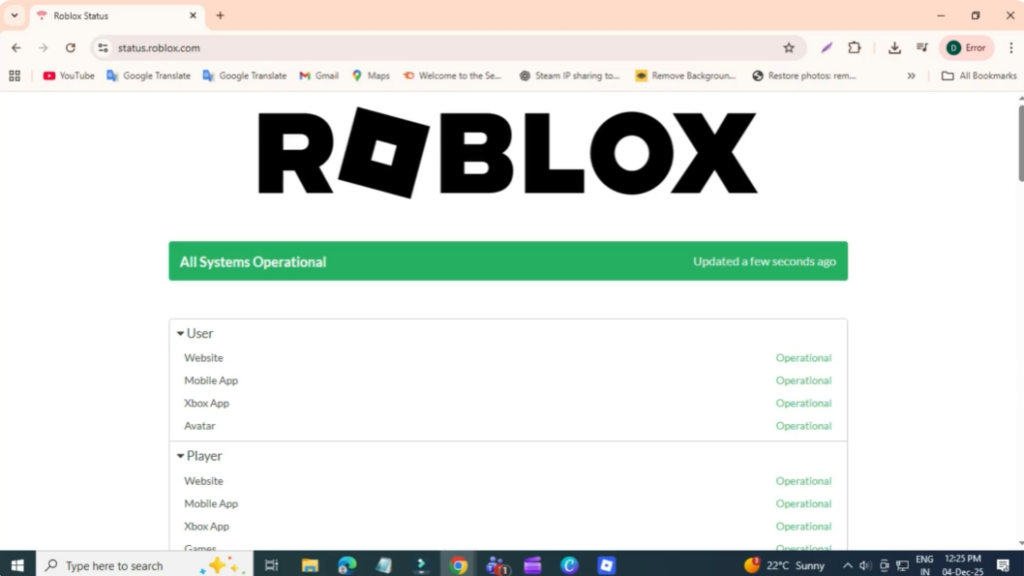
If the servers are up, the issue is most likely related to your Windows PC.
2. Restart Your PC
A simple restart can fix many temporary glitches:
- Restart your computer to close background apps and stop interfering services.
- Once your PC boots up again, try launching Roblox.
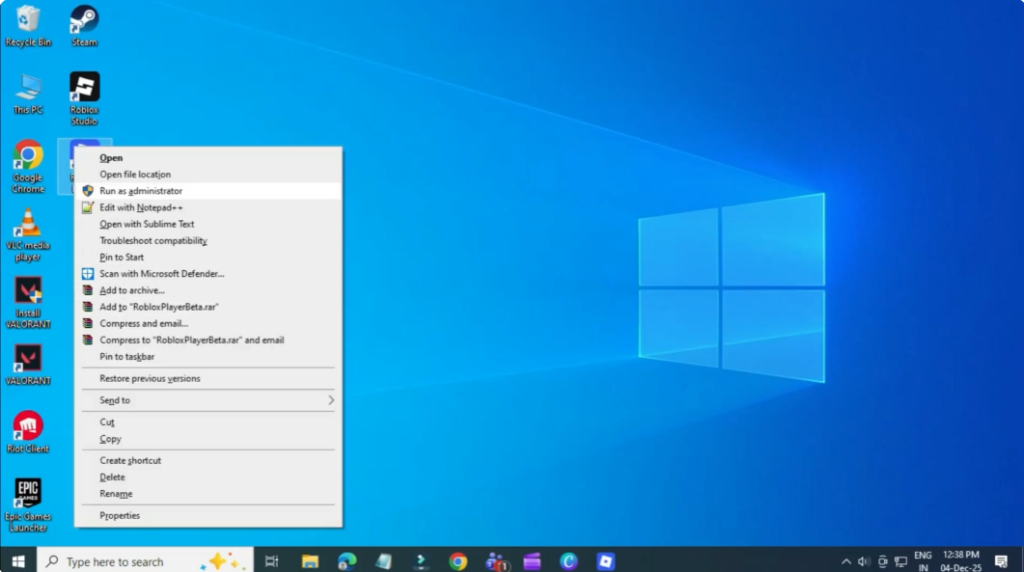
3. Run Roblox as Administrator
Running Roblox with elevated permissions can resolve access-related issues:
- Right-click on the Roblox app.
- Select Run as administrator.
- If Roblox still doesn’t launch, move on to the next step.
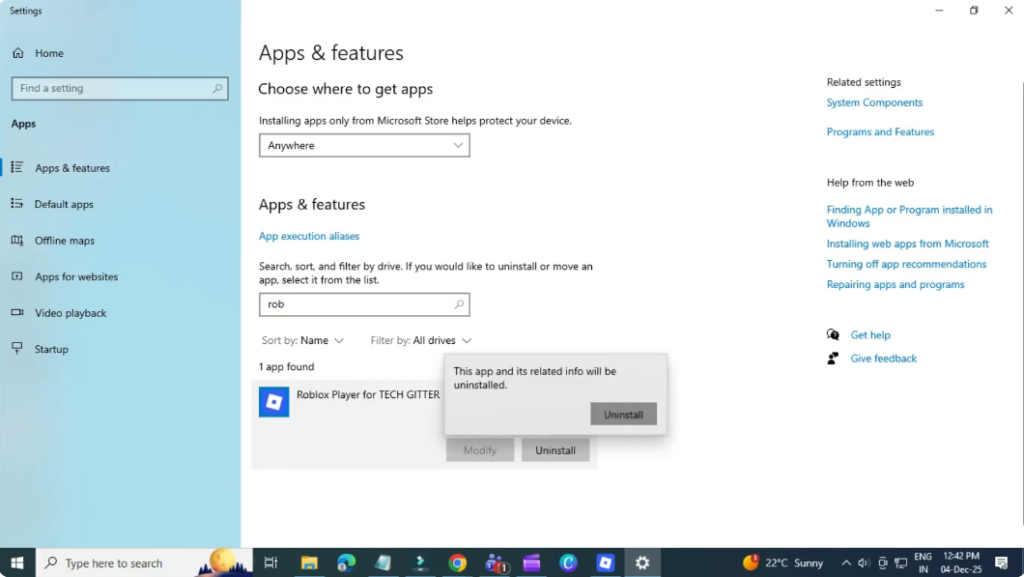
4. Uninstall and Reinstall Roblox
A fresh installation often resolves corrupted files:
- Click the Windows Start menu.
- Search Add or Remove Programs.
- Locate Roblox, click the three dots, and select Uninstall.
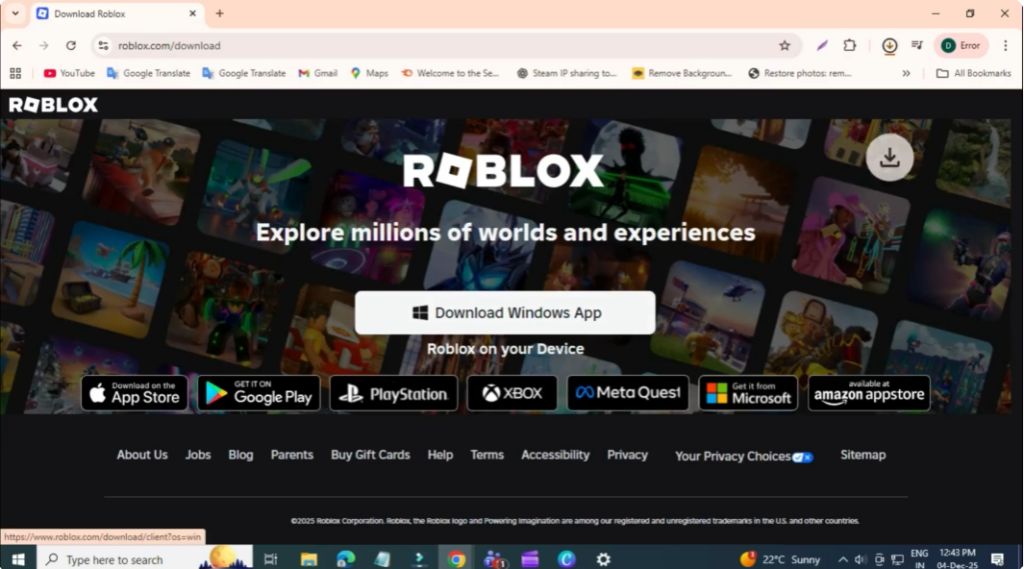
- Open Google and search Roblox download.
- Click Download Windows App.
- Once downloaded, run the Roblox Player Installer.
For many users, reinstalling the app fixes the issue instantly.
5. Manual AppData Fix
If Roblox still fails to launch, try this deeper fix:
- Open the Start menu and search Run.
- Type %appdata% and click OK.
- At the top, click AppData.
- Open the Local folder.
- Find and open the folder named Roblox.
- Open the Versions folder.
- Select the most recent version folder.
- Find RobloxPlayerLauncher.exe and double-click it.
- Make sure you run the launcher, not the installer.
This forces Roblox to run directly and bypasses other issues.
Conclusion
That’s it! Your Roblox should now be working smoothly. If you’re still facing issues, drop your problem in the comments — I’ll do my best to help.






