
The Run command in Windows 11 is a handy tool that lets you quickly open programs, files, and system settings. Normally, it saves the history of what you type, so you can easily reuse commands without typing them again. But sometimes users notice that the Run dialog is not saving history, which can be frustrating if you rely on it for faster access. In this blog, we’ll explain why this happens and show you simple steps to fix the Run command history issue in Windows 11, so your shortcuts work smoothly again.
✅ How to Fix It: Step-by-Step
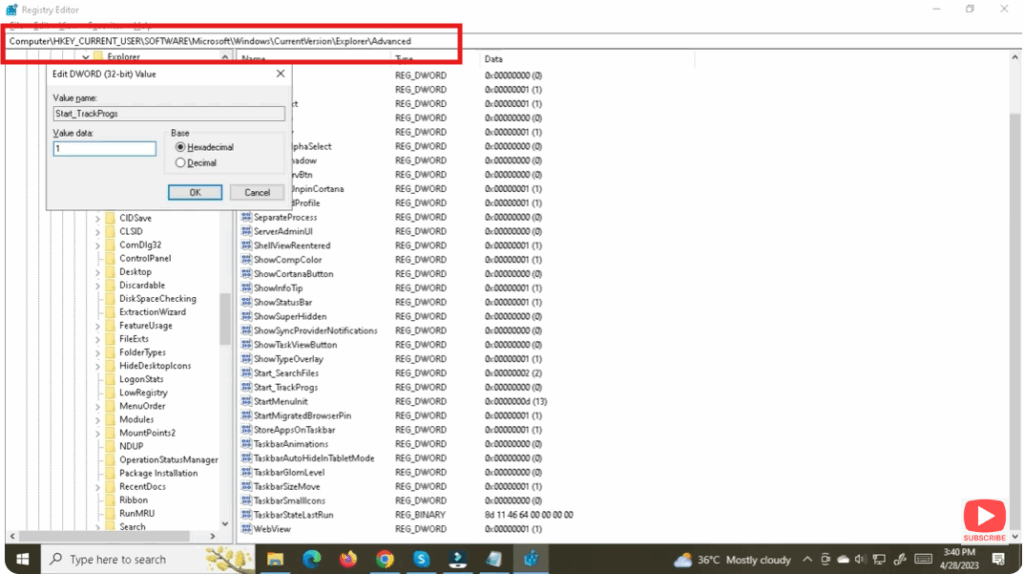
1. Modify the Registry to Enable Tracking
⚠️ Warning: Be careful when editing the registry. Consider backing it up before making changes.
- Press Win + R, type
regedit, and hit Enter. - Navigate to:
HKEY_CURRENT_USER\Software\Microsoft\Windows\CurrentVersion\Explorer\Advanced - Look for a DWORD value named Start_TrackProgs:
- If it doesn’t exist, right-click → New → DWORD (32-bit) → name it
Start_TrackProgs. - Double-click it and set its value to
1.
- If it doesn’t exist, right-click → New → DWORD (32-bit) → name it
- Click OK, close Registry Editor, and restart your PC.
2. Check for Clearing-History Policies
- In Registry Editor, go to:
HKEY_CURRENT_USER\Software\Microsoft\Windows\CurrentVersion\Policies\Explorerand alsoHKEY_LOCAL_MACHINE\Software\Microsoft\Windows\CurrentVersion\Policies\Explorer. - If there’s a value named
ClearRecentDocsOnExit, delete it or set it to0. - Restart your device.
✅ Final Thoughts
If your Run command history isn’t saving, it’s likely due to a turned-off privacy setting or a registry tweak. By enabling tracking (Start_TrackProgs = 1), ensuring “clear on exit” policies are off, and allowing Windows to track app launches, you should restore Run history functionality.
Once corrected, you’ll be able to use the arrow keys in Run (Win + R) to access previously used commands — saving you time and effort for frequently used operations.






