
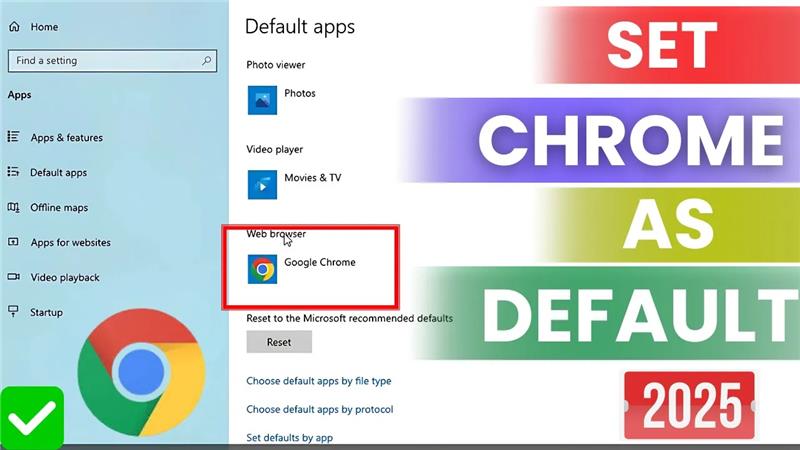
If you prefer using Google Chrome for browsing the internet, setting it as your default browser on Windows makes things easier. That way, every time you click a link or open a webpage, it will automatically open in Chrome. In 2025, Windows makes this process simple, and you don’t need any technical skills to do it. Whether you’re switching from Edge, Firefox, or another browser, this tutorial will guide you step by step. In this blog, we’ll show you how to set Chrome as your default browser quickly and easily, so you can enjoy faster browsing and all your favorite Chrome features without any extra clicks.

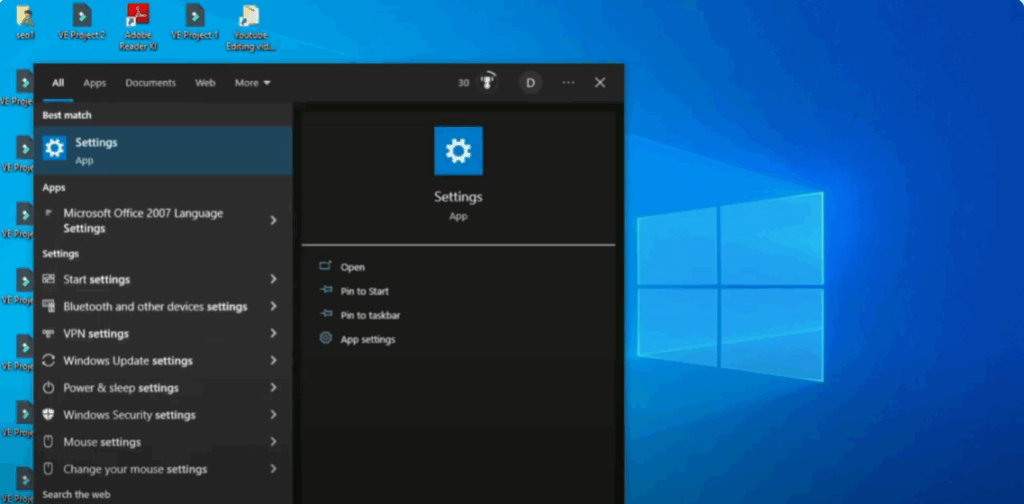
First, go to the search bar on the taskbar and type Settings.
Click on the Settings app from the results.
Once the Settings window is open, click on System from the left or main menu.
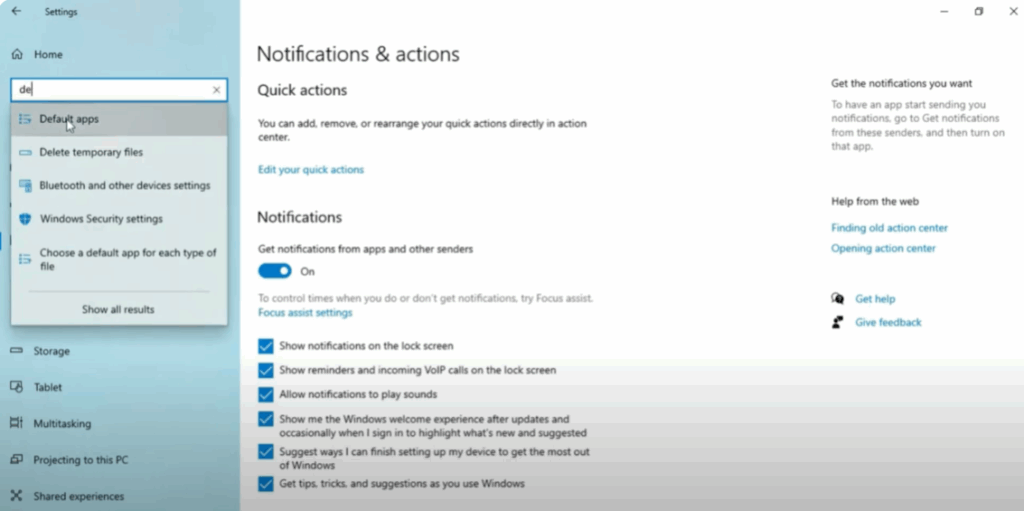
Now, on the top-right search bar inside Settings, type Default Apps and click on it.
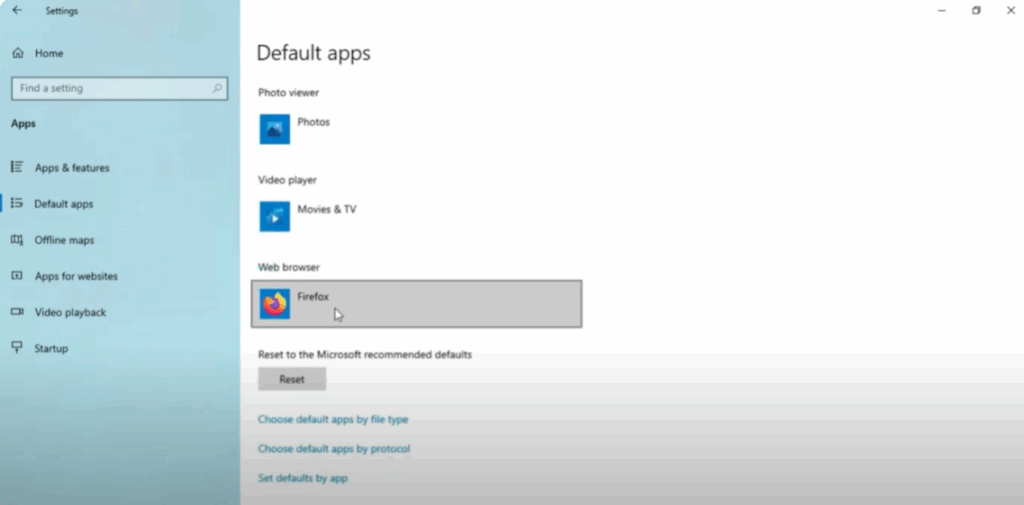
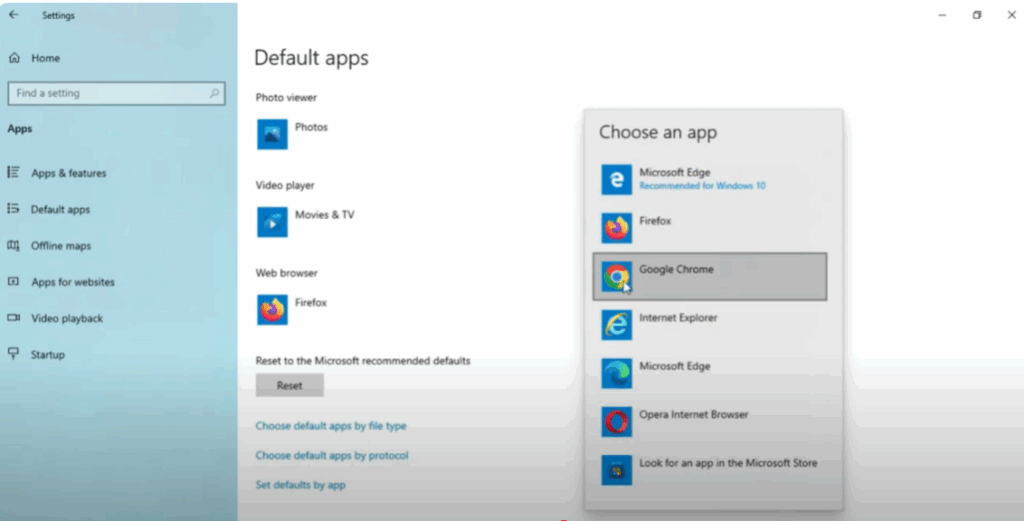
Scroll down a little until you find the section called Web Browser.
You’ll see a browser name here like Microsoft Edge or Firefox, which is currently your default.
Click on that name.
A list will appear — find and click on Google Chrome.
Now your system has set Chrome as your default browser.
Let’s confirm this inside Chrome itself.
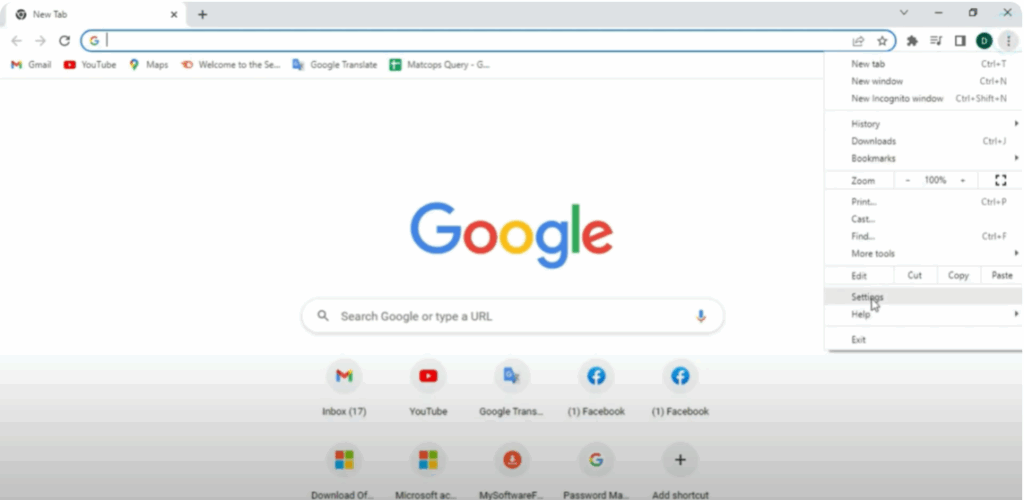
Open Google Chrome, click on the three-dot menu in the top-right corner, and then click on Settings.
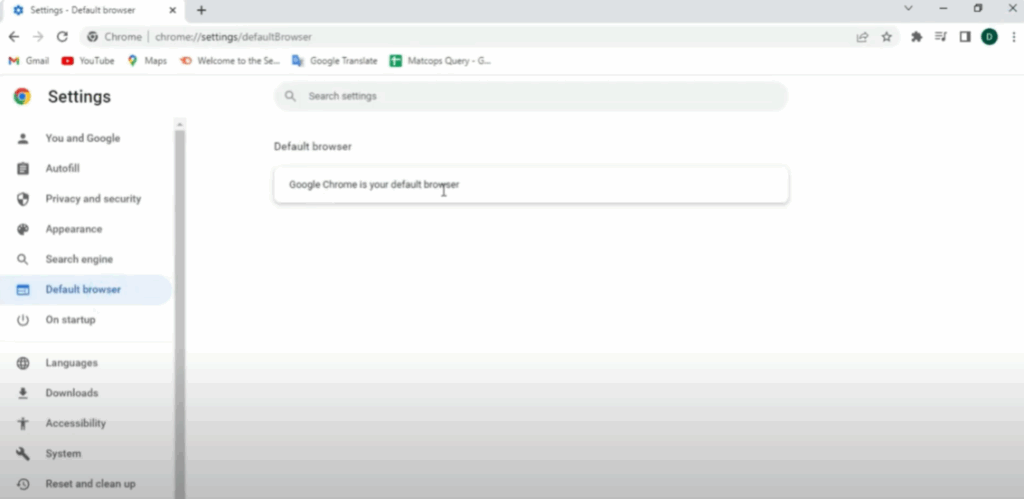
On the left panel, click on Default Browser.
Here you’ll see a message that says, “Google Chrome is your default browser.”
And that’s it!
You’ve now successfully made Google Chrome your default browser for all links and web content.






