

Inserting rows quickly in Excel can save you a lot of time, especially when working with large data sheets. Instead of right-clicking and navigating menus, you can use simple shortcut keys to add new rows instantly. In this blog, you’ll learn the easy 2-step keyboard shortcuts to insert rows fast and keep your work flowing smoothly without stopping to use the mouse.
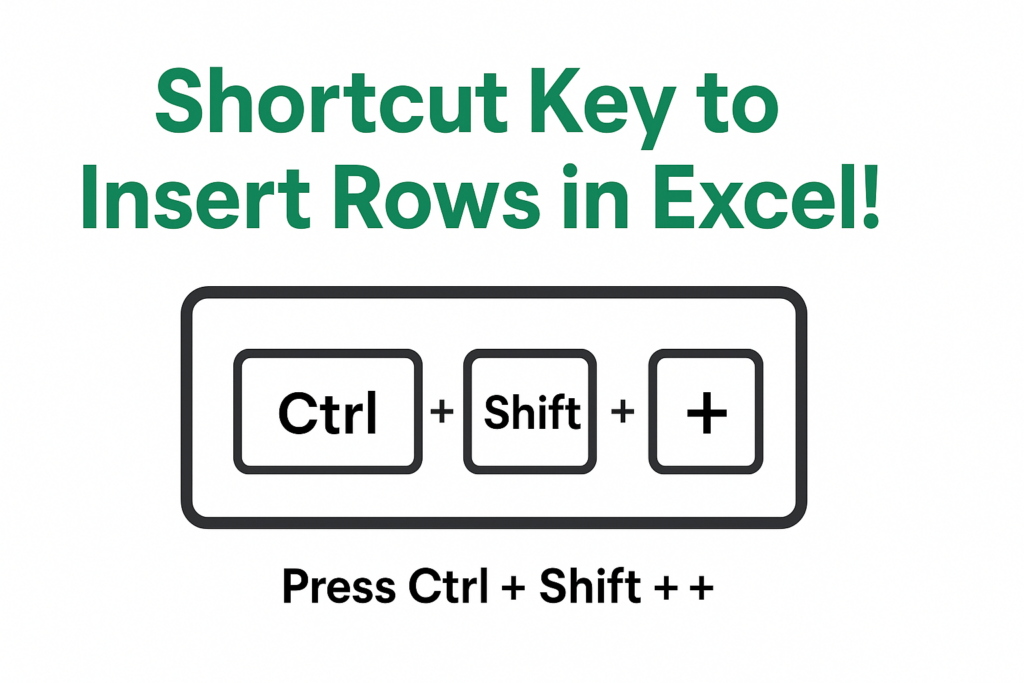
🛠️ 2-Step Shortcut to Insert Rows in Excel
If you want to insert a row (or multiple rows) quickly, here is a simple 2-step method that works efficiently:
Step 1: Select the row (or cell)
- Click on the row number to select the entire row — or, if you prefer keyboard-only, you can select any cell in the row and then press
Shift + Spacebarto select the whole row.
Step 2: Press the shortcut to insert
- Press
Ctrl + Shift + +(the plus key). That immediately inserts a new blank row above the selected row. - Alternatively (or for compatibility), you can use the older classic shortcut:
Alt + IthenR. This does the same — inserts a new row above.
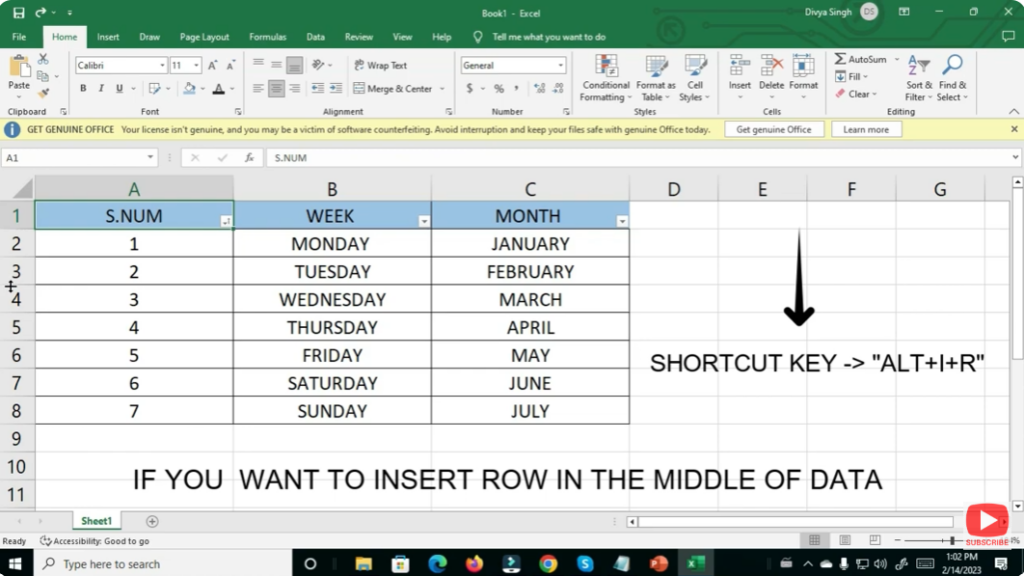
That’s it — just these two steps and a new row is inserted, with no need to right-click or use menus.
📌 Final Thoughts
Mastering the simple “2-step” keyboard shortcut to insert rows in Excel — Select row → Press Ctrl + Shift + + — can save you a lot of time and clicks. Once you start using it, you’ll wonder how you managed without it!






