
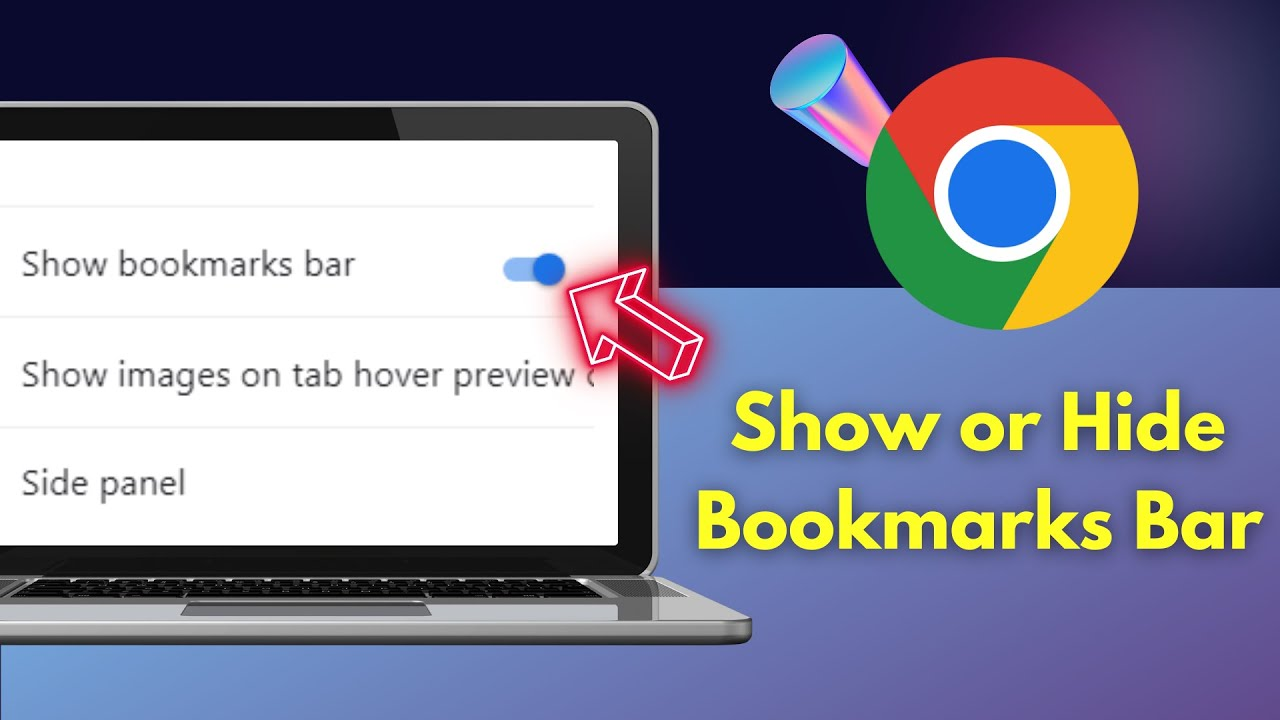
The bookmarks bar in Google Chrome is a handy tool that lets you quickly access your favorite websites right below the address bar. By default, the bookmarks bar is usually hidden to give you more space on the screen. But you can easily show or hide it whenever you want. In this blog, you will learn simple steps to show or hide the bookmarks bar in Google Chrome, making it easier to reach your bookmarks fast when browsing.
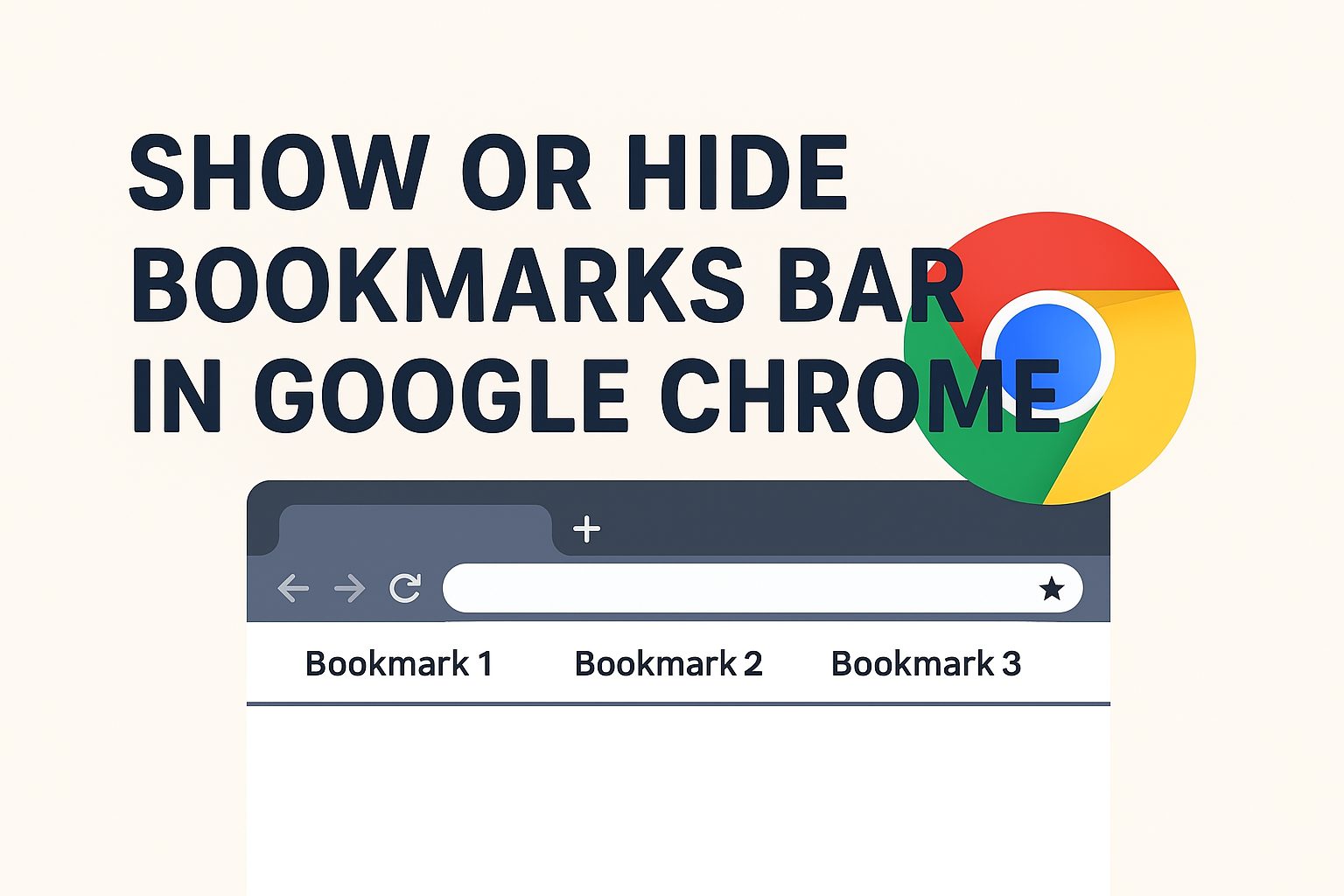
How to Show or Hide the Bookmarks Bar in Chrome
1. Use the Chrome Menu
- Open Google Chrome.
- Click the three-dot menu (⋮) in the top-right corner.
- Hover over Bookmarks → click Show bookmarks bar (or uncheck it to hide).
- This toggles the bookmarks bar on or off.
Conclusion
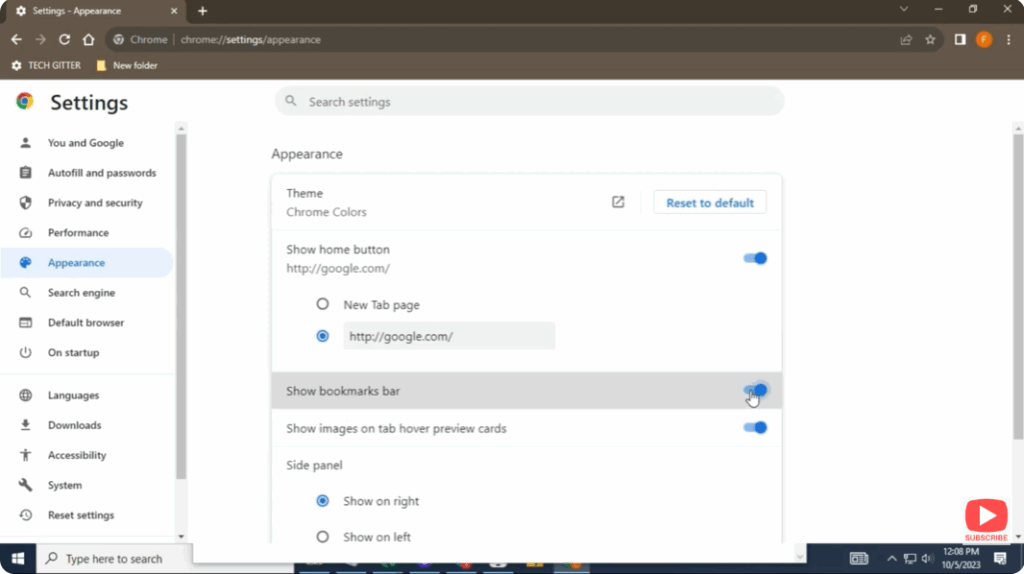
Showing or hiding the Bookmarks Bar in Google Chrome is quick and flexible. Use the three-dot menu, keyboard shortcut (Ctrl / Cmd + Shift + B), or change the Appearance setting in Chrome’s Settings to toggle it. Depending on your workflow, you can keep it always visible for convenience or hide it for a minimal, distraction-free browser experience.






