
Want to explore more games and apps on your VR headset? SideQuest is the perfect tool to unlock extra content beyond the official store—and setting it up on your Windows PC is easier than you think! Whether you’re using it with Meta Quest or another device, SideQuest lets you install custom apps, tweaks, and experiences in just a few clicks. In this blog, we’ll walk you through the simple steps to install and set up SideQuest on Windows in 2026, so you can start enjoying a whole new world of VR fun.
Step 1: Install SideQuest on Your Computer
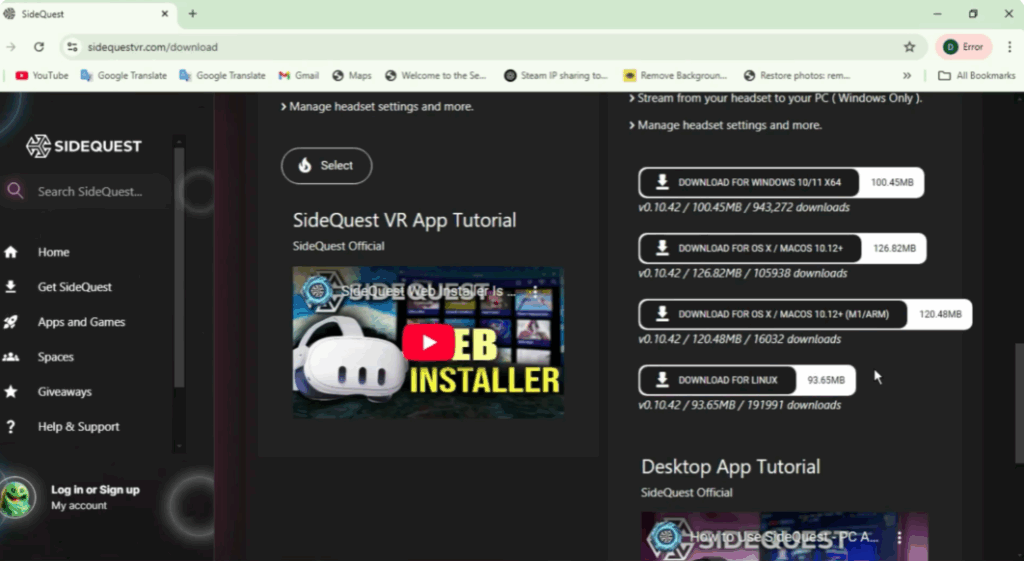
First, open your browser and go to sidequestvr.com/download.
Here, download the installer that matches your operating system — Windows, macOS, or Linux.
Once the file is downloaded, open it and follow the onscreen instructions to complete the installation.
Step 2: Enable Developer Mode on Your Meta Quest Headset
Now, open the Meta app on your smartphone.
Tap on Devices, then select your headset.
Next, go to Developer Mode and simply toggle it ON.
This will allow your headset to connect and install apps like SideQuest.
Step 3: Connect Your Headset to Your Computer
Use a USB-C cable to connect your Meta Quest headset to your computer.
Once connected, put on your headset. You’ll see a pop-up asking for USB debugging and data access permissions.
Select Allow for both options.
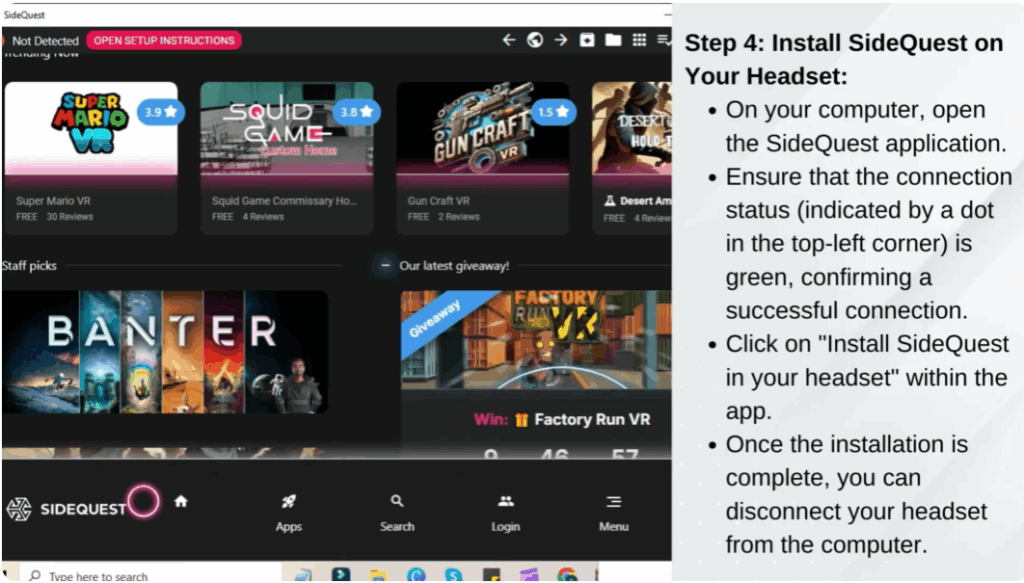
Step 4: Install SideQuest on Your Headset
Go back to your computer and open the SideQuest application.
At the top left corner, you’ll see a dot. If it turns green, it means your headset is successfully connected.
Next, click on Install SideQuest in your headset within the app.
Once installation is done, you can disconnect the headset from your computer.
Step 5: Launch and Link SideQuest
Put on your headset again and go to Apps.
From the drop-down menu, select Unknown Sources.
Launch the SideQuest app and a six-digit code will appear on your screen.
Now, on your computer or smartphone, open your browser and go to:
https://sdq.st/linkEnter the six-digit code to link your SideQuest account with your headset.
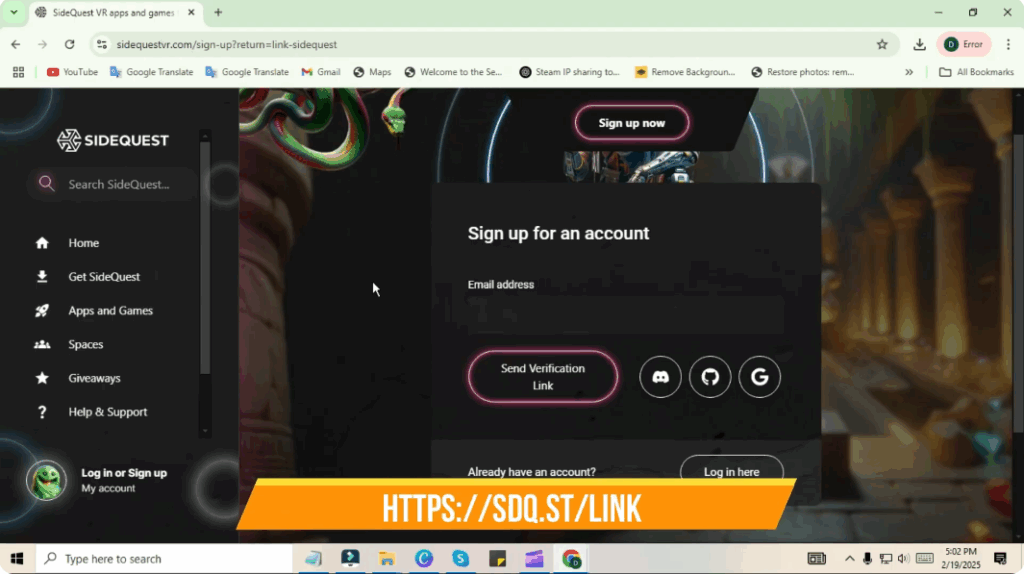
After completing these steps, your SideQuest account will be linked to your Meta Quest headset, allowing you to browse, download, and install VR content directly from the SideQuest app on your device.
If you face any issues, you can visit the SideQuest setup guide at:
sidequestvr.com/download





