
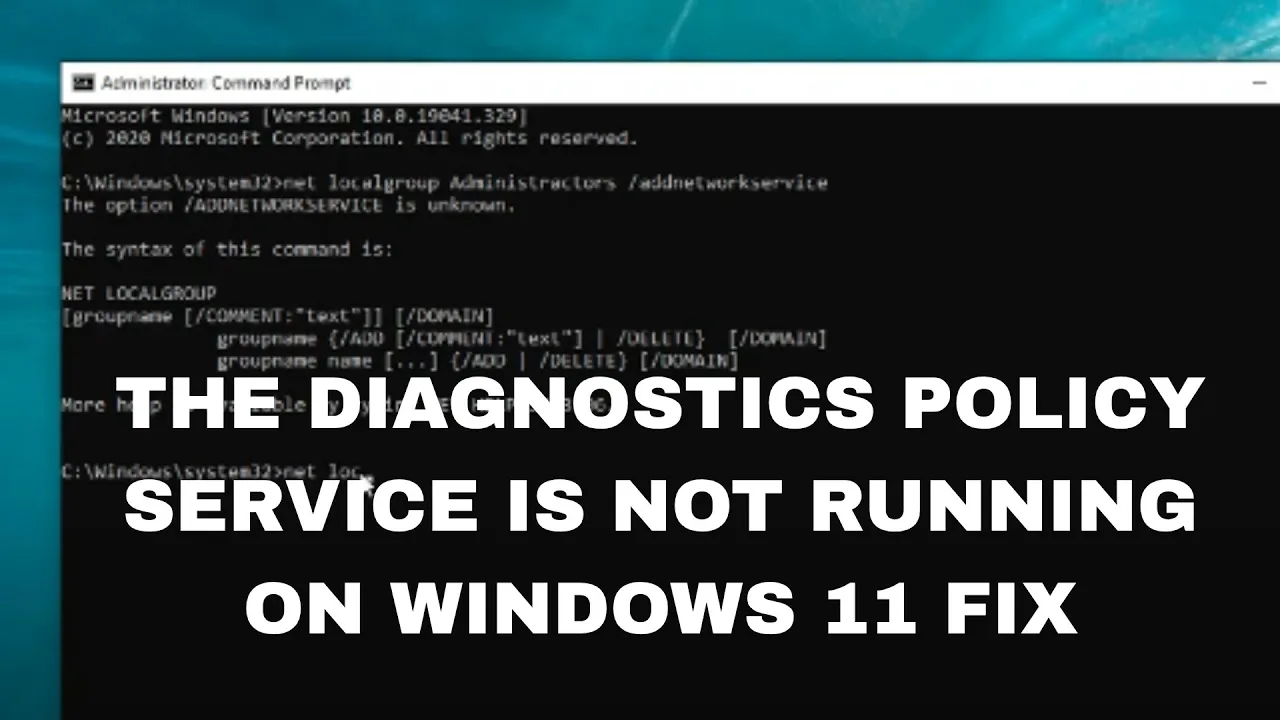
Seeing the message “The Diagnostics Policy Service is not running” on your Windows 11 PC? This can stop your computer from detecting and fixing network problems, which means no internet and lots of frustration. The Diagnostics Policy Service helps Windows troubleshoot issues, and when it’s not working, you might feel stuck. But don’t worry! In this blog, we’ll show you easy ways to fix this problem step by step, so your PC can get back to solving issues and staying connected. Let’s get started!
✅ Solution 1: Restart the Diagnostics Policy Service
- Press Windows + R keys to open the Run dialog.
- Type:
services.mscand press Enter. - Find Diagnostics Policy Service from the list.
- Right-click on it and select Start.
- If it is already running, choose Restart.
- Make sure the Startup Type is set to Automatic.
If Start is greyed out, move to the next solution.
✅ Solution 2: Give Network Services Proper Permissions
- Open Start Menu, search Command Prompt.
- Right-click and select Run as administrator.
- Copy and paste these commands one by one:
net localgroup Administrators /add networkservice
net localgroup Administrators /add localservice
- Restart your PC.
This gives required permissions to network service accounts.
✅ Solution 3: Run System File Checker (SFC) Scan
- Open Command Prompt as Administrator.
- Type the command below and press Enter:
sfc /scannow
- Wait for the scan to complete.
- Restart your system.
This will repair corrupted system files automatically.
✅ Solution 4: Reset Network Settings
- Press Windows + I to open Settings.
- Go to Network & Internet.
- Click Advanced Network Settings.
- Select Network Reset → Reset Now.
- Restart your PC.
This restores network settings to default.
🎯 Final Words
The Diagnostics Policy Service is essential to troubleshoot system and network problems. If it gets disabled or corrupted, Windows fails to resolve issues. By following the above fixes—restarting the service, restoring permissions, repairing system files, and resetting network settings—you can easily solve the “Diagnostics Policy Service Is Not Running” error in Windows 11.






