
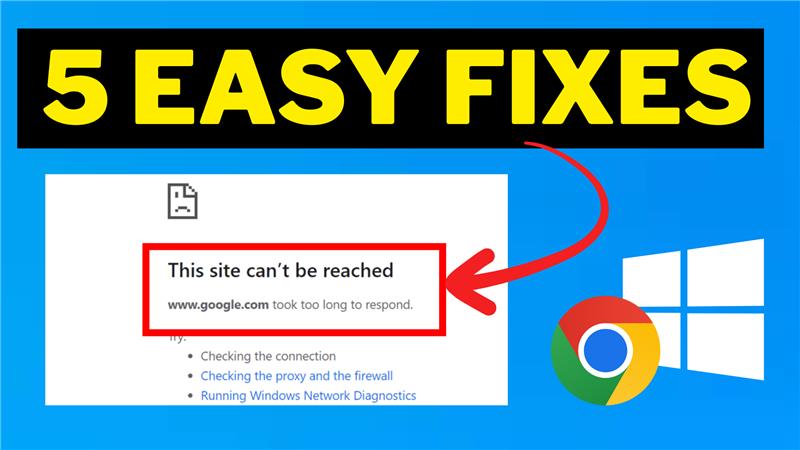
Hello friends, welcome to my channel Tech Gitter Official. Are you seeing the “This site can’t be reached” error while browsing? Don’t worry. In this guide, I’ll show you five easy and effective solutions to quickly fix this issue.
Let’s get started.
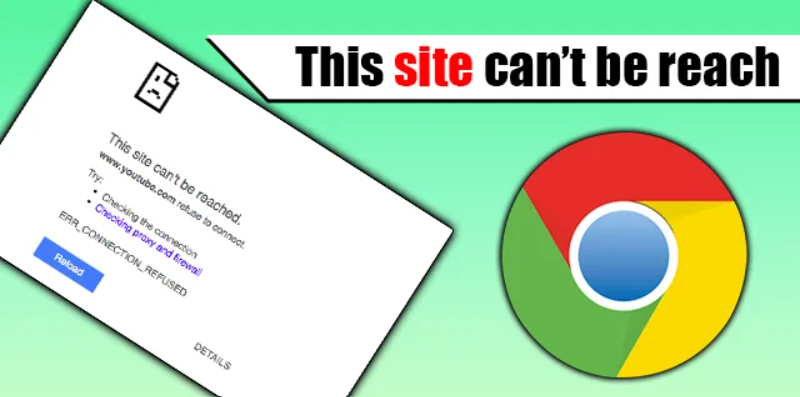
Solution 1: Clear Browser Cache and Cookies
Cache and cookies are the most common cause of loading problems. To clear them in Chrome:
- Click the three dots in the top right corner.
- Select Delete browsing data.
- Choose Cached images and Cookies.
- Click Clear data.
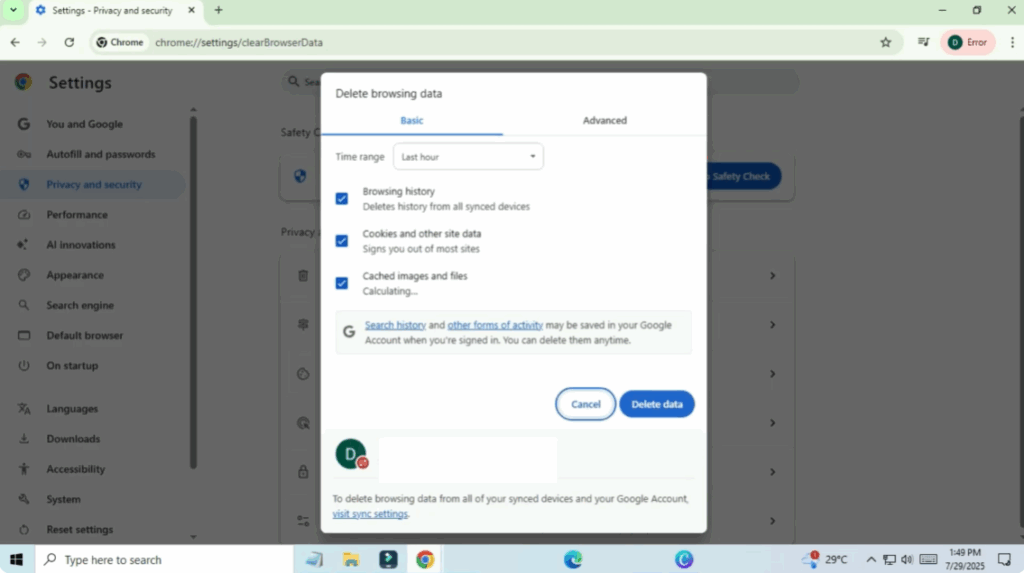
Now restart the browser and try opening the site again. If the problem is not solved, move on to the next solution.
Solution 2: Flush DNS and Reset Network Settings
This helps reset internet configuration issues.
- Open Command Prompt as administrator.
- Type these commands one by one and press Enter after each:
ipconfig /flushdnsipconfig /releaseipconfig /renewnetsh int ip resetnetsh winsock reset
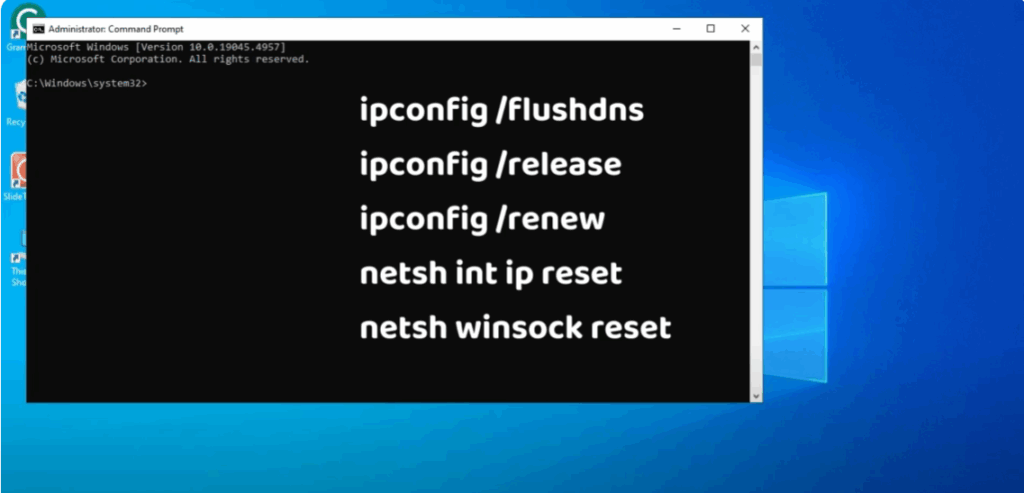
You will see a message like “Successfully reset the Winsock Catalog.”
Now restart your computer and try again.
Solution 3: Disable Proxy Settings
Sometimes proxy servers cause problems. To disable them:
- Press Windows + I to open Settings.
- Click on Network & Internet.
- Go to Proxy.
- Turn off the option Use a proxy server.
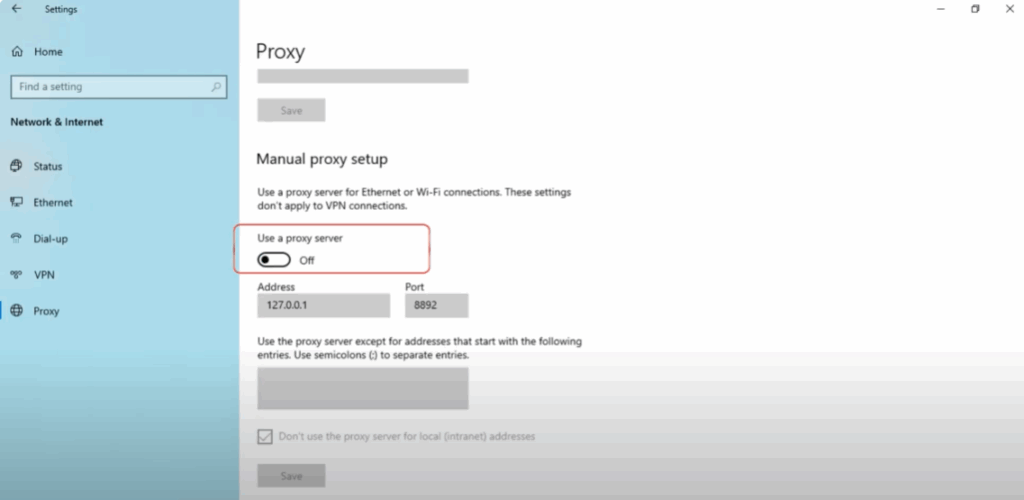
Now try loading the site again.
Solution 4: Check Firewall or Antivirus
Your antivirus or firewall might be blocking the connection.
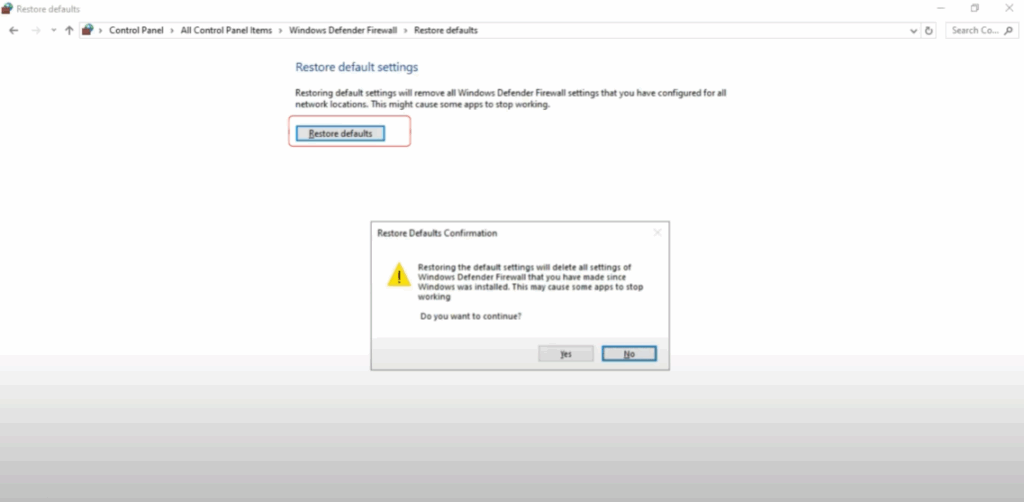
- Temporarily disable your antivirus or allow Chrome through Windows Defender Firewall.
- Open Control Panel → click on Windows Defender Firewall.
- Click on Restore Defaults and confirm again.
- Check if the site is now loading.
Solution 5: Use Google Public DNS
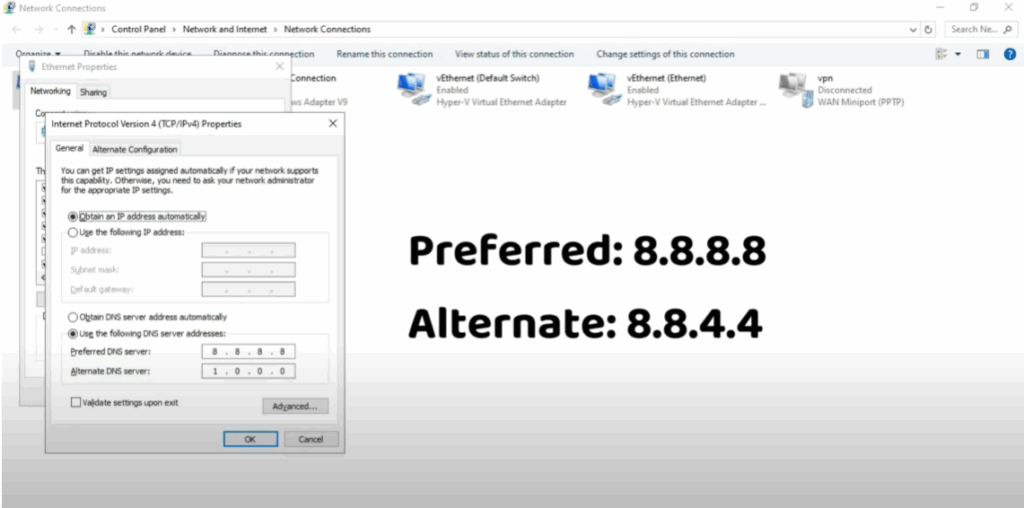
Sometimes the issue is with your DNS. You can switch to Google DNS:
- Go to Control Panel → Network and Sharing Center.
- Click Change adapter settings.
- Right-click your active connection and select Properties.
- Choose Internet Protocol Version 4 (TCP/IPv4).
- Select Use the following DNS server addresses:
- Preferred DNS: 8.8.8.8
- Alternate DNS: 8.8.4.4
- Click OK and restart your browser.
Bonus Tips
- Restart your router/modem.
- Try loading the site on another device.
- Temporarily disable browser extensions.
Final Words
That’s it! One of these methods should fix the “This site can’t be reached” error.
If this helped you, please like this guide, subscribe, and comment if you have any questions. Thanks for reading, and see you in the next tutorial!






