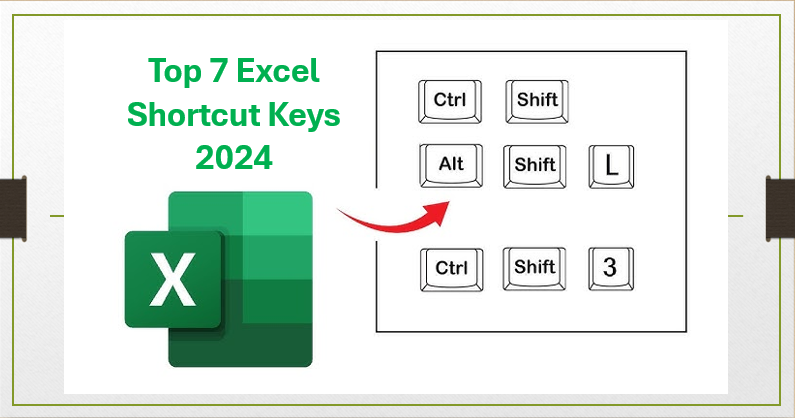
Learning a few simple shortcut keys in Excel can save plenty of time and make working with data much faster. Whether adding new data, formatting cells, or moving through large spreadsheets, the right shortcuts can help anyone work smarter—not harder. In this blog, you’ll discover the top 7 Excel shortcut keys for 2024 that are easy to use and essential for everyday tasks, helping boost your productivity whether you’re a beginner or an experienced Excel user.
1. Ctrl + R
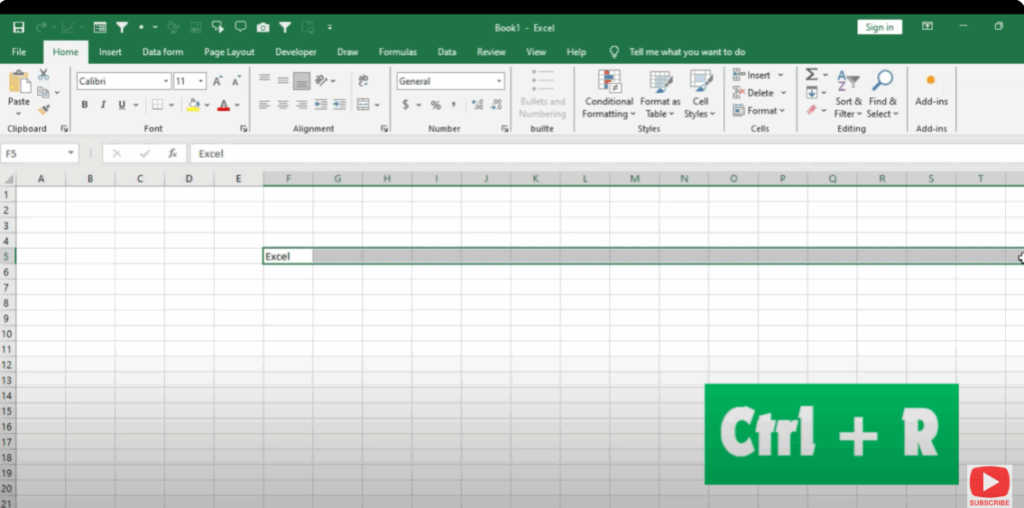
First of all, I type “Excel” here.
Now, if I want to fill this in the right column also, then I will select the cell and press Ctrl + R.
You will see that “Excel” has been filled in the right side as well.
2. Ctrl + D
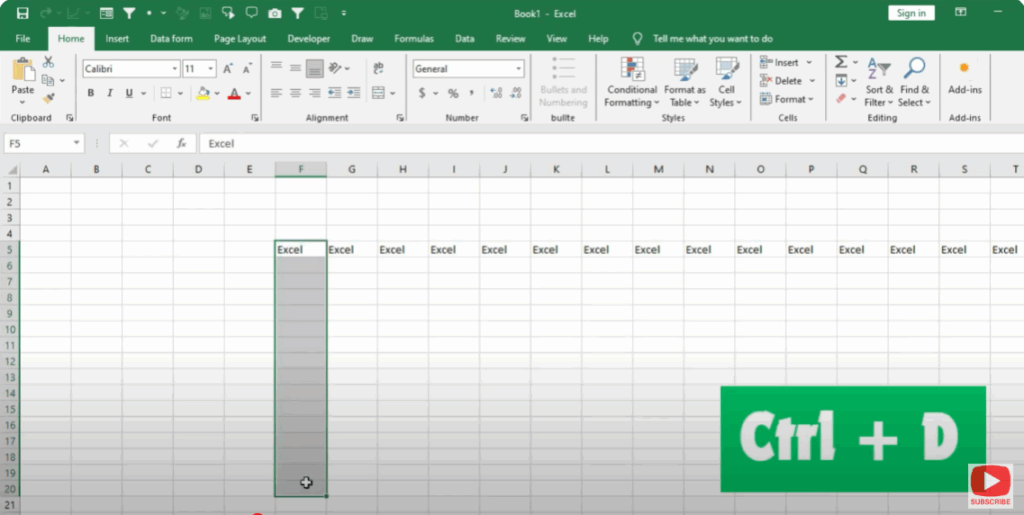
If I want to do the same trick in the below row, then first I will select the cell and press Ctrl + D.
You will see that “Excel” will be filled in the below row.
3. Ctrl + Shift + L
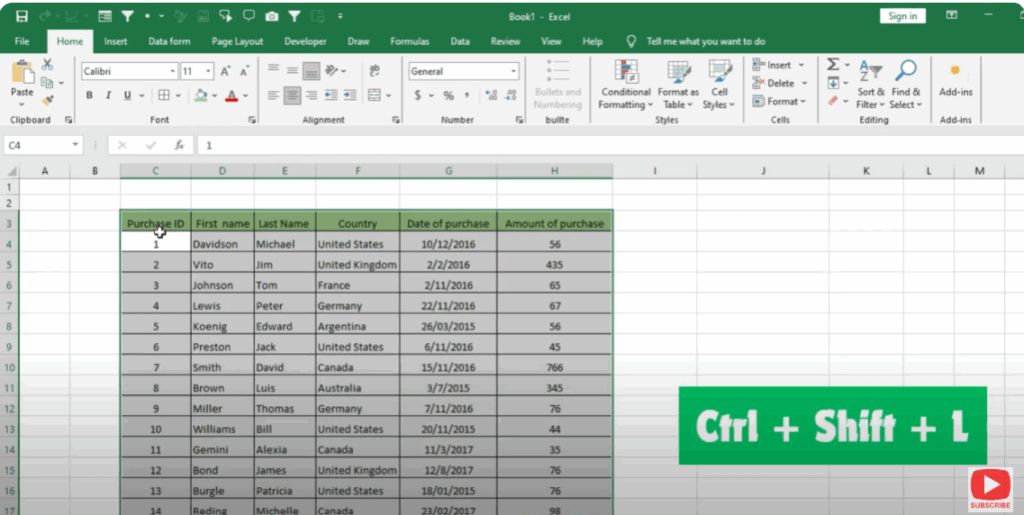
If you have a table in Excel and you want to sort the data, then select the table by pressing Ctrl + A.
Then press Ctrl + Shift + L.
You can see that the filter button is applied on the table.
If you want to remove the filter, then again press Ctrl + Shift + L and it will be removed.
4. F2
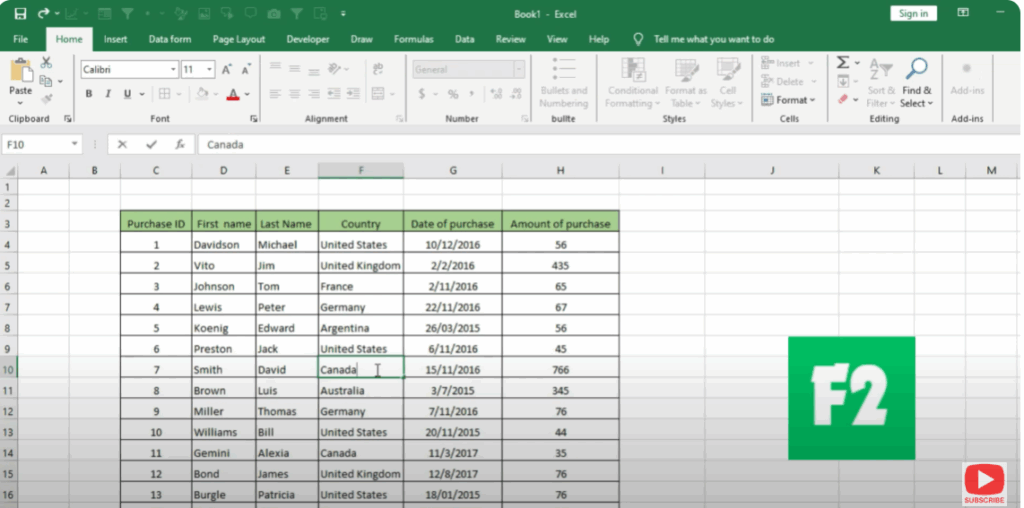
If you want to edit a cell in a list, you can click on the cell and press F2.
Then the cell gets frozen so you can easily edit any cell.
5. Alt + = (Equals)
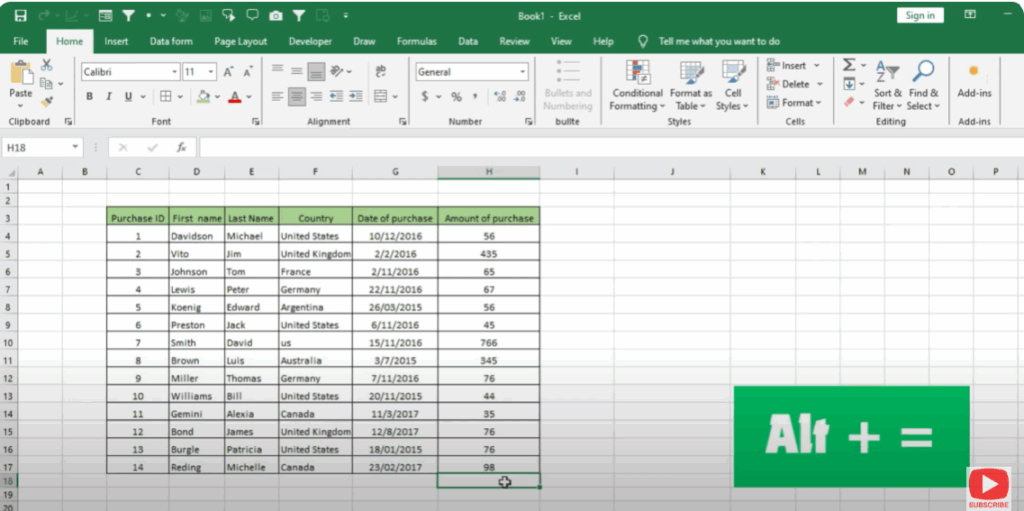
This shortcut is used for auto summation.
Suppose we want to add all these cells — we will press Alt + =, then press Enter, and all the cells will be added automatically.
6. F12
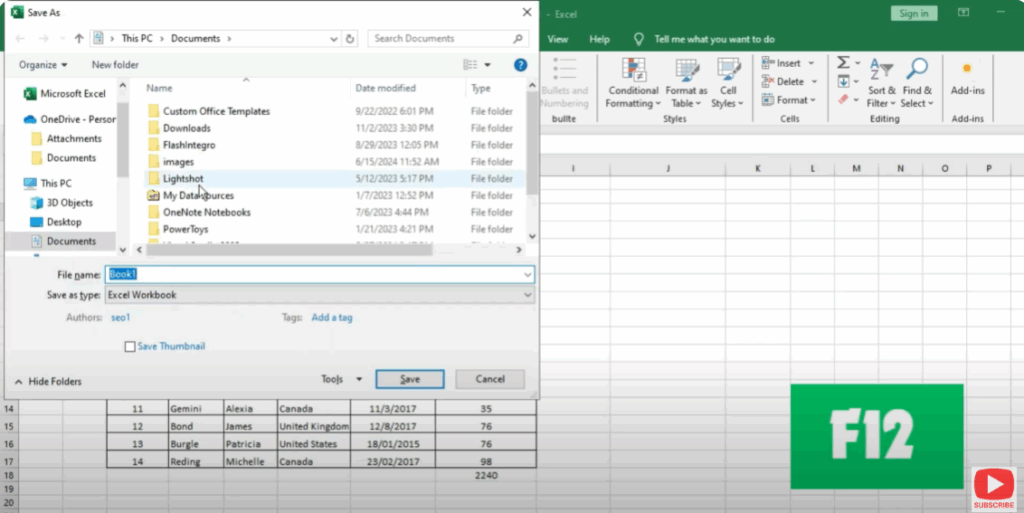
Using this shortcut, you can save the file without going to the save option.
As soon as we press F12, the save window opens.
Type the name of the file here and click on the Save button.
7. F7
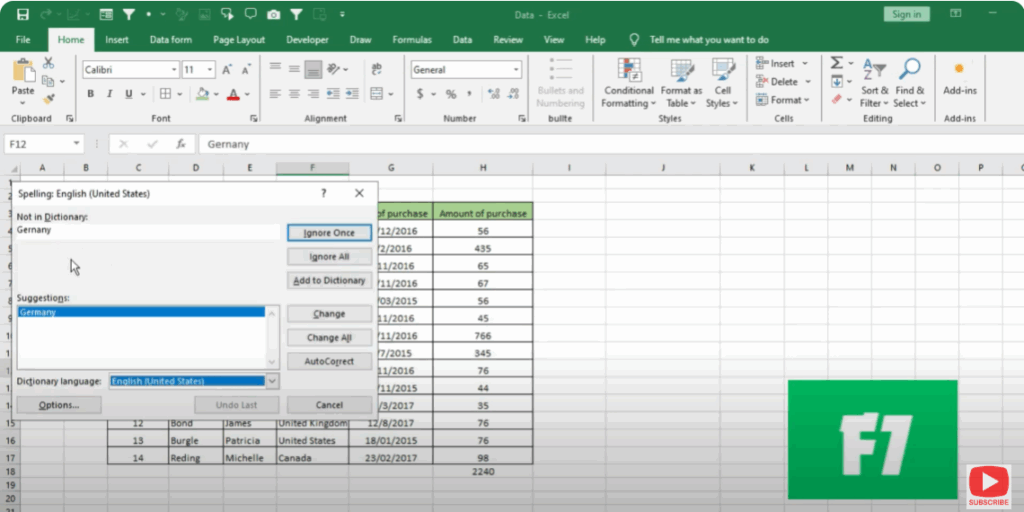
You can check the spelling of any cell using the F7 key in Excel.
As soon as you press F7, the spelling dialogue box opens.
Here you will see your mistakes, and you can correct them by clicking Change.