
Welcome back to my channel Tech Gitter Official. In today’s video, we will learn how to upgrade from Windows 7 or 8.1 to Windows 10.
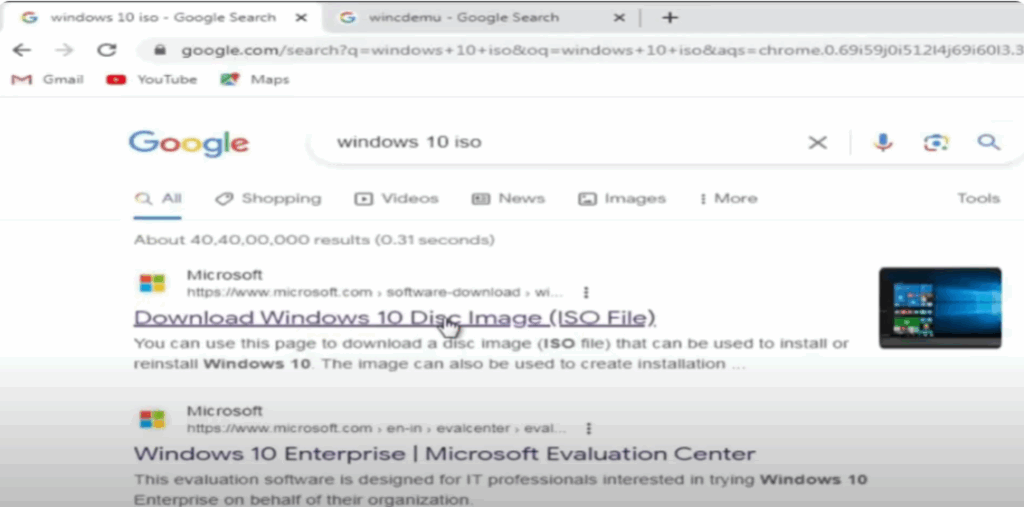
First, open Google Chrome and search for Windows 10 ISO. Click on the first link that belongs to Microsoft. It should say Download Windows 10 Disk Image (ISO File).
On this page, you won’t see the direct download link yet. So, here’s the trick:
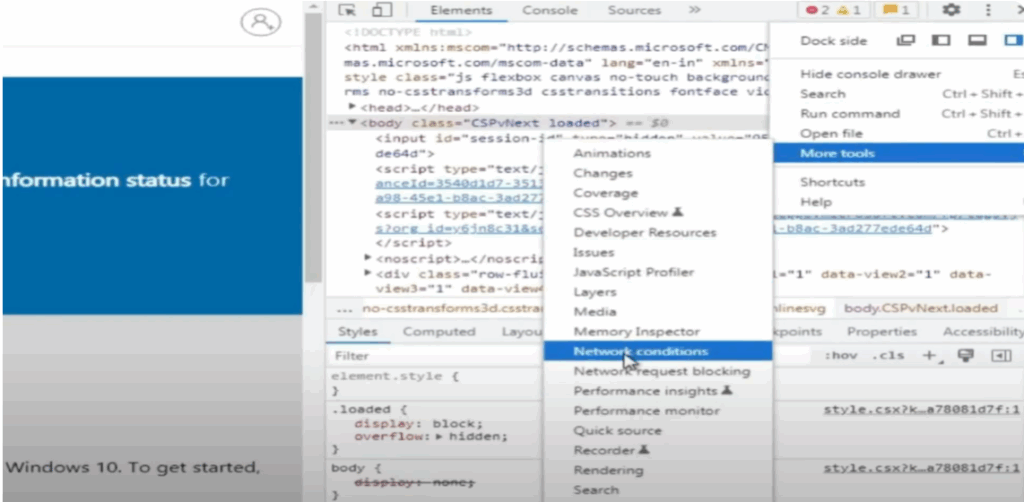
- Click on the three dots in the top right corner of Chrome.
- Go to More Tools and click Developer Tools.
- Again, click the three dots inside the Developer Tools panel.
- Then go to More Tools and click on Network Conditions.
- Now scroll down to the User Agent section. Uncheck Use Browser Default and from the drop-down below, select Chrome Chrome OS.
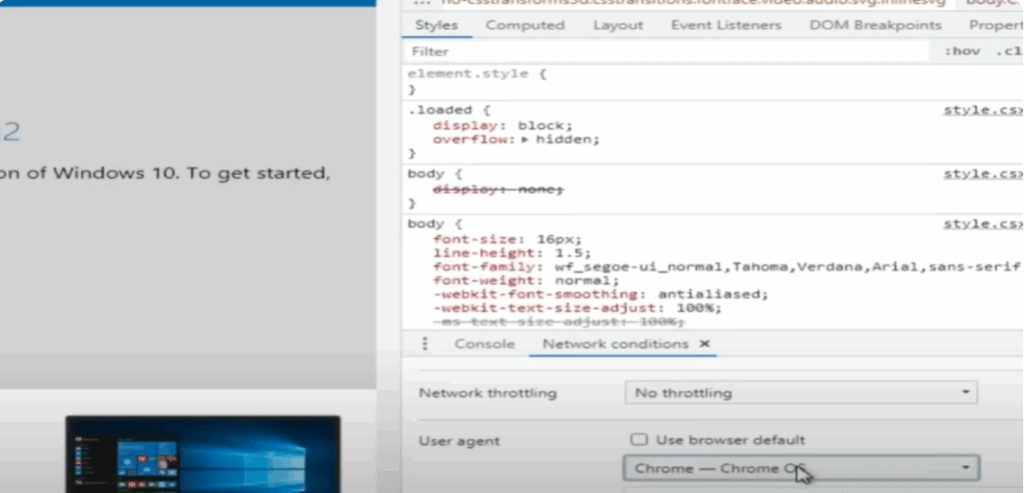
As soon as you do this, move your cursor back to the main window and refresh the page. Now you’ll see the direct option to download Windows 10.
- Select the edition Windows 10 Multi-Edition ISO and click confirm.
- Then choose your language and again click confirm.
- After that, choose either the 32-bit or 64-bit version depending on your system, and the download will start.
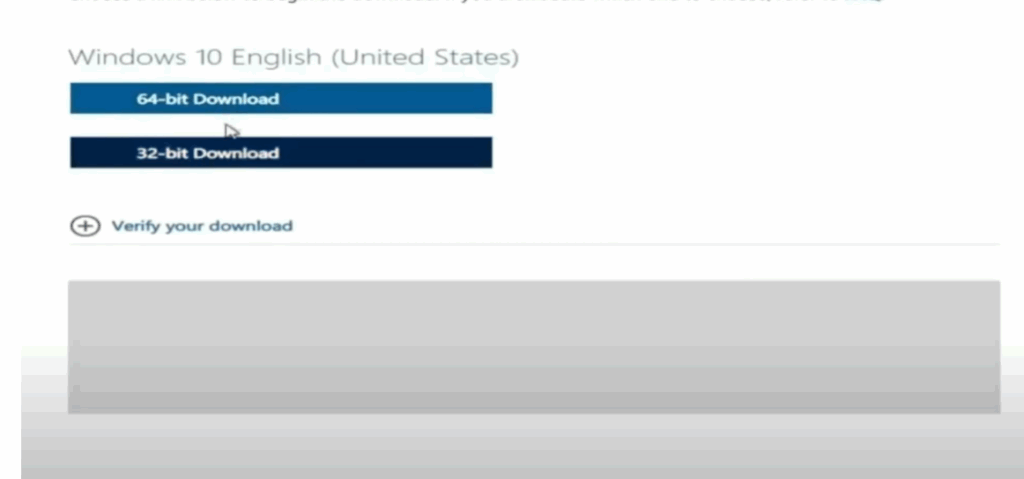
While that’s downloading, open a new tab and search for Wincdu, a free tool to mount ISO files. Click the first website you see and then click on the Download option.
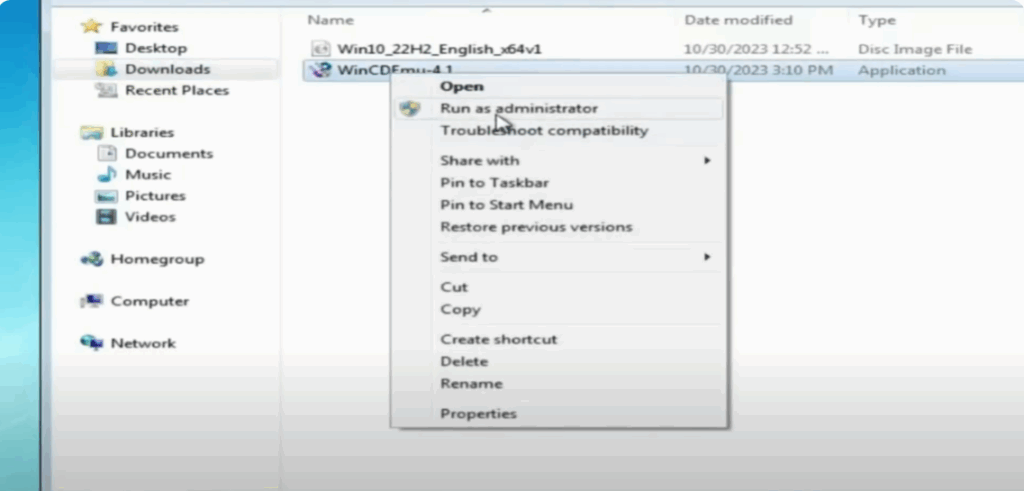
Once downloaded, open this in folder and right-click the installer and select Run as Administrator. Click okay.
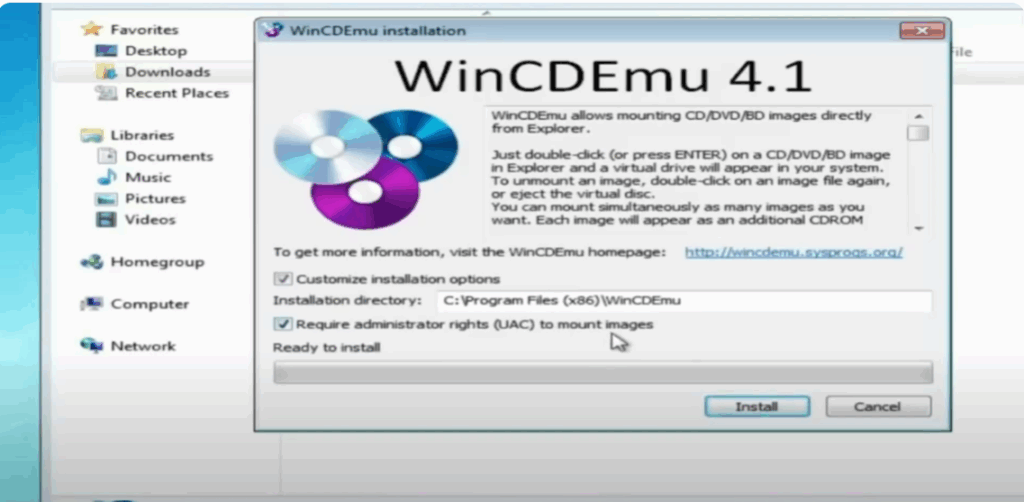
- Tick the box that says Customize installation options and require administrator rights.
- Then click Install and okay again.
Now right-click on Win 10 22H2 English and choose Select Drive Letter and Mount. Click on okay and again click on okay.
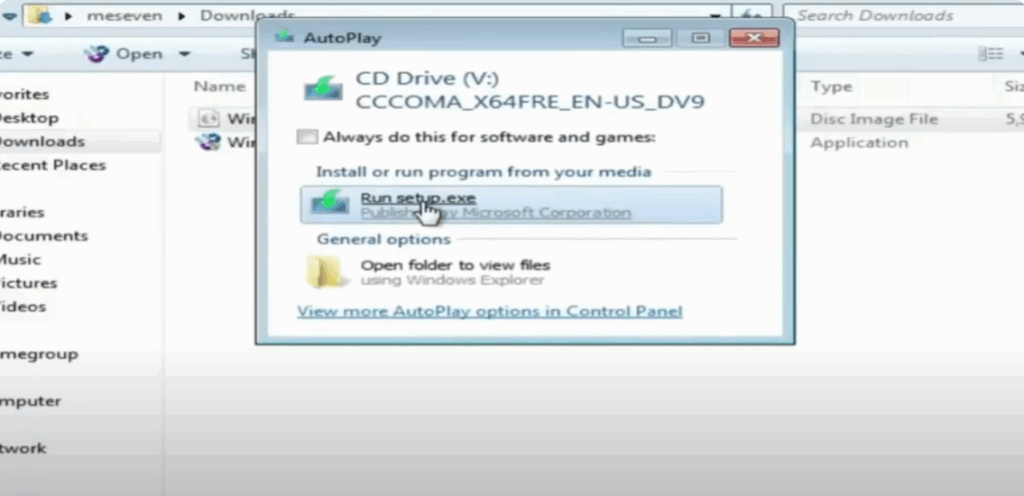
A new popup will open. Click Run setup.exe then click okay again. The Windows setup will begin preparing.
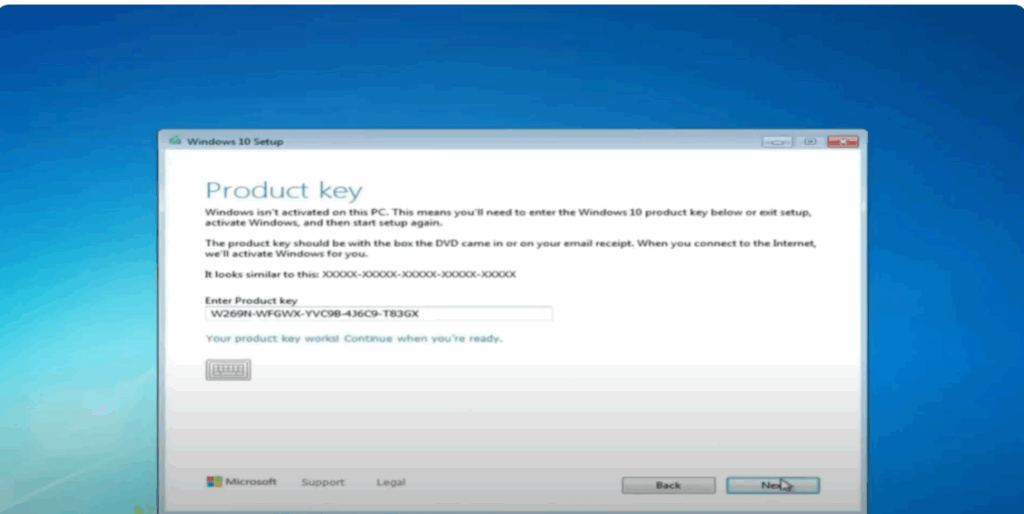
Once ready, you’ll see the Install Windows 10 screen. Tick the box and click on next. It will now ask for your Windows product key. Enter the valid key provided by Microsoft and click next.
Accept the license agreement and proceed. After a few moments, you’ll see a message saying Ready to Install. Just click Install.
Now sit back and relax while the upgrade process completes. After a few restarts, your system will boot into fresh Windows 10 fully upgraded.
That’s it! You’ve successfully upgraded from Windows 7 or 8.1 to Windows 10 without losing your data.
Thanks for watching. If this video helped you, don’t forget to like, share, and subscribe to Tech Gitter Official.






