
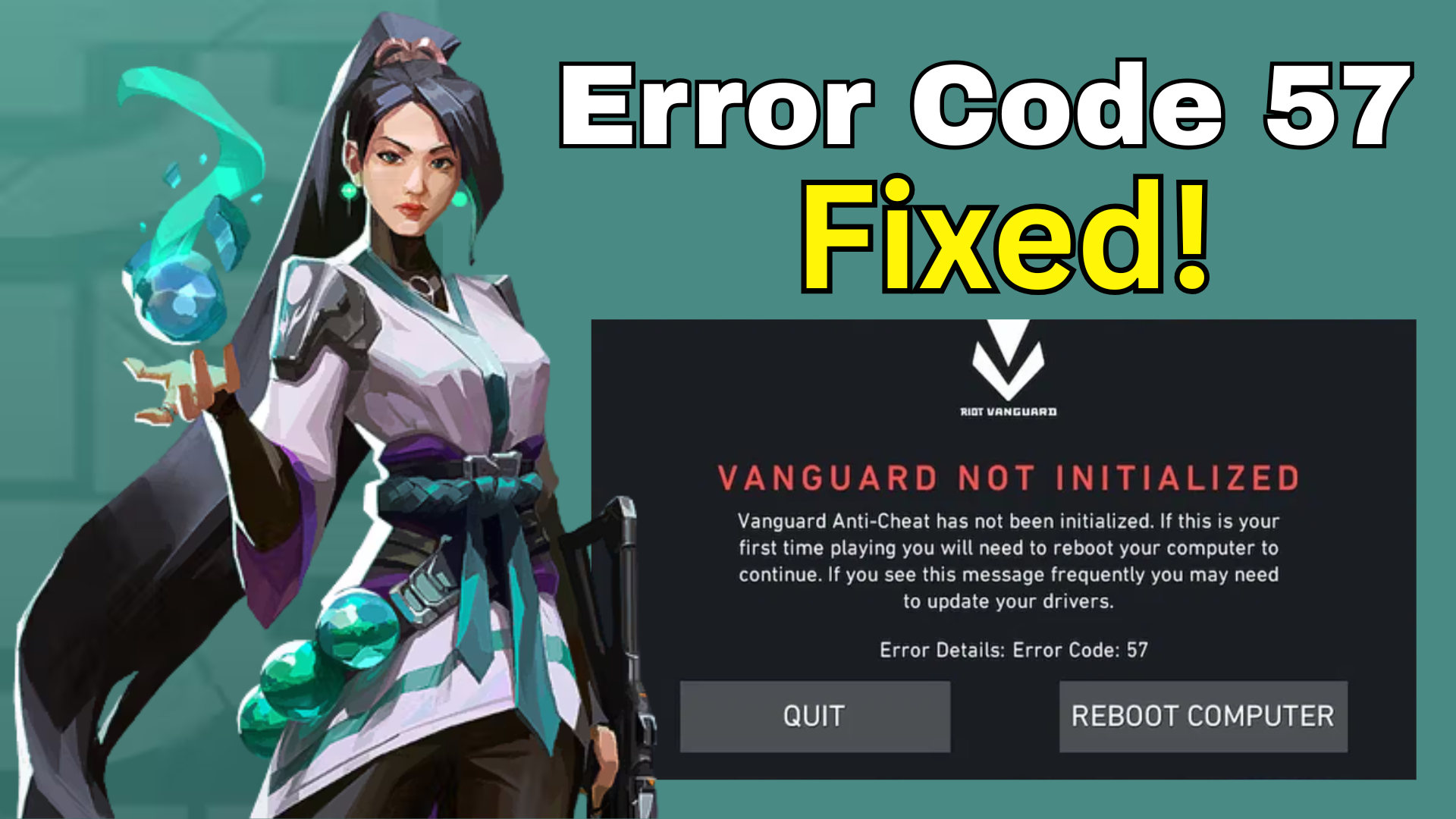
Valorant players may face the frustrating Error Code 57, which means the Vanguard anti-cheat software is not initialized properly, blocking them from playing the game. This usually happens due to driver issues or conflicts with other software. In this blog, you will learn simple and effective fixes to solve the Error Code 57 by reinstalling Vanguard, updating drivers, and adjusting system settings so you can enjoy uninterrupted gaming.
Step 1: Remove Existing Vanguard Files
First, we will delete the old or corrupted Vanguard system files.
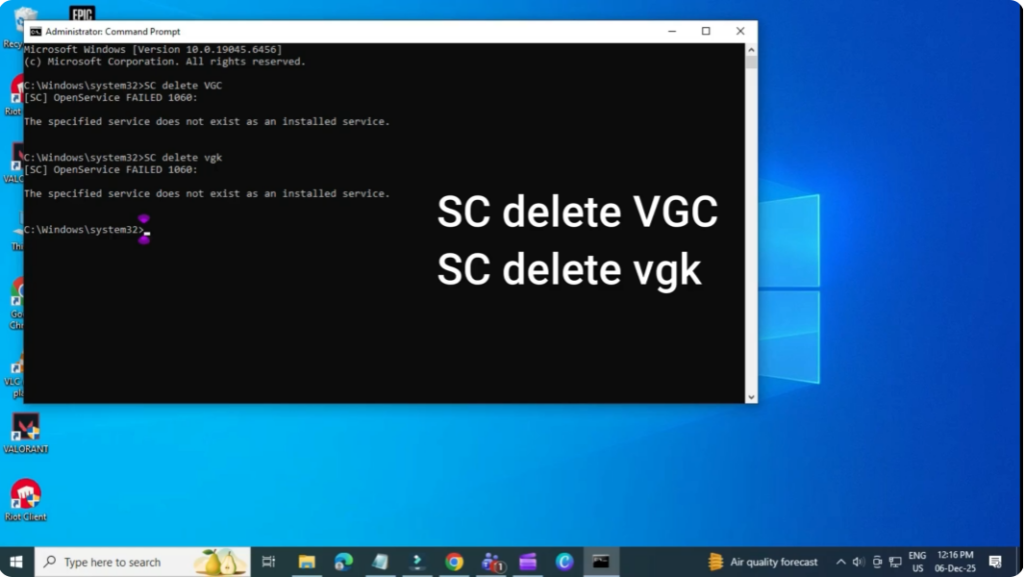
- Click on the Start menu and search for cmd.
- Right-click Command Prompt and select Run as administrator.
- Now type the following command and press Enter:
sc delete VGC
You should see a success message. - Next, type the second command:
sc delete VGK - Once done, close the Command Prompt window.
Step 2: Delete the Vanguard Folder
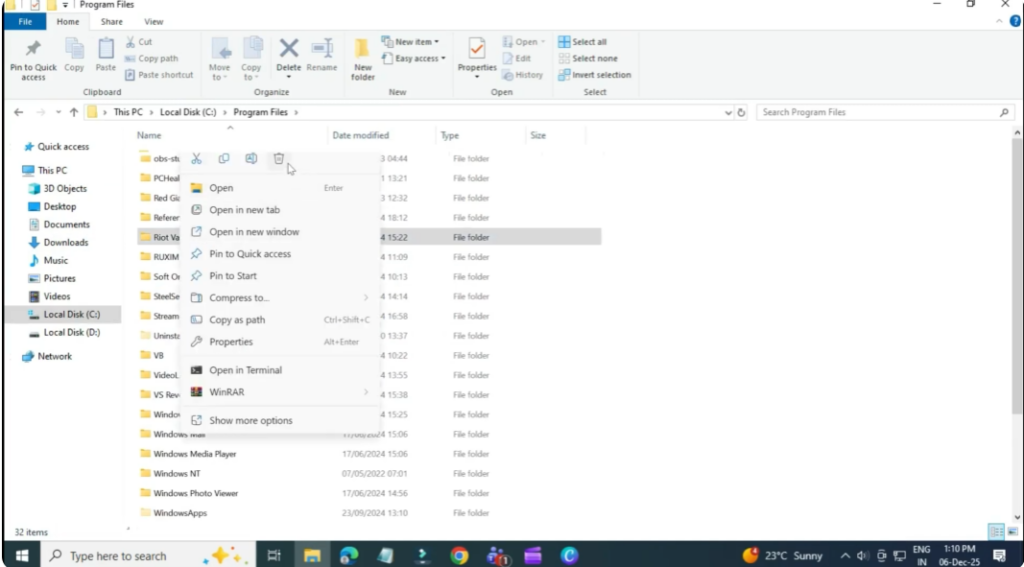
- Open File Explorer.
- Go to Local Disk (C:) → Program Files.
- Find the folder named Riot Vanguard.
- Right-click it and choose Delete.
If you receive a message saying the folder is in use, go to the taskbar, right-click Vanguard, and select Exit. Then try deleting it again.
Step 3: Reinstall Vanguard
- Open the Riot Client and log in.
- Instead of the Play button, you should see an option to Update Valorant.
- Click Update and Vanguard will reinstall automatically.
- After installation completes, restart your computer.

For most users, the error will be fixed at this step.
Step 4: Turn On the VGC Service (If Needed)
If you still get the same error, follow this additional fix:
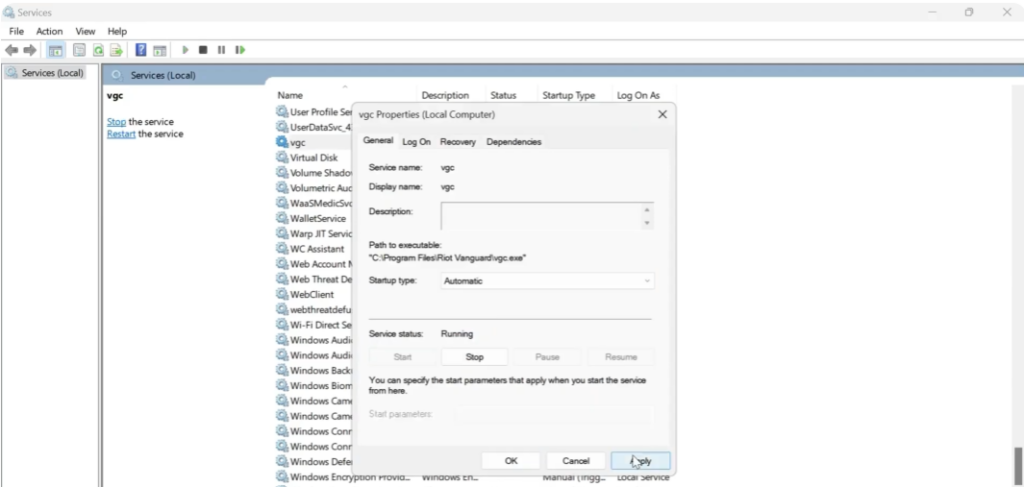
- Open the Start menu and search for Services.
- Scroll down and find a service named VGC.
- Double-click it and set:
- Startup type: Automatic
- Service status: Running
- If it’s not running, click Start.
- Press Apply and then OK.
Now try launching Valorant again — the error code 57 should be resolved.






