
When you see an error like “Graphics Driver Crashed” in Valorant, it generally indicates that the GPU driver (or related software) stopped responding or encountered a serious fault while the game was running.
✅ Step-by-Step Fixes to Try
Try each of these (in order) until your crashing issue is resolved:
1. Update (or Reinstall) Your Graphics Driver
- Download the latest driver for your GPU (NVIDIA, AMD, Intel) from the official website.
- Use a clean install option (many driver installers offer “clean install”) to remove previous driver remnants.
- Optionally, use a driver removal tool (like DDU) to fully uninstall the current driver before installing the updated one.
- After installing, reboot your PC.
2. Rollback to a Previous Driver
If the crash started happening after a driver update, the new driver might be unstable with your hardware:
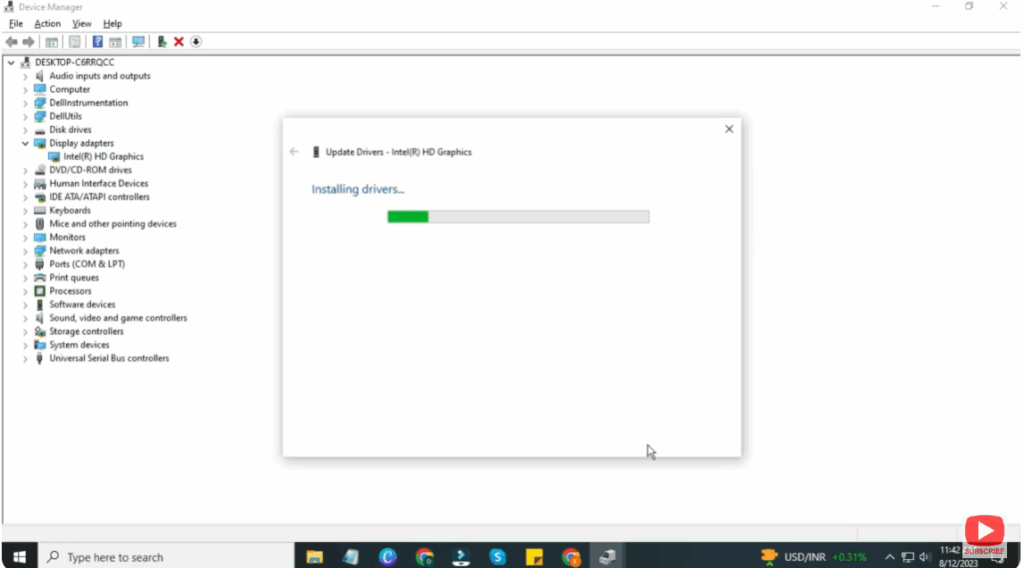
- Open Device Manager → Display Adapters → Update Driver.
- Click on Search automatically for drivers.
- Follow on screen instructions.
- Click Next.
3. Reset Graphics Settings / Restore Defaults
Custom GPU settings can cause instability:
- Open your GPU control panel (e.g. NVIDIA Control Panel, AMD Radeon Settings).
- Go to 3D / global settings and restore defaults.
- For NVIDIA: Right-click desktop → NVIDIA Control Panel → Manage 3D Settings → Restore Defaults.
- For AMD: Use Radeon settings → preferences → restore defaults.
4. Lower In-Game Graphics / Disable Overclocking
- In Valorant settings → Video / Graphics tab, reduce settings (e.g. texture quality, detail, shadows, effects).
- Turn off VSync, anti-aliasing, or any advanced effects.
- If you have GPU / CPU overclocking enabled (via software like MSI Afterburner), disable or reset overclocks. Overclock instability is a common crash source.
5. Update DirectX & Windows
- Run
dxdiag(press Windows key + R → typedxdiag) to check your DirectX version, make sure it’s up to date. - Make sure your Windows OS is updated with latest patches. Sometimes driver compatibility fixes are included in Windows updates.
6. Close Background Applications / Perform Clean Boot
- Press Ctrl + Shift + Esc to open Task Manager; close resource-consuming or unnecessary programs that might interfere.
- Some software (screen recorders, overlays, antivirus) may conflict with Valorant — disable or exit them.
- For advanced cleanup, perform a clean boot (disable non-Windows services at startup) and then launch Valorant.
7. Reinstall / Repair Vanguard / Valorant
- Riot Vanguard (the anti-cheat) sometimes causes conflicts. Uninstall Vanguard, then reinstall it.
- Use the Riot client’s repair option to fix possible corrupt game files.
- Reinstall Valorant fully if nothing else works.
8. Set GPU Preference to High Performance
On systems with both integrated graphics & discrete GPU:
- Open NVIDIA Control Panel → Manage 3D Settings → Global Settings → set High-performance NVIDIA processor as the default.
- In Program Settings, add Valorant executable and force it to use the high-performance GPU.
- Also set PhysX configuration to your GPU.
✅ Conclusion
The “Graphics Driver Crashed” error in Valorant can be really annoying — but in many cases, updating or rolling back GPU drivers, resetting settings, lowering graphics load, and ensuring no conflicting software is running will solve it.






