

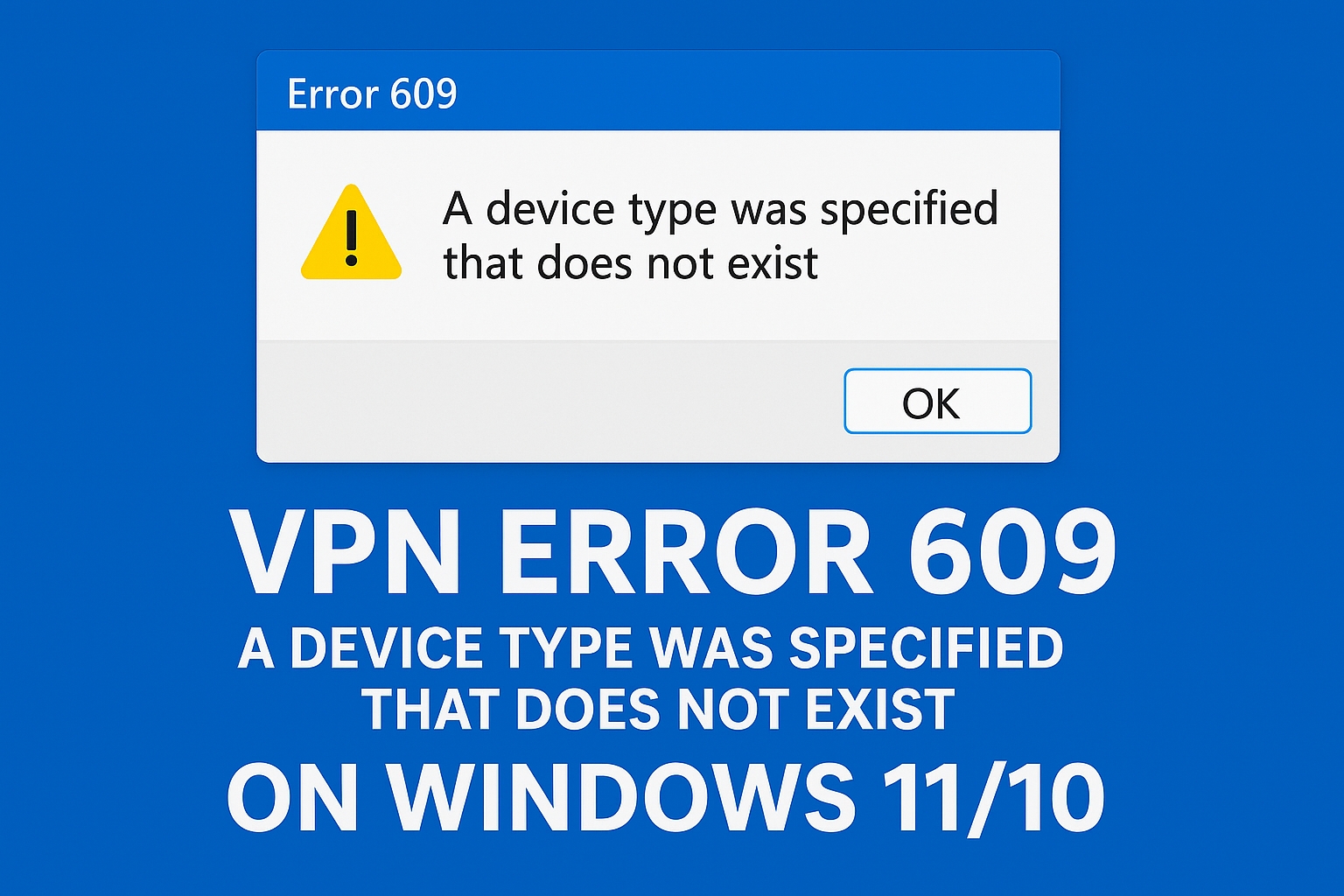
If you’re seeing VPN Error 609 with the message “A device type was specified that does not exist” on your Windows 11 or 10 PC, it means your system can’t detect the virtual device needed to connect to the VPN. This often happens when the VPN’s network adapter (called a Miniport) is missing, corrupted, or not properly configured. The good news is that it’s easy to fix with a few simple steps like checking your network adapters, restarting the Remote Access Connection Manager service, or reinstalling VPN drivers. In this blog, you’ll learn quick and effective methods to fix VPN Error 609 and restore your secure connection without hassles.
🧰 Step-by-Step Fix from the Video
The video’s method involves re-adding or recreating the device and ensuring the right network components are enabled. These are the steps shown:
- Open Network Connections
- Press Win + R, type
ncpa.cpland press Enter, or navigate to Network Connections / Network and Sharing Center → Change adapter settings. - This shows all your network adapters, including VPN adapters.
- Press Win + R, type
- Add a Legacy / New Device
- In the Network Connections window, press the Alt key (to bring up the menu bar) or go to File → New Incoming Connection / New Device or Add a Device option (depending on version).
- Use the “Add legacy hardware” wizard (if available) to install network adapters / protocols manually.
- Install the VPN / Dial-up Device / Protocol
- In the legacy hardware wizard, choose “Install the hardware that I manually select from a list (Advanced)”.
- From the list, select Network adapters or Network / Protocol devices.
- Then pick the vendor “Microsoft” (or appropriate) and choose “WAN Miniport (PPTP)”, “WAN Miniport (L2TP)”, “WAN Miniport (IKEv2)”, or “WAN Miniport (SSTP)” — whichever device / protocol your VPN uses.
- Install that adapter so Windows recognizes the VPN device.
- Reboot the System
- After the installation of the new network adapter / protocol, restart your PC.
- This ensures the changes are fully loaded.
- Recreate / Reconfigure the VPN Connection
- After reboot, go back to your VPN setup (Settings → Network & Internet → VPN in Windows).
- Create a new VPN connection or edit the existing one, selecting the correct VPN type (PPTP, L2TP, IKEv2, etc.).
- Connect again and Error 609 should be resolved now that Windows recognizes the device.






