
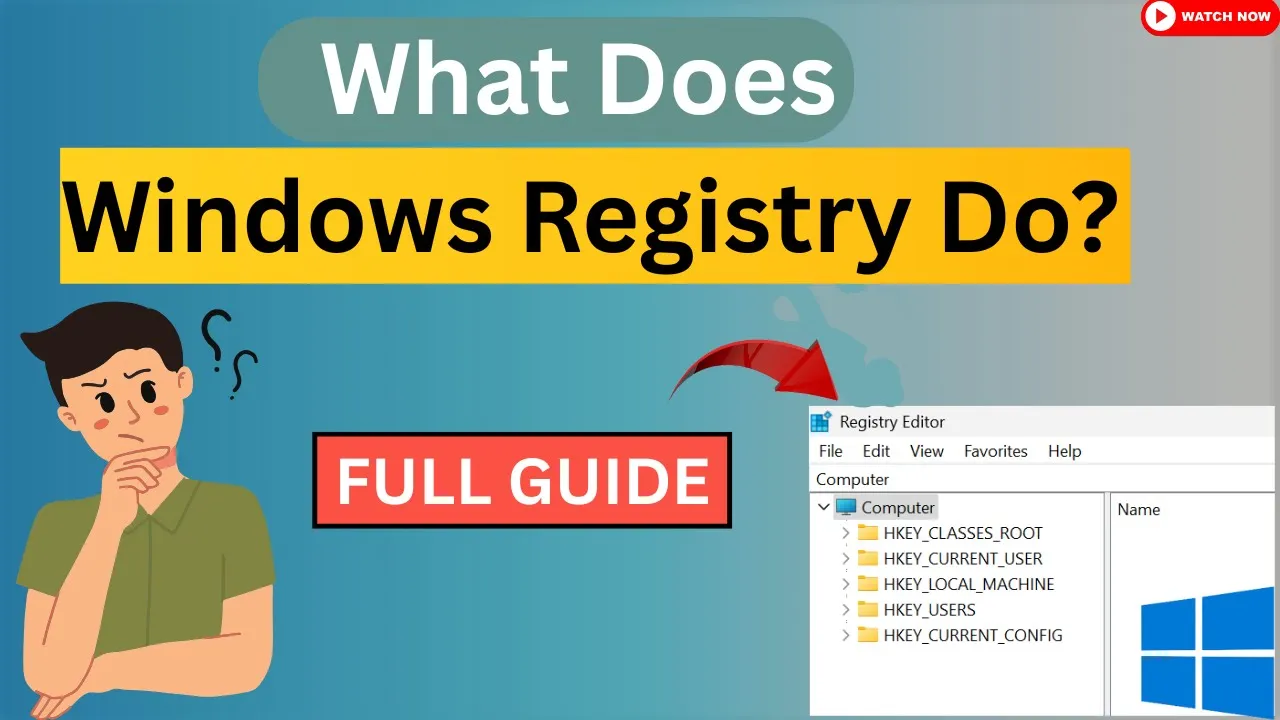
Hello friends and welcome back to my channel. In today’s video, we’re diving into an interesting topic: What does Windows registry do? So, let’s get started. 👈
What is the Windows Registry?
You’ll learn how to open the registry and see exactly how it works.
Step 1: Open System Properties
First, open your PC’s properties.
- Click the Start button and type This PC.
- Right click on This PC and select Properties.
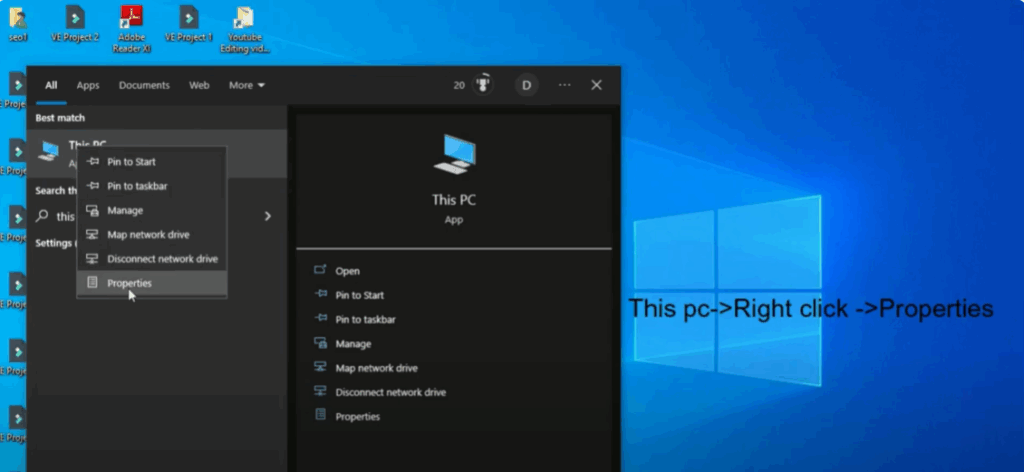
Here, you’ll see your processor information, name of processor, and other details like RAM. Take note of this information.
Step 2: Open Registry Editor
- Go to your desktop and press Windows Key + R to open the Run dialog box.
- In the box, type regedit and then click OK.
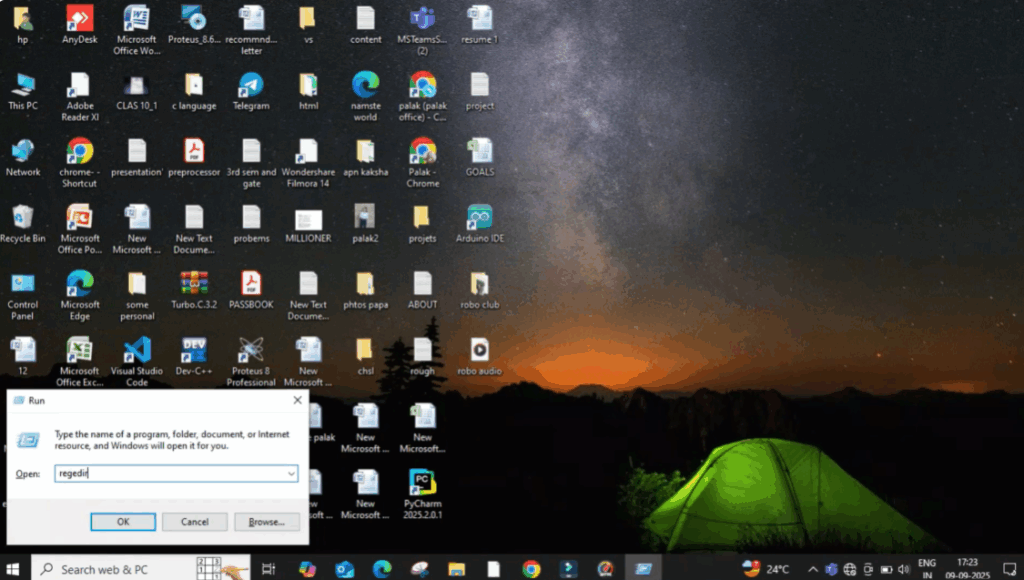
This opens the Registry Editor.
Step 3: Explore the Registry Editor
In the Registry Editor, you can do different customizations for different segments. On the left-hand side, you’ll see a list of main folders.
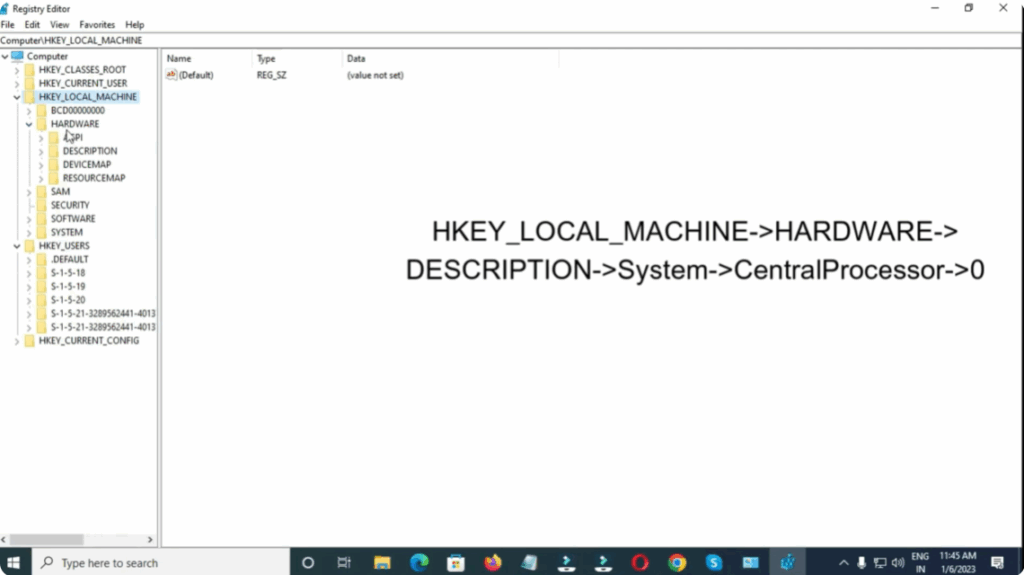
- Click on HKEY_LOCAL_MACHINE.
- Inside it, you’ll see several subfolders.
- Expand the folder HARDWARE.
- Now, look for another folder called DESCRIPTION and click on it.
- Inside DESCRIPTION, find and click on SYSTEM.
- Then, open the folder CentralProcessor.
- Inside, you may find folders named 0. Click on 0.
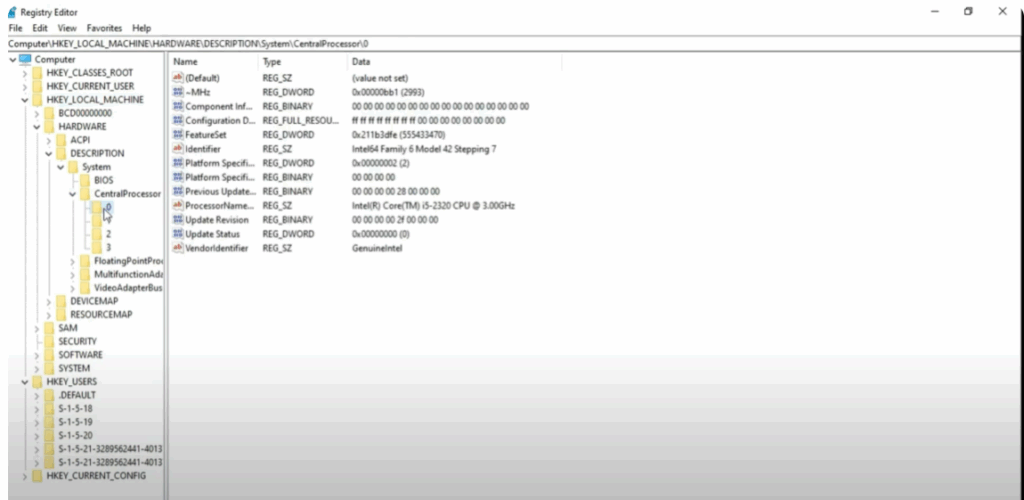
On the right-hand side, you’ll see a list of entries. Look for the one that shows your processor name.
Step 4: Compare Processor Name
After carefully checking the processor name in the registry, go back to This PC → Properties and check the processor information there. Compare both names.
Step 5: Change Processor Name (Visual Only)
- Double-click on the Processor Name entry.
- Change i5 to i8.
- Go back to your desktop, right click, and select Refresh.
- Now open This PC → Properties again.
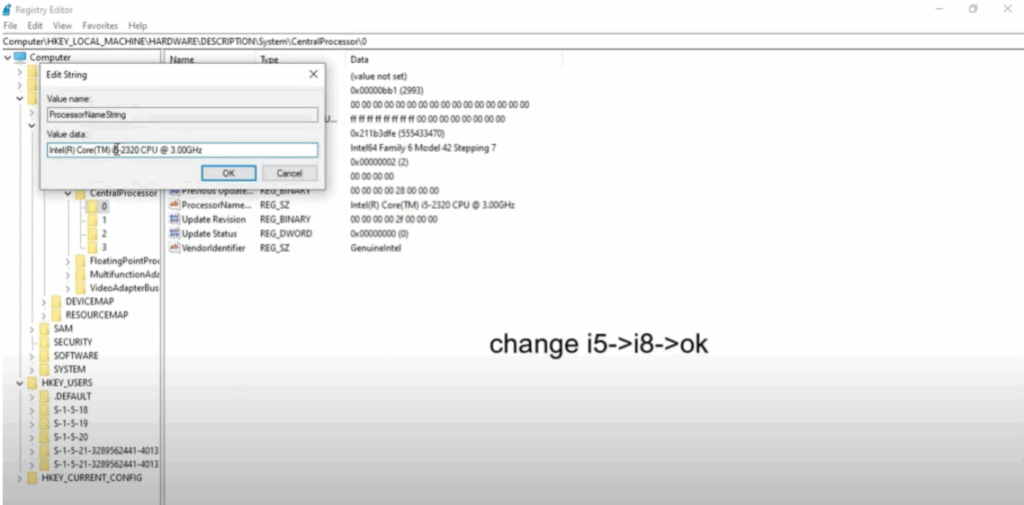
You’ll see the processor name has changed from i5 to i8.
⚠️ Note: This change is only visual. It doesn’t actually upgrade your processor. It just changes the display name, but it shows how powerful and customizable the Windows Registry can be.
In the same way, you can also change how your RAM, system type, and other details are displayed.
But always be careful while editing the registry.
Final Words
If you found this video helpful, don’t forget to like, subscribe, and hit the bell icon for more tech tutorials. Thanks for watching and I’ll see you in the next!






