
Welcome back to Tech Gitter official.
In today’s video, we’re going to explore what HyperV is in Windows 10 and how to enable and use it to create a virtual machine.
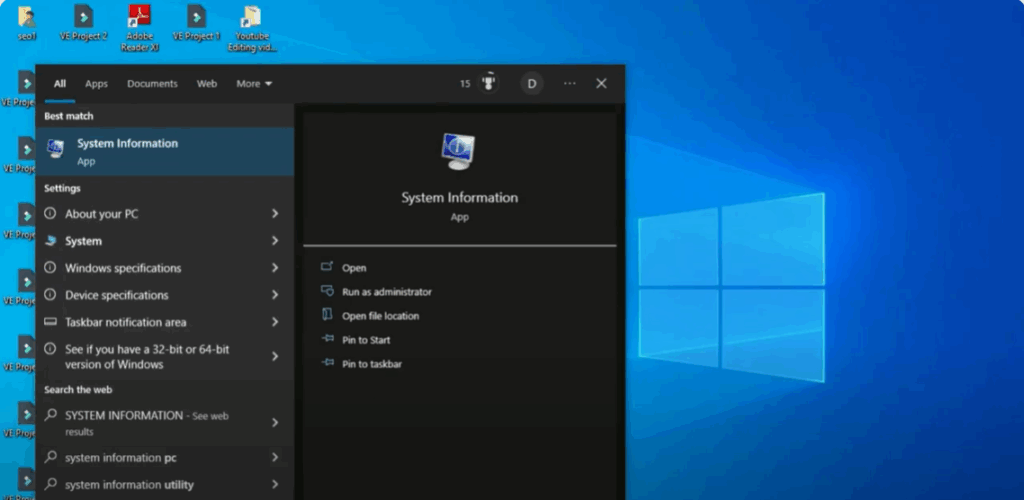
First, go to the search bar and type system information. Then, open it. Here you can check your operating system, system model, and other hardware details to ensure HyperV is supported.
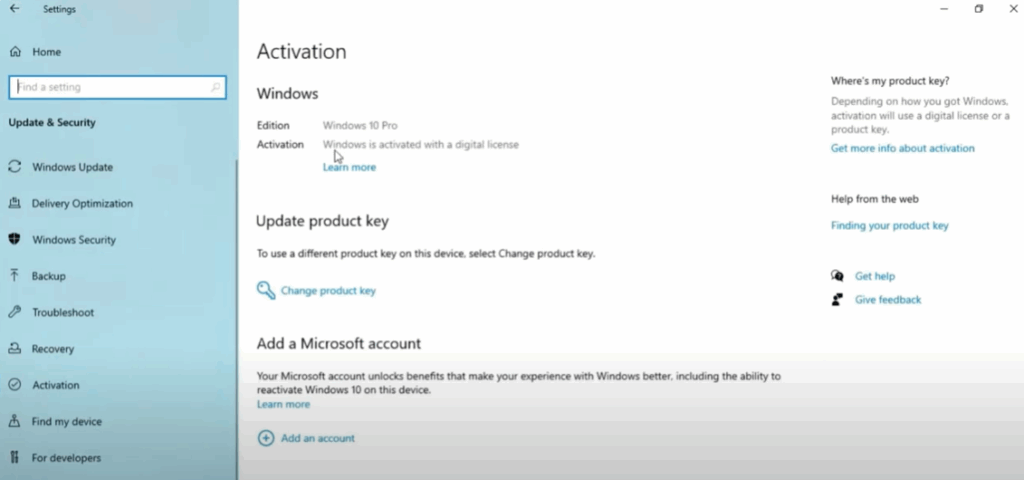
Next, again go to the search bar, type activation settings and click on it. This shows your Windows edition and whether your system is activated. Once checked, you can close it.
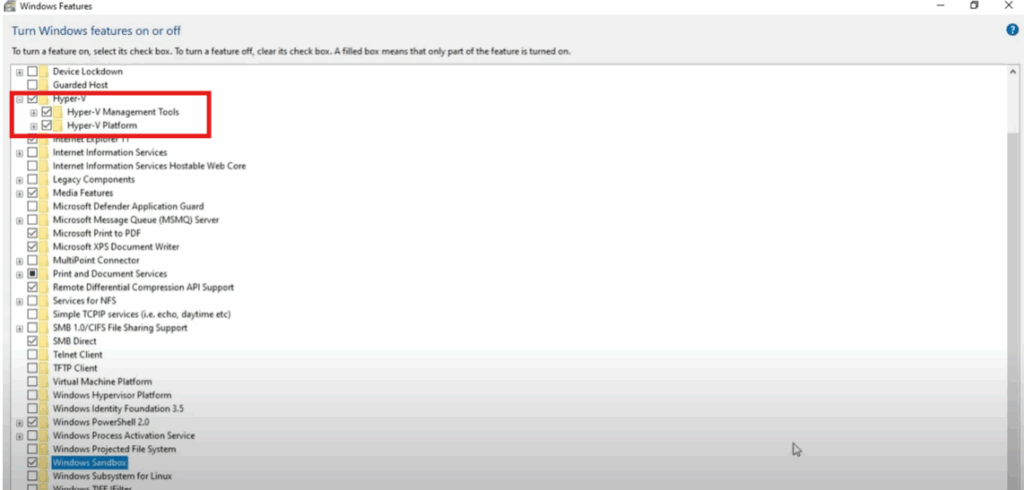
Now, open the search bar and type Turn Windows features on or off and click on it. In the list that appears, find HyperV and tick the boxes under it. Also, tick the box for Windows Sandbox if available. Click OK and then restart your PC.
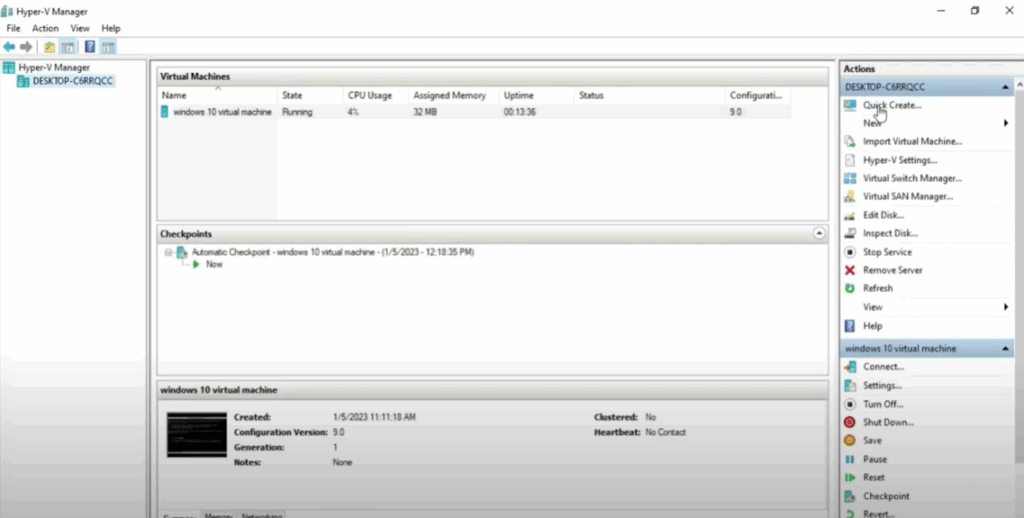
Once your system restarts, open the search bar again and type HyperV to launch it. Inside HyperV Manager, click on desktop 6 or your computer name. Then click on quick create.
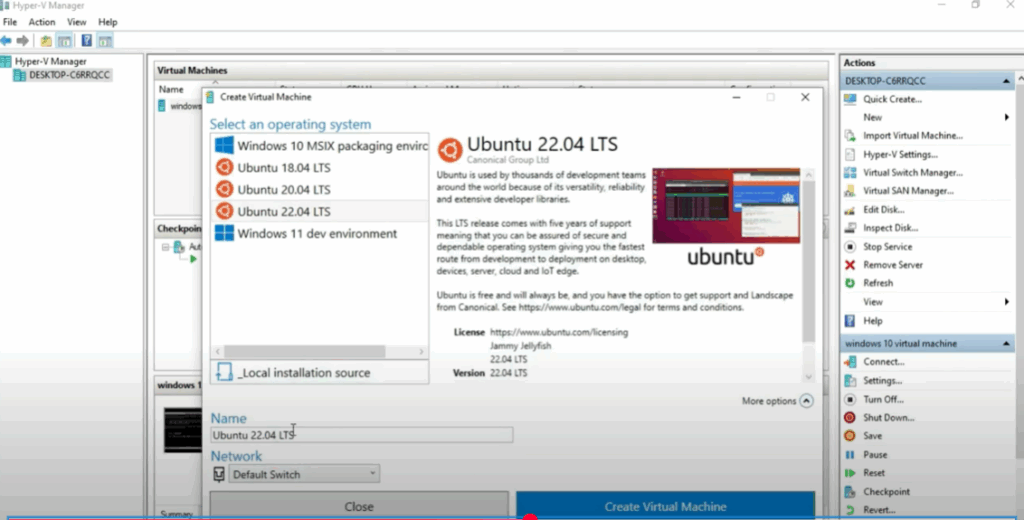
Now select Ubuntu 22.04 LTS from the list. Click on more options to configure network settings. You can choose your preferred network. Then click create virtual machine.
It may take a few minutes to download and extract the files. Once the process is complete, click the X close button. Now you’ll see Ubuntu listed on the left panel.
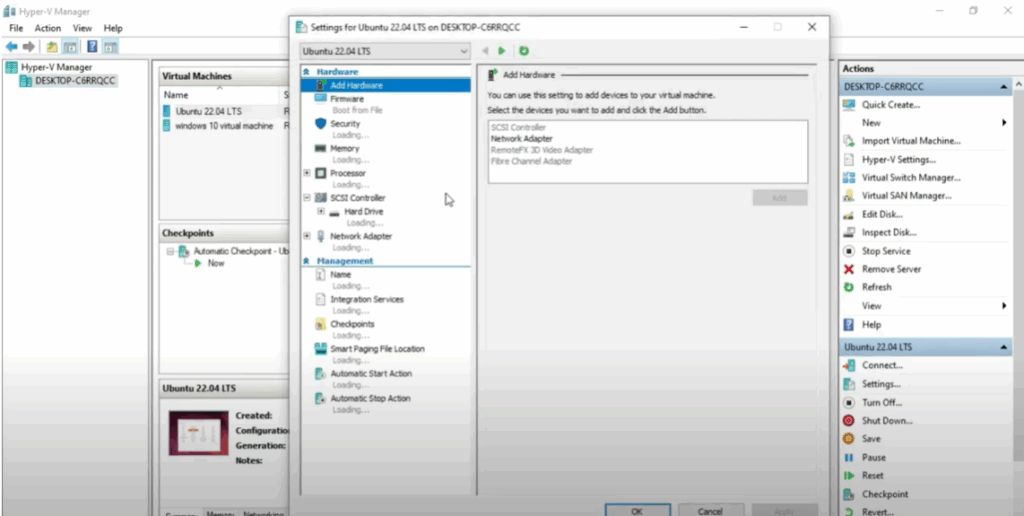
Right click on Ubuntu and choose start. Then click settings where you can view and adjust the memory and processor settings. You can cancel the window after reviewing.
Next, click on the Ubuntu virtual machine image and it will start. Select English, click continue, choose your keyboard layout and continue. Now select your location, then click continue again. Fill in your name, computer name, username, and password. Then click continue one last time.
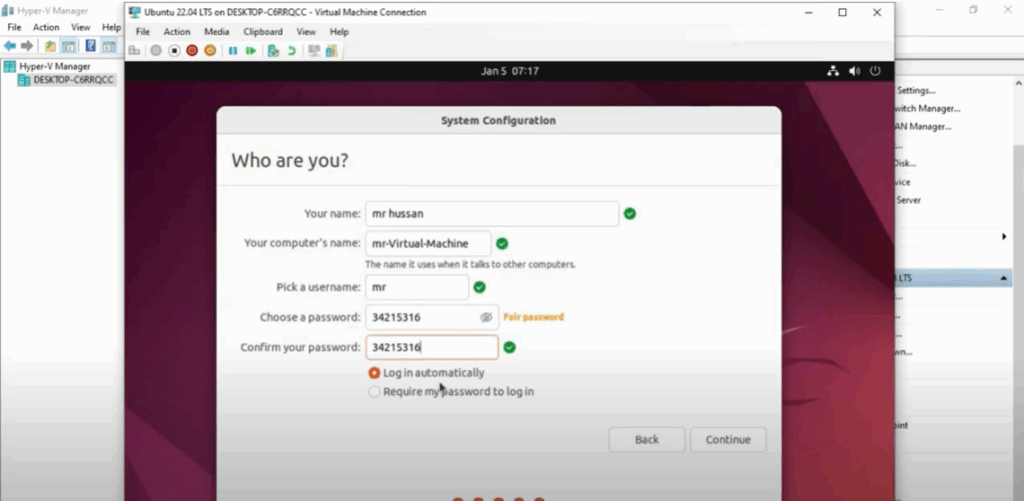
The installation will take some time to load. Once done, you can close it.
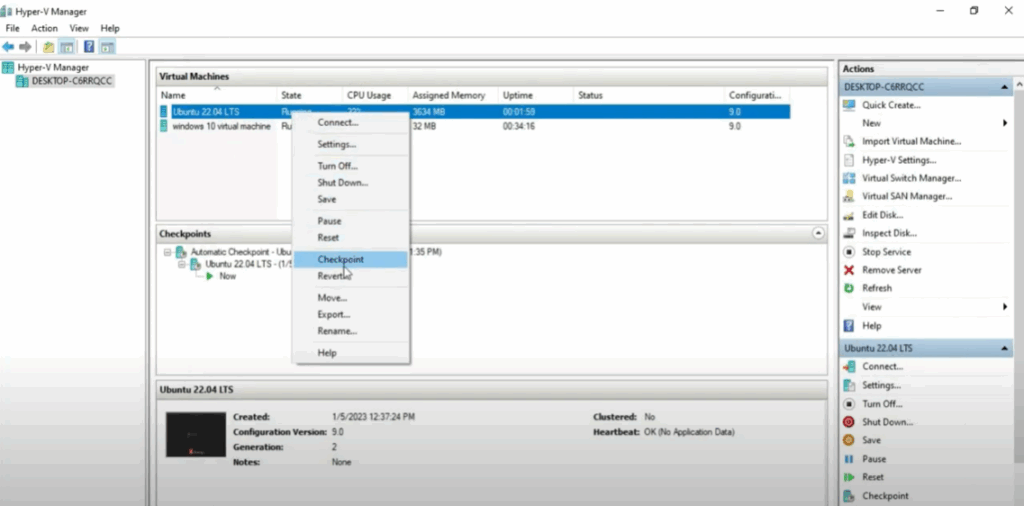
Right click on the Ubuntu machine and explore more options like turn off, pause, or checkpoint.
And that’s it. Now you’ve successfully enabled HyperV and installed your first virtual machine using Ubuntu in Windows 10.
Thanks for reading. Make sure to like, subscribe, and hit the bell icon for more tech tutorials.






