
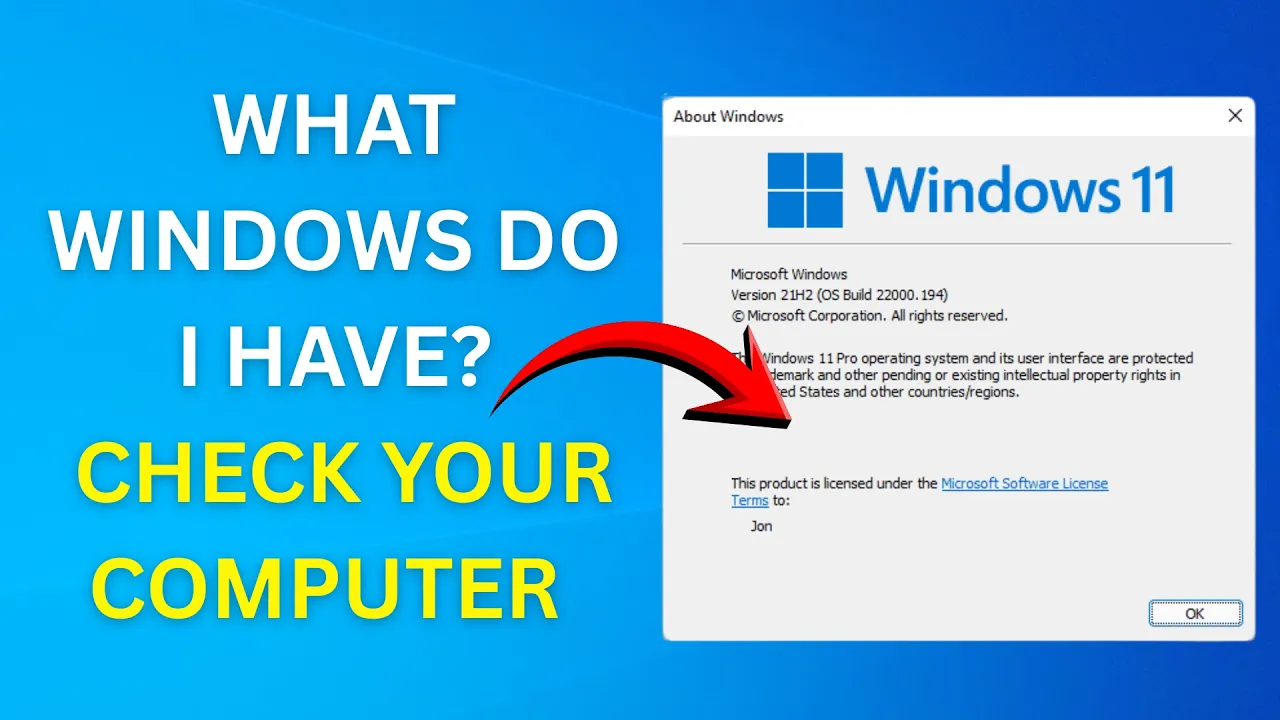
Wondering what version of Windows your computer is running? Knowing your exact Windows edition, version, and build number helps with troubleshooting, software compatibility, and updates. In this blog, you’ll learn the easiest ways to check your Windows version using simple commands like “winver,” Settings menu, or System Information, all explained step-by-step for beginners.
✅ Multiple Ways to Check Windows Version & Edition
You can check your Windows version using built-in tools. Below are different methods — choose what works best for you.
Method 1: Use Settings → System → About
- Press Win + I to open Settings.
- Go to System (on left-sidebar).
- Scroll down and click About.
- Under “Windows specifications” you’ll see:
- Edition (e.g. Windows 11 Pro, Windows 10 Home)
- Version (e.g. 21H2, 22H2)
- OS build (e.g. 22000.966)
This gives you full detail: which Windows version, edition, and build you’re using — all in one place.
Method 2: Use Winver (Run Command)
- Press Win + R to open the Run dialog.
- Type
winver→ press Enter. - A small window appears — showing:
- Windows version
- Edition
- Build number
– And whether it’s activated (in some cases)
This is the fastest way — useful if you just need a quick check.
Method 3: Use System Information (msinfo32)
- Press Win + R → type
msinfo32→ press Enter. - In the System Information window, look for OS Name and Version entries.
- You’ll see Windows edition, version, build, and also detailed hardware/OS info (useful for diagnostics or troubleshooting).
Method 4: Use Command Prompt / PowerShell
- Open Command Prompt or PowerShell (normal or admin).
- Type:
systeminfo - Press Enter.
- Wait — it shows a detailed list. Look for OS Name and OS Version / OS Build lines.
Good for scripting, remote checks, or when working on headless / server machines.






