The white screen problem on Windows laptops can be really frustrating—your screen suddenly turns completely white, and you can’t see or do anything. This issue often happens because of display driver errors, hardware glitches, or system bugs, and many users panic when it shows up. The good news is, it’s usually fixable with some simple steps. In this beginner-friendly blog, we’ll explain in easy language what causes the white screen problem and how to fix it step by step, so you can get your laptop back to normal quickly.
First, you need to perform a hard shutdown of your system. On your laptop or computer, locate the power button and press it down for about 15 to 20 seconds until the system completely turns off. After that, turn it back on. If the issue is minor, the white screen should disappear and your system will start normally. This simple reset fixes the problem in many cases. But if you still see the white screen, then follow the next steps.
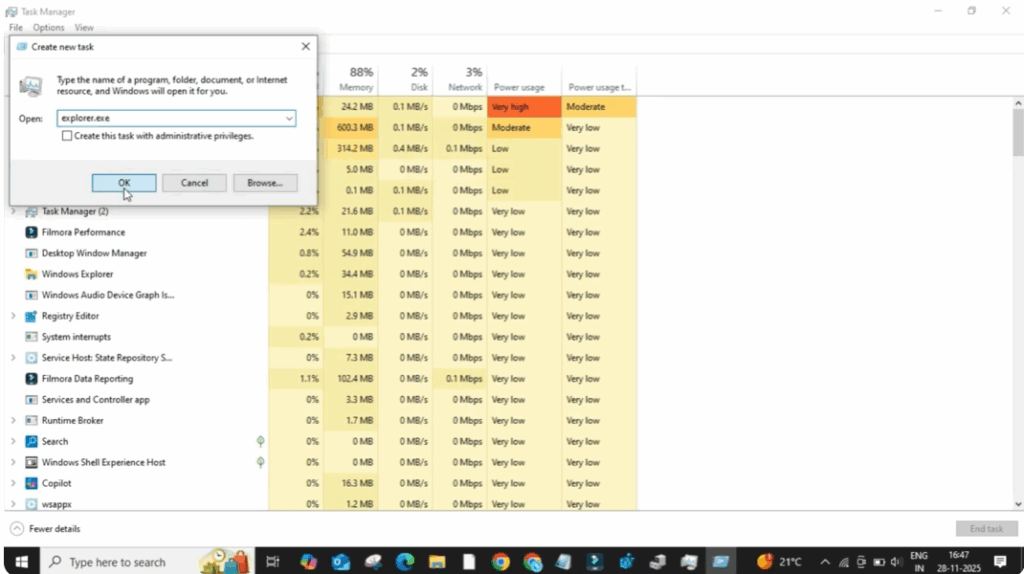
Now press Ctrl + Alt + Delete together. This will bring up a blue screen with several options. From here, click on task manager. Once task manager opens, go to file at the top and select run new task. In the box, type explorer.exe and press enter. This will refresh the Windows Explorer process and reload the interface.
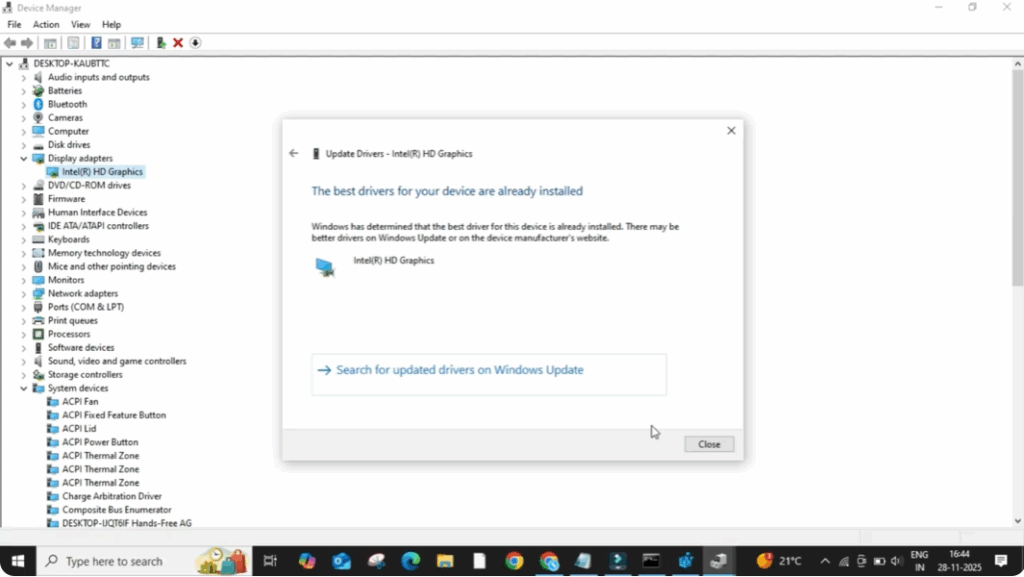
If the white screen issue continues, move to the next method. Press win plus X and type Devon.msc. Then press enter. This will open device manager. Now find the display adapters section and click on it. You will see Intel HD graphics or your systems graphic driver. Right click on it and choose update driver. After that, select search automatically for drivers. If Windows shows that the best drivers are already installed, close it. Then click on search for updated drivers on Windows Update. If Windows finds any pending graphic updates, download and install them.
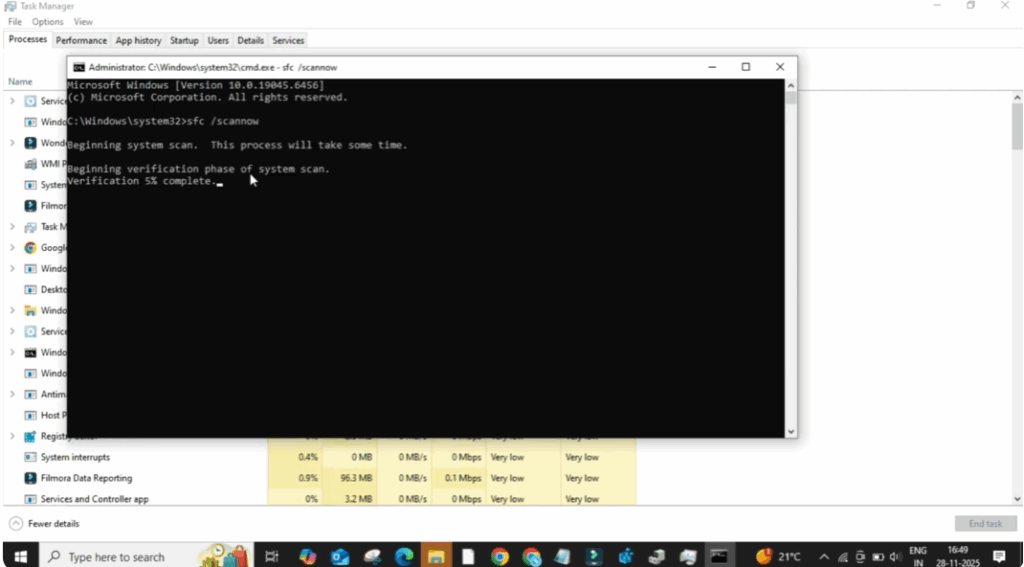
If none of the above methods work, again open task manager, click on file and select run new task. This time type cmd and press enter. In the command prompt window, type sfc/scan now and press enter. This command scans system files and fixes any corrupted components that may be causing the widecreen issue. Once the scan completes, restart your PC.