
Welcome back to my channel, Tech Gitter Official. In today’s video, we will learn how to fix the wireless adapter missing issue in Windows 10 and get your Wi-Fi back.
Method One: Reenable the Adapter
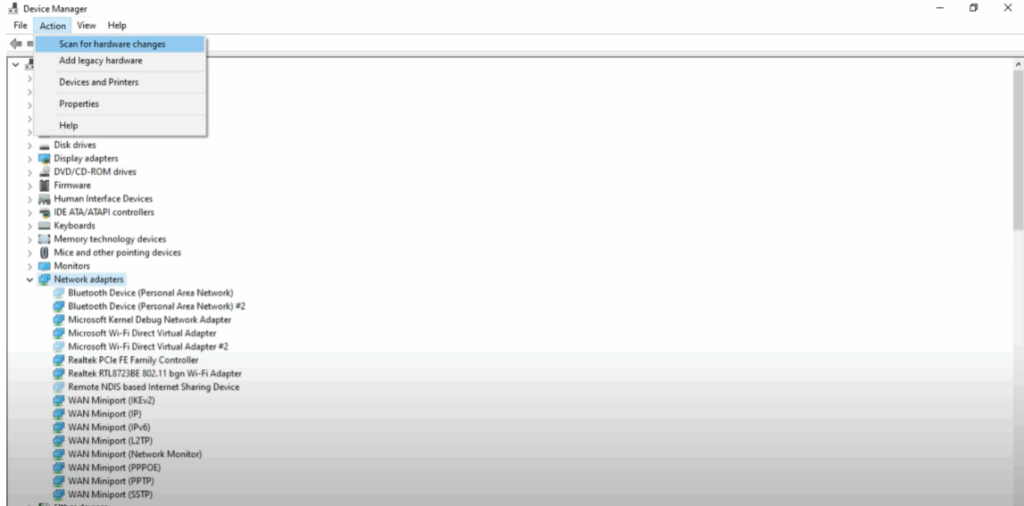
First, click on the search bar and type device manager, then click on it. Now, look for network adapters and click to expand it. If your wireless adapter is not listed, go to the top menu, click on view, and then click on action. Select scan for hardware changes. After that, restart your PC. If the issue isn’t fixed, move to the next method.
Method Two: Run the Troubleshooter
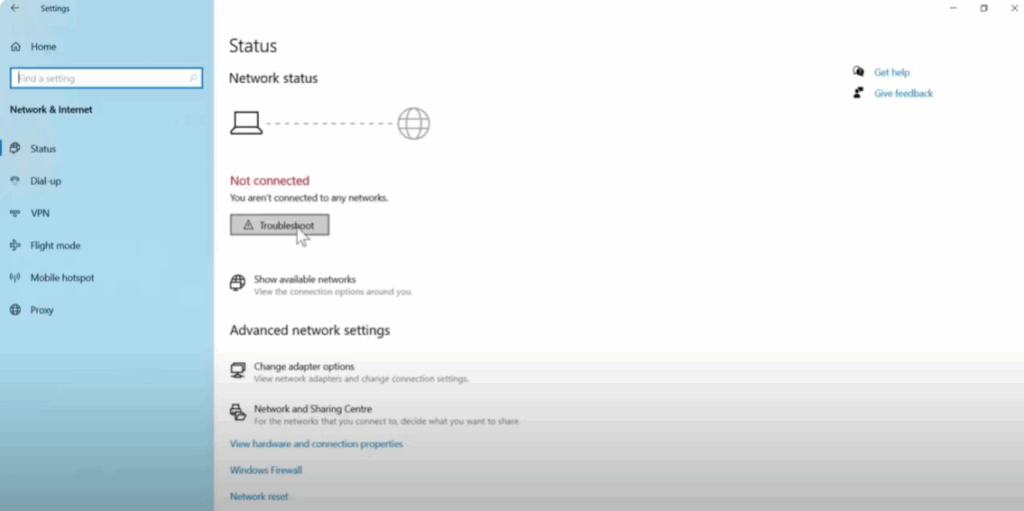
Click on the Windows icon, then go to the settings icon. Click on network and internet. You will see the troubleshooter option. Click on it. If any issues are found, the troubleshooter will suggest fixes. Follow those steps. Once done, close the troubleshooter. If it doesn’t solve the problem, try the next method.
Method Three: Enable Network Services
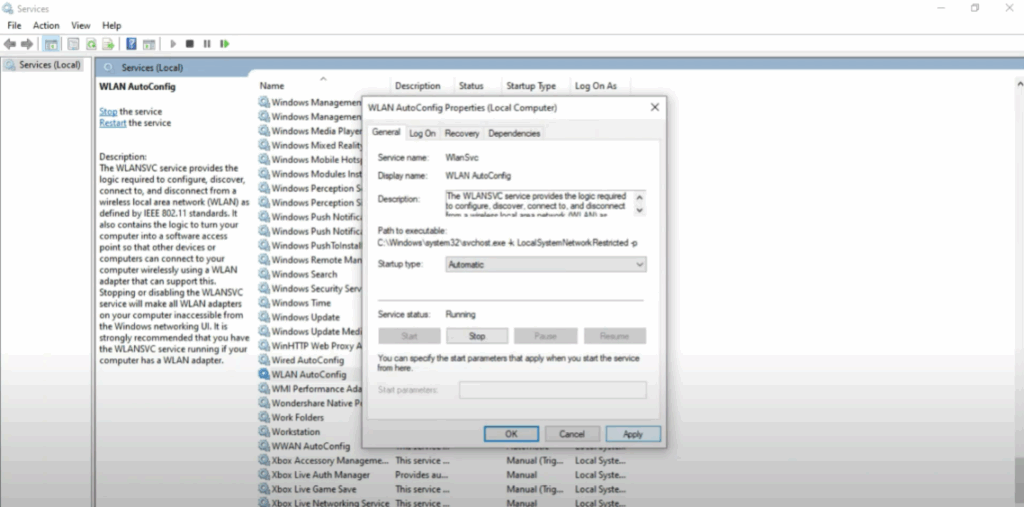
Click on the search bar, type services, and open it. Scroll down and find WWN autoconfig. Right click on it and select properties. Change the startup type from manual to automatic. Then click apply and okay. Now find WLAN autoconfig. Right click on it. Go to properties and again set the startup type to automatic. Click apply and okay. If this doesn’t work, continue with the next method.
Method Four: Reset Network Sockets
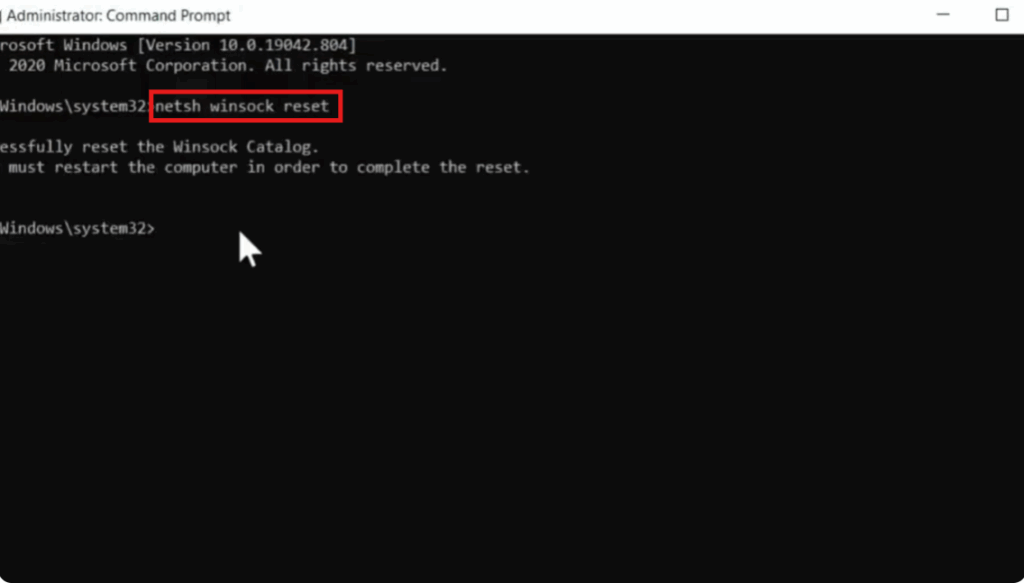
Open the search bar and type cmd. Right click on command prompt and select run as administrator. In the command window, type nchwin sock reset. Press enter. Then restart your PC. Still not working? Move to the next fix.
Method Five: Network Reset
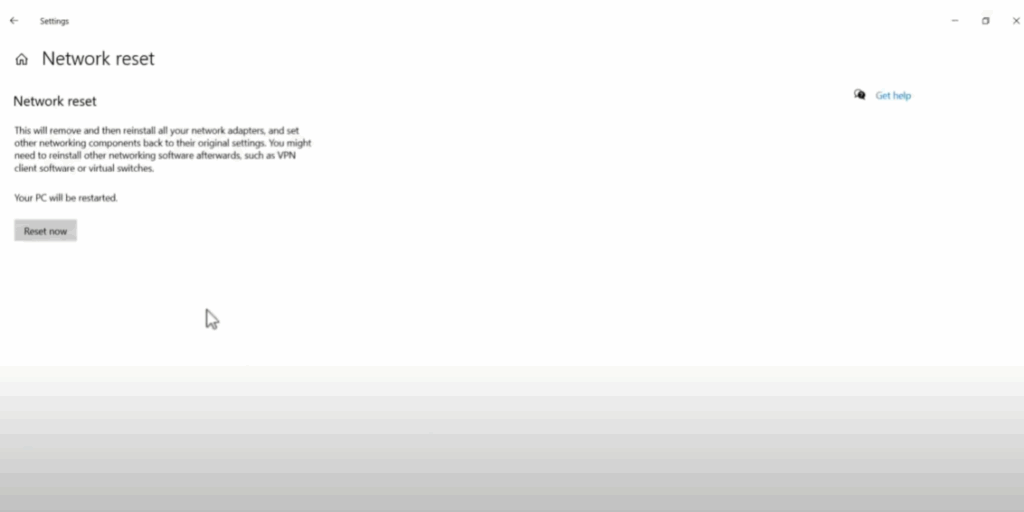
Click on the Windows icon, then go to settings. Click on network and internet. Then scroll down and select network reset. Click on the restart now button and confirm by clicking okay. This will reset your network settings completely. Check if your wireless adapter is back.
Method Six: System Restore
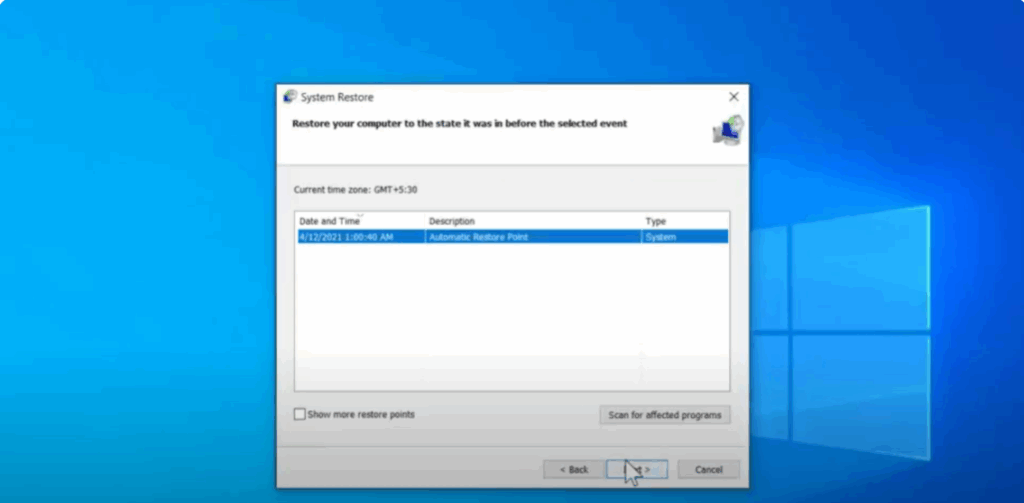
Press Windows + R. Type rree.exe and click okay. Click next. Then choose the most recent automatic restore point. Tick the check box, click next, and then restart your PC. This will restore your system to a time when the Wi-Fi adapter was working correctly.
These methods generally fix the missing wireless adapter issue on Windows 10.
Thanks for watching. If this video helped you, don’t forget to like, share, and subscribe to Tech Gitter Official.






