
If your Windows 10 or 11 computer freezes randomly, you’re not alone—this is a common issue that can make work or play frustrating. Sometimes your PC may suddenly stop responding, and pressing keys or moving the mouse doesn’t do anything. These random freezes can happen for many reasons including software errors, outdated drivers, or not enough free memory, but the good news is there are simple fixes you can try at home to solve the problem and keep your computer running smoothly.
Step 1: Check for Windows Updates
First, make sure your Windows is up to date.
- Open Computer Settings
- Go to Update & Security
- Click on Windows Update and check for updates
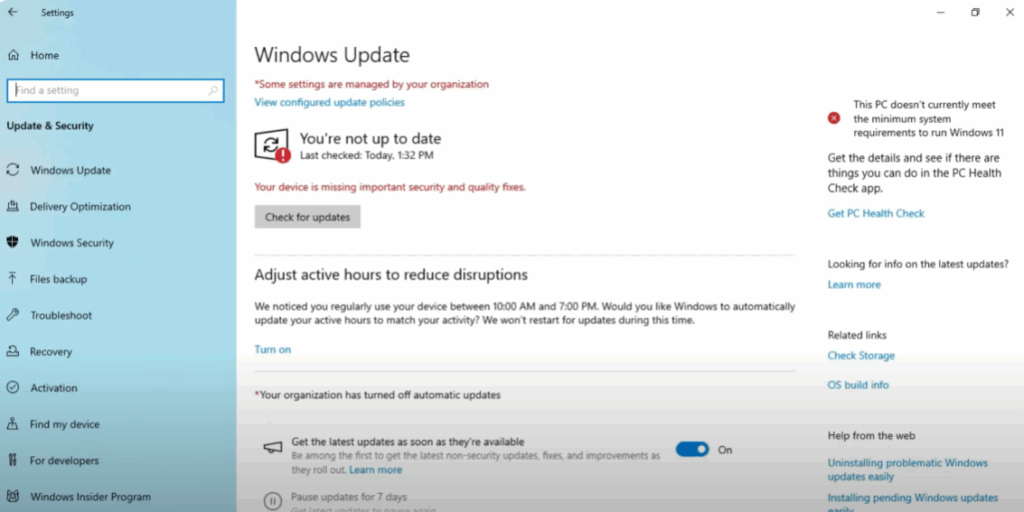
Microsoft often releases patches that fix stability issues, so installing updates is an important first step.
Step 2: Update Drivers
Outdated or corrupted drivers can also cause your computer to shut down.
- Right-click on the Start Menu
- Select Device Manager
- Check for updates, especially for graphics, network, and chipset drivers
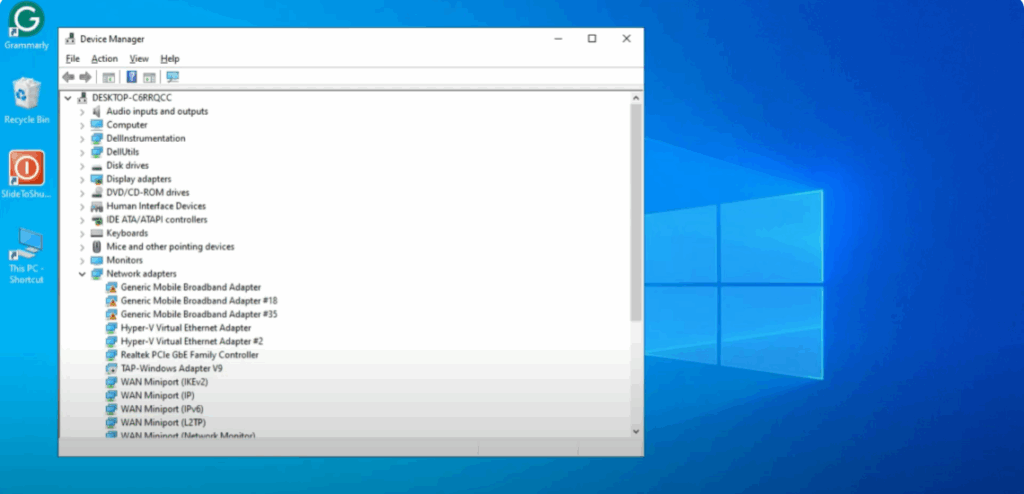
Alternatively, visit your manufacturer’s website to download the latest drivers.
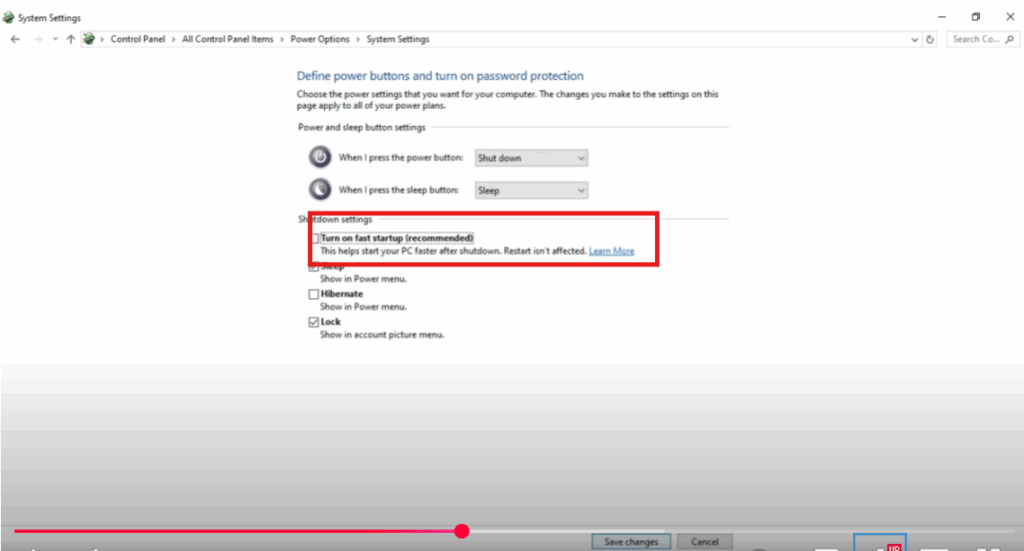
Step 3: Disable Fast Startup
Fast Startup sometimes causes freezing or shutdown problems. To disable it:
- Open Control Panel
- Click on Power Options
- Choose What the power buttons do
- Click on Change settings that are currently unavailable
- Uncheck Turn on Fast Startup
- Save the changes
Step 4: Check for Malware or Corrupted Files
- Run a full scan using Windows Security or any antivirus software to rule out malware.
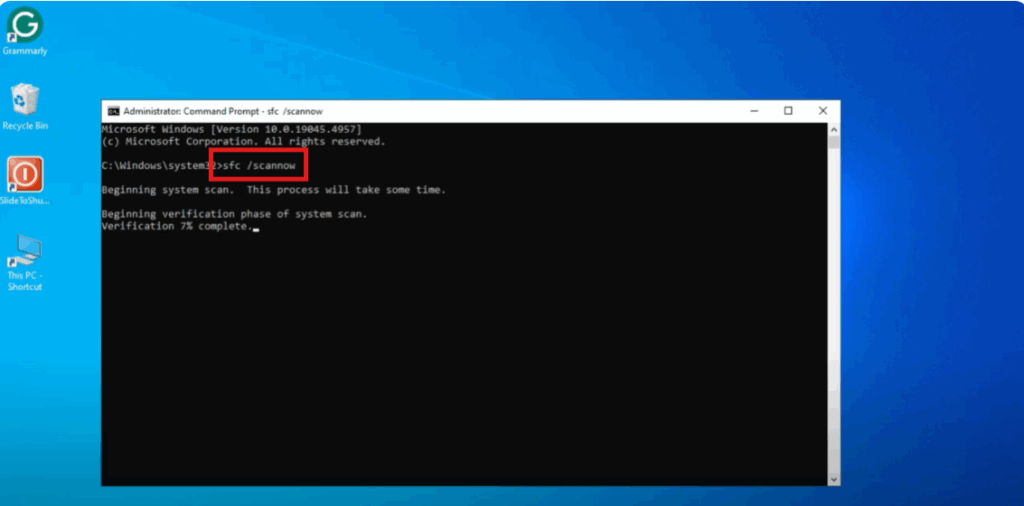
- Also, run a System File Check:
- Open Command Prompt as admin
- Type:
sfc /scannow - This will scan and fix corrupted system files.
Step 5: Adjust Virtual Memory
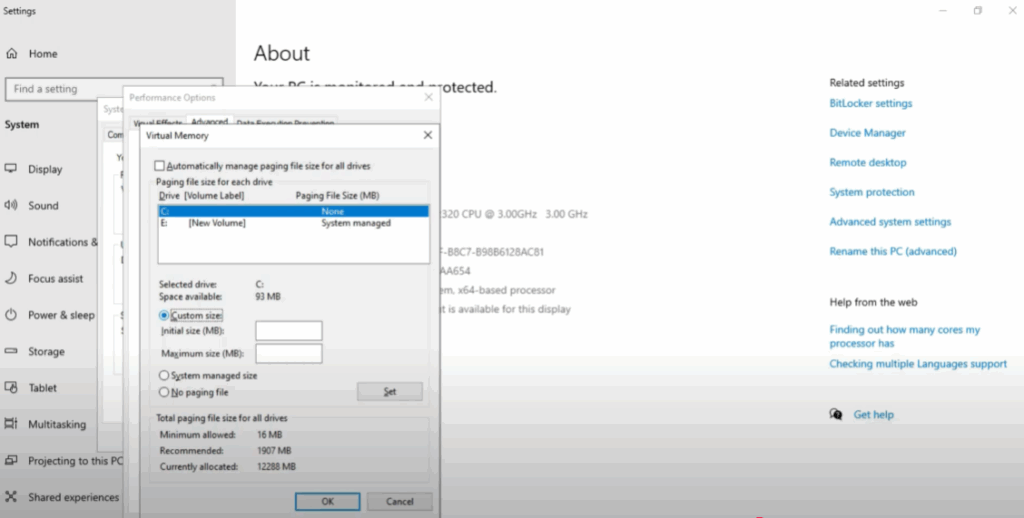
If your PC runs out of memory, it may freeze or shut down. To increase virtual memory:
- Right-click on This PC → Go to Properties
- Click on Advanced System Settings
- Go to Advanced → Performance Settings → Advanced
- Select Change Virtual Memory
- Increase the size according to your RAM capacity
Step 6: Check Hardware Issues
If none of the above methods work, the issue might be hardware-related. Common causes:
- Overheating – check the temperature using a tool like HW Monitor
- Bad RAM – run the Windows Memory Diagnostic Tool
- Old HDD – consider upgrading to an SSD for better performance
Final Words
That’s it! These steps will help fix the sudden shutdown issue on Windows 10 and 11. If one method doesn’t work, try the next until the problem is resolved.






