
Welcome back to my channel Tech Gitter Official. In today’s guide, we will learn how to fix the issue when Windows 10 is not fitting properly on your screen.
Method 1: Adjust Display Settings
- Click on the Windows icon and then select Settings.
- Find and click on the System option.
- Next, click on Display.
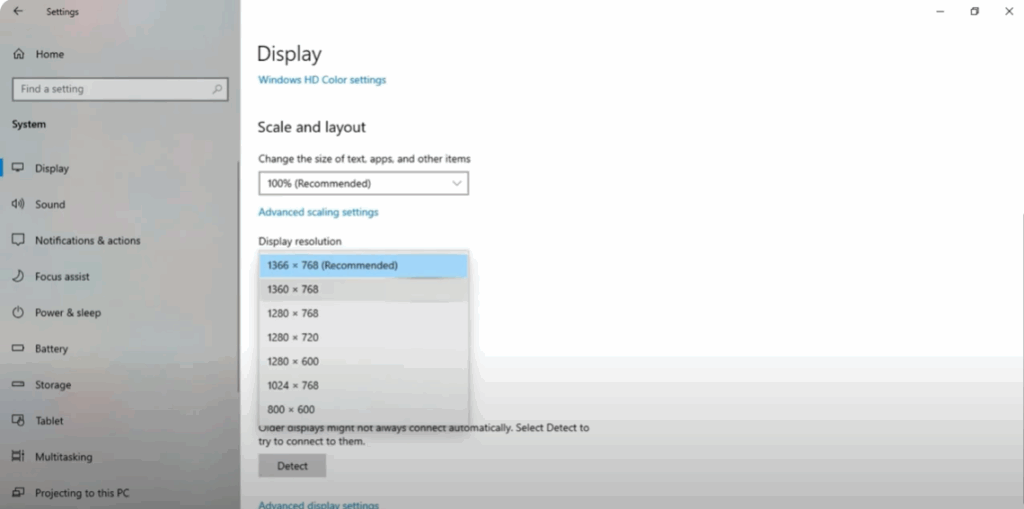
- Scroll down until you see the option for Display Resolution.
- Adjust the resolution according to your screen size until it fits correctly.
Method 2: Change Screen Resolution via Search
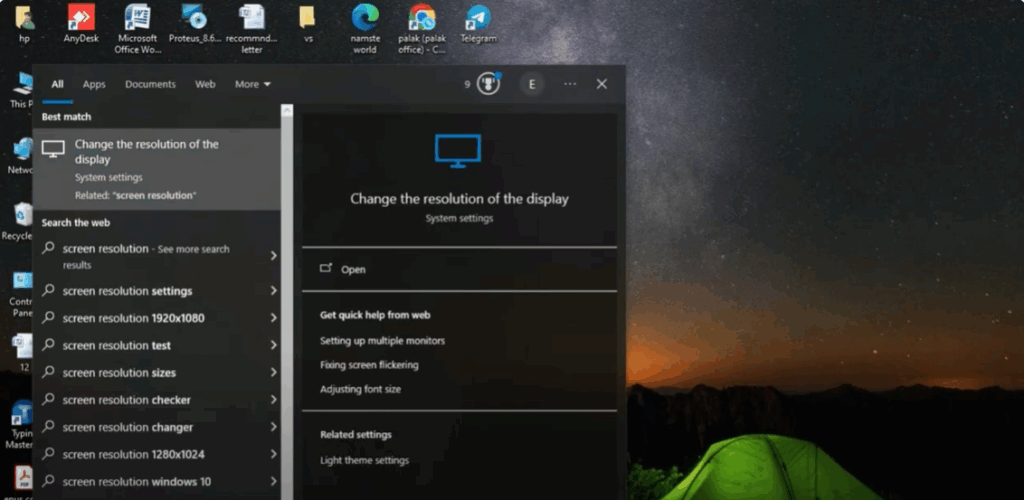
- Go to the Search bar and type Screen Resolution.
- Click on Change the resolution of display.
- Here, you will directly see the option to adjust the Display Resolution.
- Modify it as needed, and your screen will now fit perfectly.
Final Words
That’s it! With these quick steps, you can easily fix the issue of Windows 10 not fitting properly on your screen.
If you found this guide helpful, make sure to like, share, and subscribe. Thanks for reading!






