
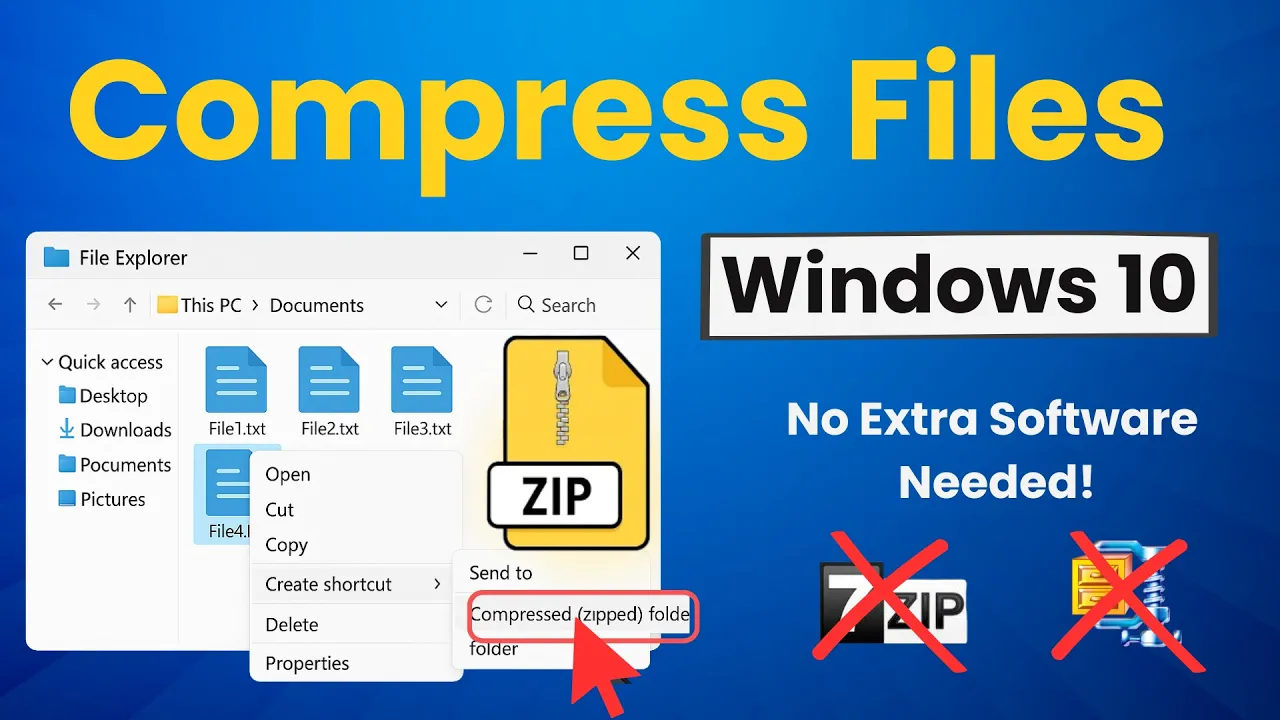
Hello friends, welcome back to my channel Tech Gitter Official. Today I’m going to show you how to zip or compress files and folders in Windows 10 using only the built-in features of the operating system. That means no extra software like WinZip or 7-Zip—just simple tools that are already included with Windows.

There are many times when zipping files comes in handy. Maybe you need to send multiple files through email, upload them to a file-sharing site, or simply save space on your computer. Instead of sending each file individually, you can combine everything into one zip file. It’s cleaner, more organized, and often significantly smaller in size, which makes sharing much faster and easier.
Now, I’m going to open File Explorer and go to the folder that contains the files I want to zip. Next, I’ll select all the photos I want to compress. You can select multiple files by holding down the Control key while clicking on each one. In my case, I have a few image files that I’d like to compress into a single zip file.

Once the files are selected, I’ll simply right-click, hover over Send to, and then click Compressed (zipped) folder. Just like that, Windows creates a new zip file right in the same location. Now I can rename it to whatever I want—for example, Zipped Photos. And when I open it, I’ll see all of my selected files neatly packed inside.

This method works whether you’re zipping a single file, multiple files, or even an entire folder. And the best part? Everything stays in one place, making it easier to organize, transfer, or back up your data. No extra downloads, no third-party tools—just quick built-in functionality that gets the job done.
And that’s how you zip files and folders in Windows 10. Simple, fast, and effective.
If you found this video helpful, make sure to leave a comment below. Thanks for watching, and don’t forget to like, share, and subscribe to Tech Gitter Official for more useful Windows tutorials.






