
If you see that not all of your computer’s RAM is usable in Windows 10, don’t worry—this is a common problem that can slow down your system. Sometimes, Windows shows less memory than what’s installed because of system settings, using a 32-bit Windows version, issues with BIOS, or even hardware problems. In this blog, you’ll learn simple ways to check what’s causing your RAM to be unused and easy steps you can follow to make sure Windows 10 uses all the memory installed in your computer.
Step 1: Check Installed vs. Usable RAM
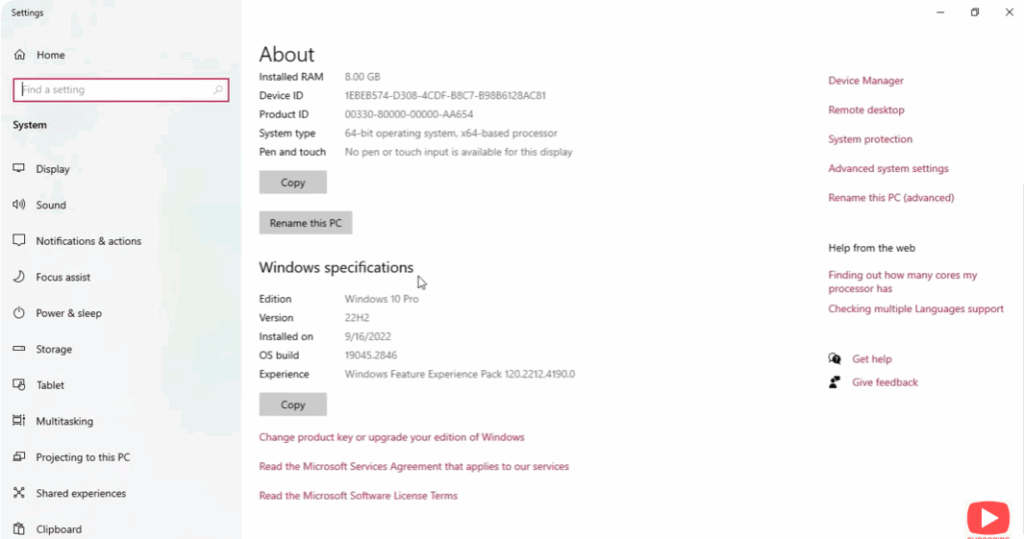
- Right-click on the Start Menu and select System.
- Under Device Specifications, note how much RAM is installed and how much is usable.
- If there’s a large difference, proceed with the following fixes.
Step 2: Configure Memory Settings
- Press Windows + R and type msconfig, then hit Enter.
- Go to the Boot tab and click on Advanced Options.
- Uncheck the box labeled Maximum Memory if it’s selected.
- Click OK, then Apply, and restart your PC.
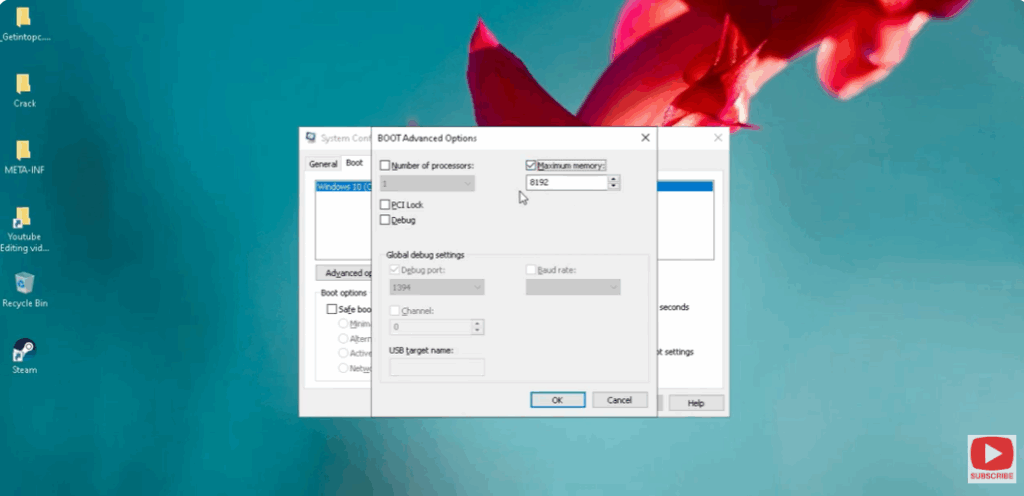
This step ensures that Windows can access the full amount of installed memory.
Step 3: Check System Architecture
Ensure that you’re using a 64-bit version of Windows 10, as 32-bit systems can only use up to 4 GB of RAM.
- Go to Settings → System → About.
- Under System Type, check for “64-bit Operating System.”
If it shows 32-bit, you’ll need to upgrade to a 64-bit version to utilize all your RAM.
Step 4: Enable Memory Remapping in BIOS
- Restart your PC and enter the BIOS/UEFI setup (usually by pressing F2, F10, or Delete during startup).
- Look for Advanced, Northbridge, or Chipset Configuration settings.
- Find the option named Memory Remapping and make sure it’s Enabled.
- Save changes and restart the computer.
This allows the system to access all installed physical memory.
Step 5: Check for Hardware or Slot Issues
- Power off your PC and disconnect from power.
- Reseat the RAM modules properly into their slots.
- If you have multiple sticks, try testing them one by one or swapping slots.
- Faulty RAM or motherboard slots can also limit usable memory.
Step 6: Update BIOS and Windows
Outdated BIOS or system files can cause hardware detection issues.
- Go to your motherboard manufacturer’s website and download the latest BIOS version.
- Also, open Windows Update and install all available updates.
Conclusion
By following these steps — especially disabling the “Maximum Memory” option and enabling Memory Remapping in BIOS — you should be able to fix the “Not All RAM Usable” problem in Windows 10. Once resolved, your PC will recognize and utilize the full capacity of your installed RAM, improving system performance significantly.






