
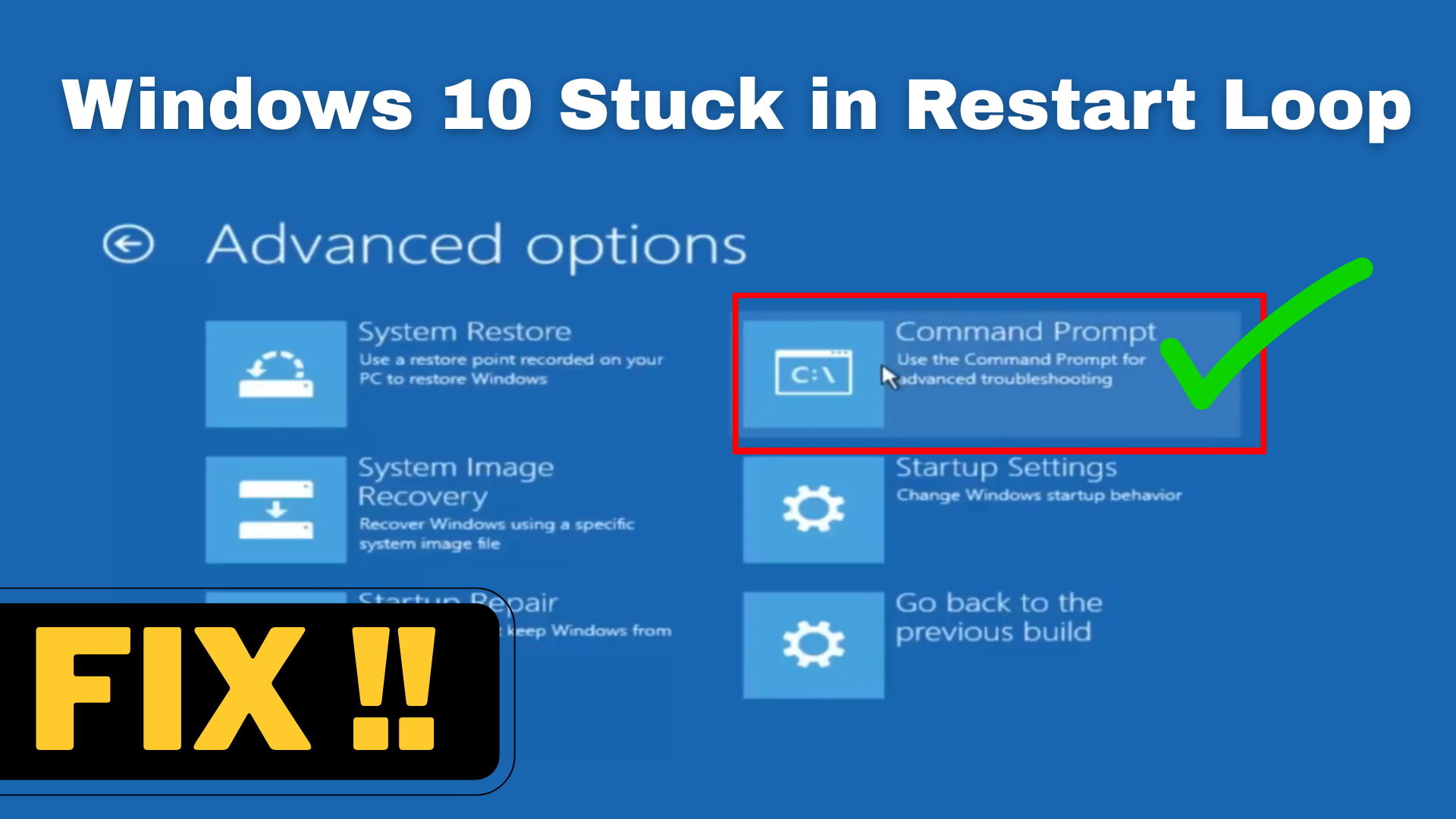
Hello friends, welcome back to my channel Tech Gitter Official. In today’s video, I will show you how to fix Windows 10 restarting loop when your PC keeps rebooting again and again and doesn’t reach the desktop. This tutorial will help you solve this problem easily. So, watch the video till the end.
Step One: Force Automatic Repair Mode
First, we’ll try to boot into the Windows recovery environment. Here’s how:
- Hold down the power button to force your PC to turn off.
- Do this three times in a row: power off, power on, then force shutdown again.
- On the third boot, Windows should automatically launch the automatic repair screen.
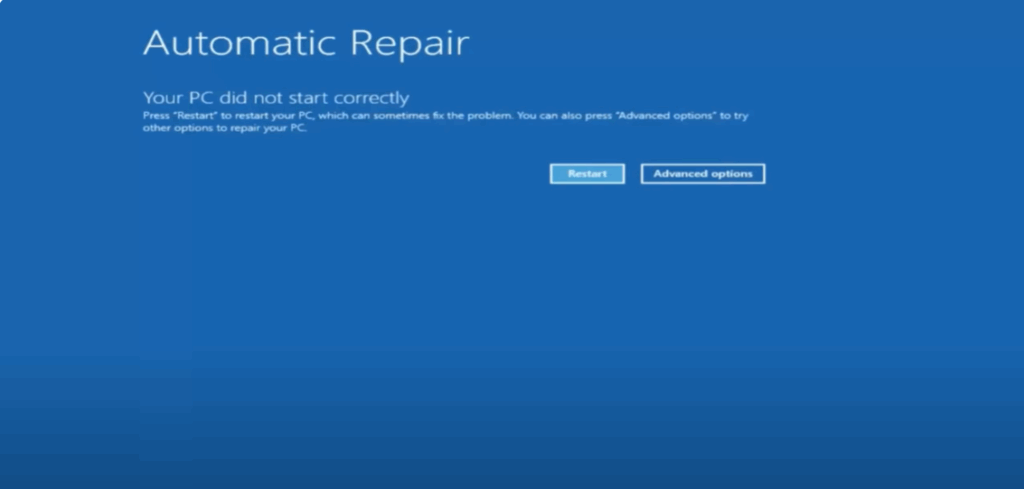
If that doesn’t happen, you can use a Windows 10 bootable USB or DVD created with the media creation tool free from Microsoft’s website. Boot from it, and when you see the install Windows screen, select Repair your computer in the bottom left corner. Either method should get you to the recovery options screen we’re about to work with.
Step Two: Advanced Troubleshooting with Command Prompt
Once you’re at the recovery options screen:
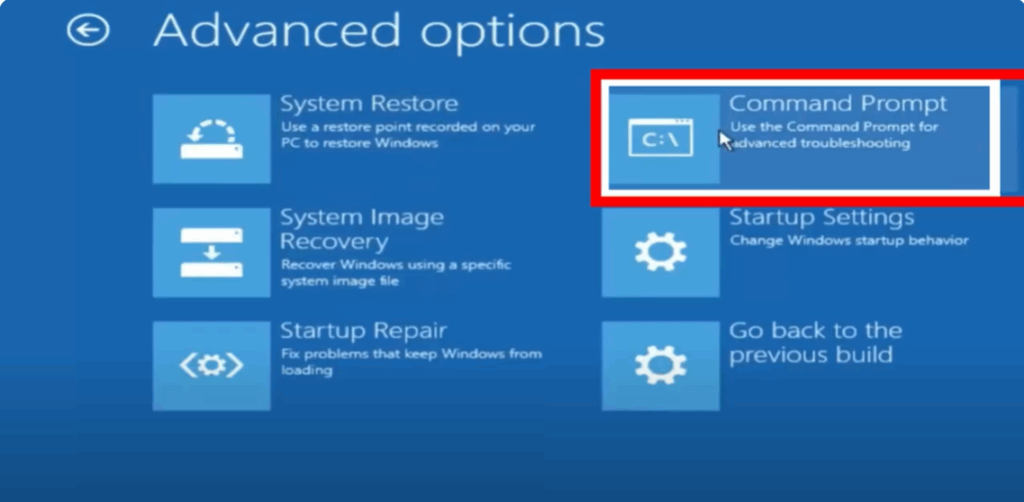
- Click Advanced options.
- Then click Troubleshoot.
- Next, choose Advanced options again.
- Now, select Command Prompt.
Step Three: Enter Key Commands
Once you’re in Command Prompt from the recovery screen, follow these steps carefully:
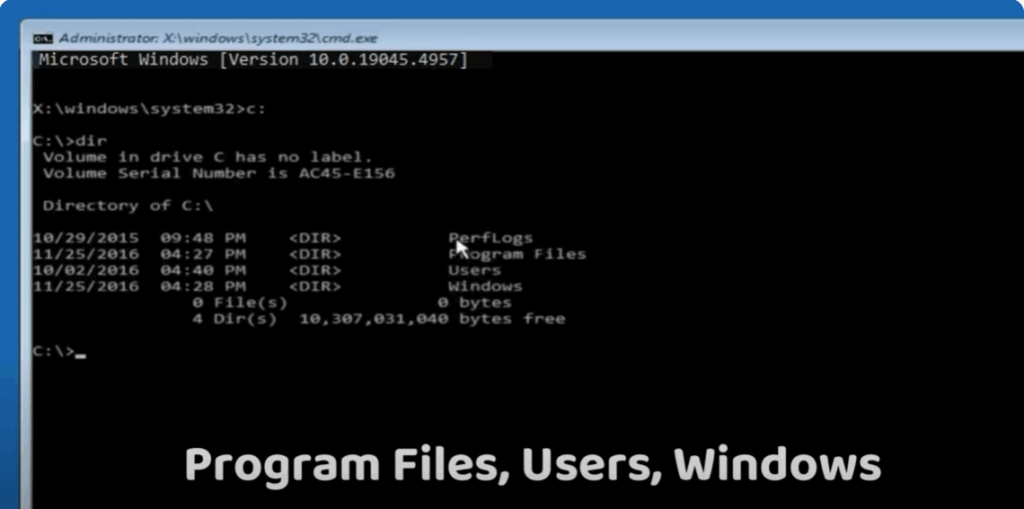
- You need to find the correct drive where Windows is installed.
- Start by typing:
C:Press Enter. - Then type:
dirPress Enter again. - You’re looking for familiar folders like Program Files, Users, Windows.
- If you don’t see those folders, try other drive letters like D, E, or F and repeat the dir command until you find the right one.
- Start by typing:
- Now type:
cd \windows\system32\configPress Enter. - Then type:
md backup(If the folder already exists you can name it backup1, backup2, etc.)
Press Enter. - Now type:
copy *.* backupPress Enter. - When asked to overwrite, type:
AThen press Enter. - Finally, type:
exitPress Enter.
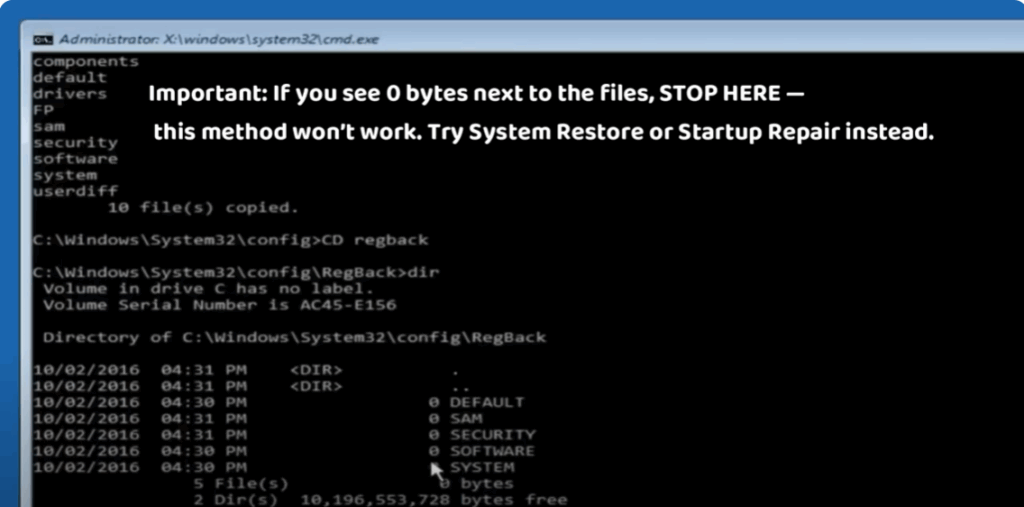
Important: If you see zero bytes next to the files, stop! This method won’t work. Try System Restore or Startup Repair instead. If the files show actual sizes (not zero), proceed with the above steps.
Step Four: Restart Windows 10
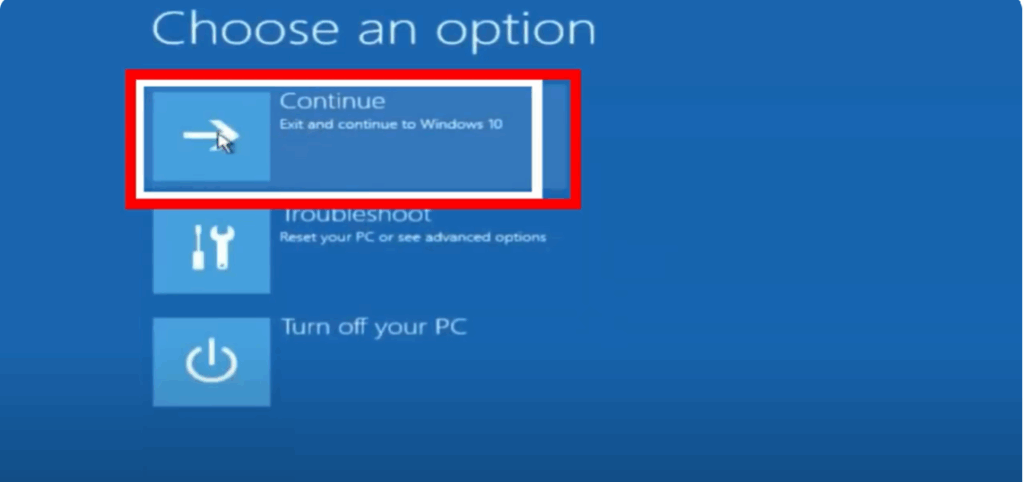
Back on the Choose an Option screen, select Continue to boot into Windows 10. If everything worked correctly, your computer should now boot up without getting stuck in a restart loop.
And that’s it! You’ve just learned how to fix the Windows 10 restart loop issue using built-in recovery tools.
If this video helped you out, please give it a like, subscribe for more quick and helpful tech tutorials, and drop a comment if you have questions or suggestions. Thanks for reading!






