
The Windows 10 taskbar not working is a common issue that can disrupt your workflow, making it difficult to access apps, the Start menu, or even basic system functions. Instead of smoothly navigating your PC, you may find the taskbar frozen, unresponsive, or missing altogether. The good news is, this problem usually stems from minor glitches, corrupted files, or system settings—and can be fixed quickly with a few simple steps. In this beginner-friendly blog, we’ll walk you through easy solutions to fix the Windows 10 taskbar when it’s not working, so you can get your desktop back to normal in no time.
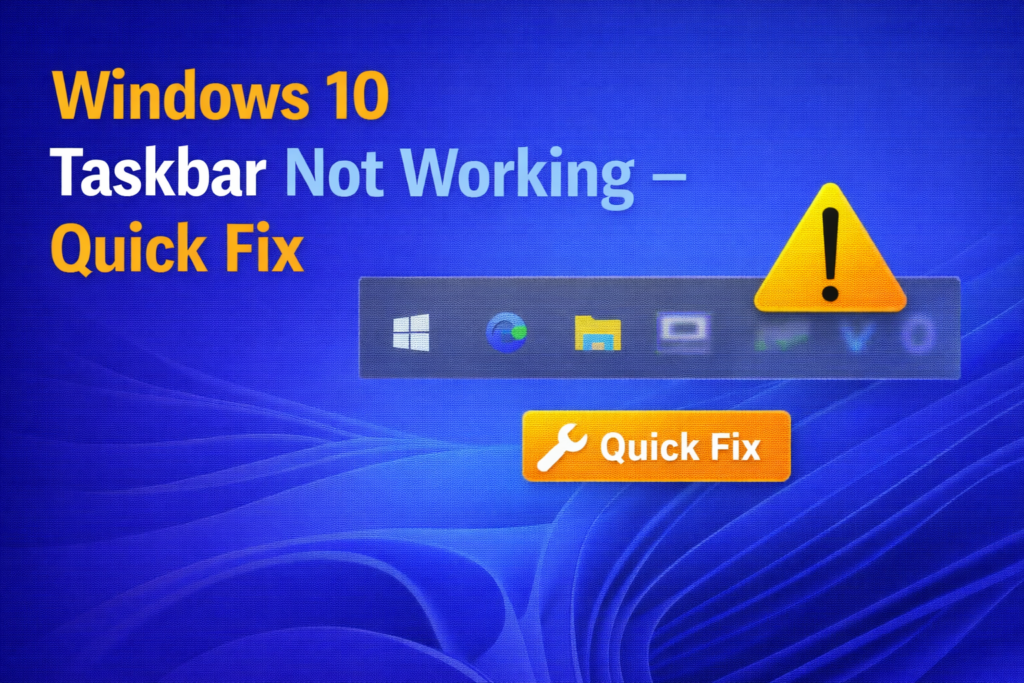
First, press Ctrl + Shift + Esc together on your keyboard. This shortcut opens the Task Manager, which helps control background processes. When the Task Manager window opens, scroll down and look for Windows Explorer. This process controls the desktop, taskbar, and File Explorer. Once you find it, click on Windows Explorer, then click on Restart. This action refreshes the taskbar and fixes temporary glitches. After that, close the Task Manager.
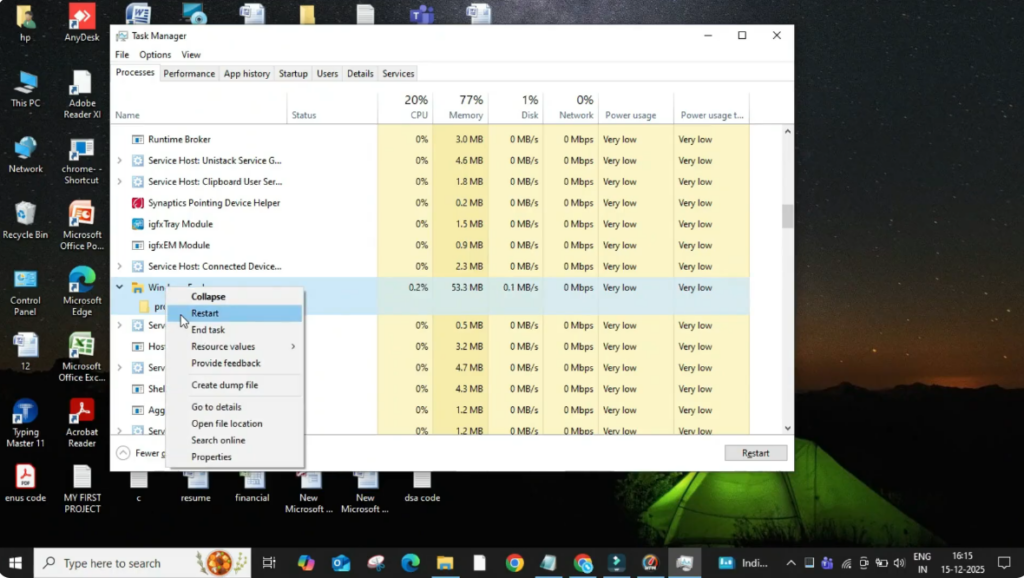
Now move to the next step. Press Windows + I to open Settings. A new window will appear. From here, click on Personalization and then select Taskbar. In the taskbar settings, look for the option Automatically hide the taskbar. This option should be turned off. If it is turned on, switch it off, because this setting can sometimes make the taskbar appear missing or unresponsive. After changing this setting, close the Settings window.
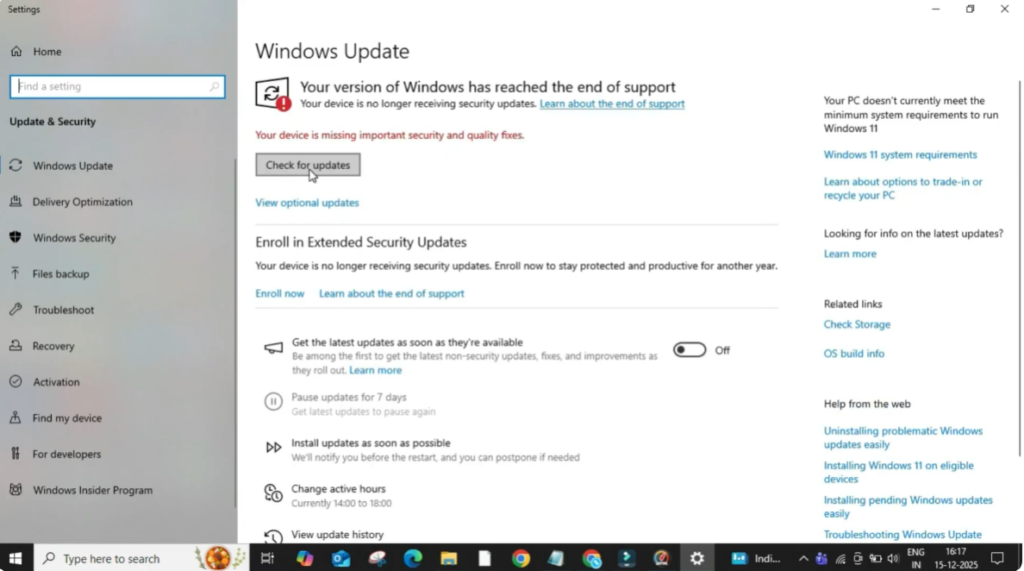
Next, click on the search bar and type Windows Update, then open it. Keeping Windows updated is very important because updates often fix bugs and system-related issues. If any new update is available, download and install it. Once the update process is complete, restart your system.
After completing all these steps, your Windows 10 taskbar should start working normally again. These simple fixes solve the issue in most cases.






