
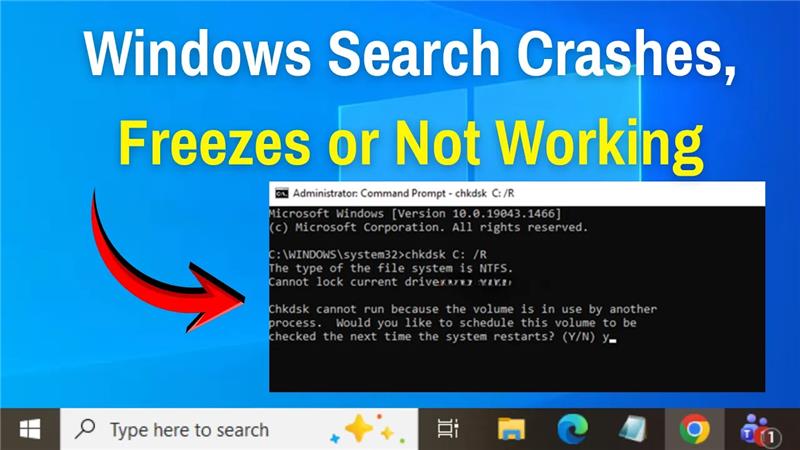
The Windows Search feature in Windows 11 is designed to help you quickly find files, apps, and settings. But sometimes it can misbehave—crashing, freezing, or simply not working at all. This can be frustrating, especially if you rely on search to save time and stay productive. The good news is, there are easy fixes you can try to get it running smoothly again. In this blog, we’ll walk you through simple solutions to fix Windows Search issues in Windows 11, so you can get back to working without interruptions.

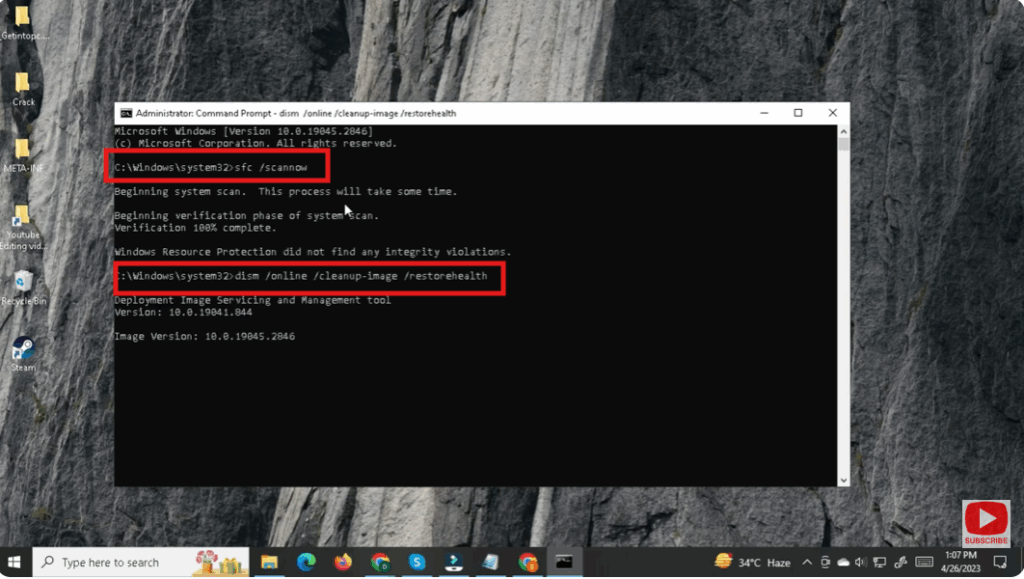
1. Repair System Files (SFC + DISM)
Corrupted system files may be causing search to fail. Use the following:
- Open Command Prompt or PowerShell as administrator.
- Run:
sfc /scannow - After SFC completes, run:
DISM /Online /Cleanup-Image /RestoreHealth - Restart your PC after both commands finish.
✅ Final Thoughts
Windows Search crashing or freezing in Windows 11 is a pretty common issue — but it’s often fixable with built-in tools. By restarting the search service, rebuilding the index, running troubleshooters, and repairing system files, you can bring your search functionality back to life.
Try these fixes in order, from the simplest (restart service) to more advanced (SFC / DISM), and you’ll likely find the culprit. Once search is stable again, make sure to restart your PC so all changes take effect.






