

Organizing messy data in Google Sheets is easy with the wrap text feature, and anyone can do it in just a few clicks. If words or sentences in a cell are too long and spill over into the next cell, wrapping text helps display everything inside the cell by stacking words onto new lines. This simple 2025 guide shows how you can clean up your spreadsheet fast, making it more readable for reports, lists, or longer notes—without losing any details.
If your data looks cluttered or overlaps into other cells, wrapping text is a simple way to clean it up. And today I’ll show you exactly how to do it.
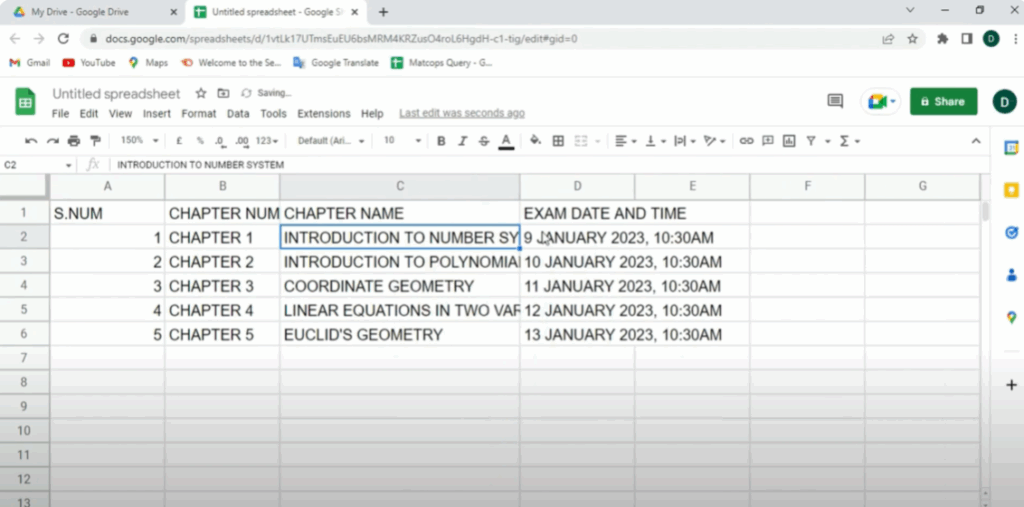
Let’s begin with a simple example. Here we have a Google Sheet where the content in one cell is too long and spills into the adjacent columns. This can make your data look messy or even unreadable. Sometimes our cell content overlaps with the cells below. You can expand the cell to see the full text. But when you reduce the cell size again, the text starts to overflow or overlap.
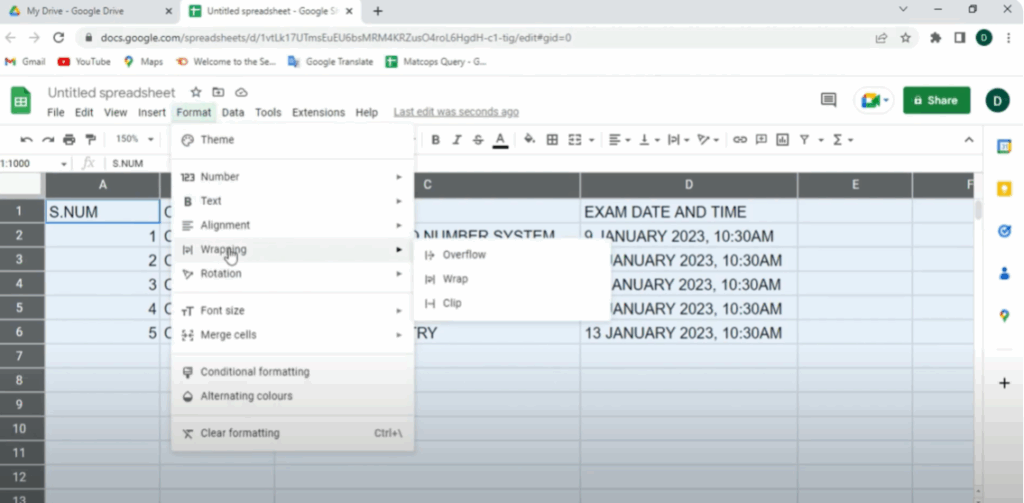
To wrap this text, first click on the cell or select the range of cells you want to adjust. Now look at the top menu bar and click on the Format tab. From the dropdown, hover over the option labeled Wrapping. Here you’ll see three options: Overflow, Wrap, and Clip.
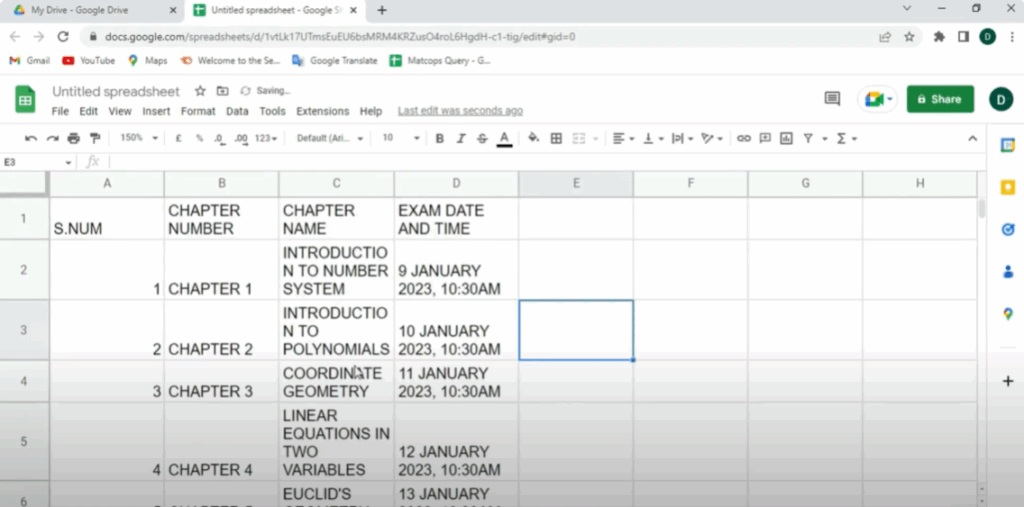
As soon as you select Wrap, you’ll notice the text now fits neatly inside the cell. Google Sheets increases the row height to display the full content without affecting other cells. After applying text wrap, you’ll notice that the content automatically adjusts within the cell, no matter its size.
However, if you choose Overflow instead, let’s begin by clicking on the Format menu at the top. From here, go to Wrapping and select the option called Overflow. Now, watch what happens when I type a long piece of text in a cell. You’ll notice that the text automatically overflows into the next cell, which can make your sheet look messy and hard to read.
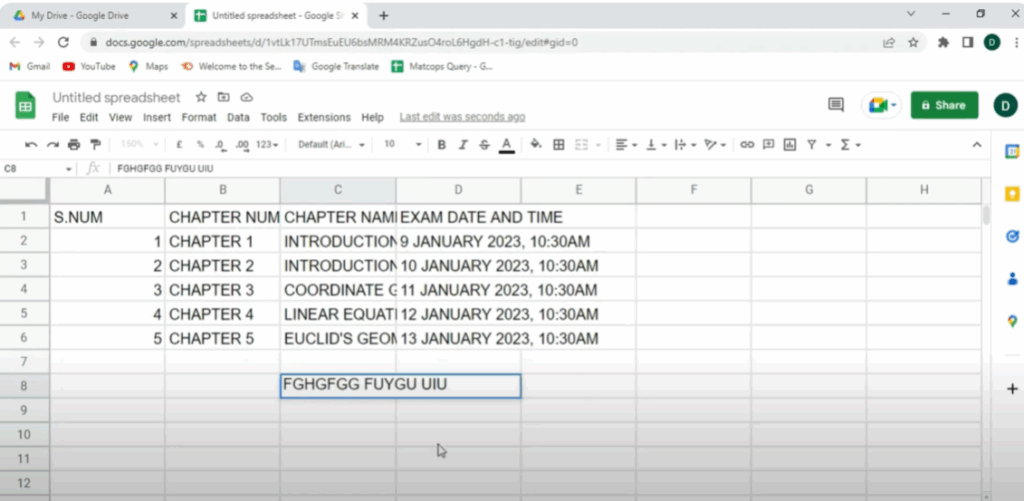
To solve this problem, all you need to do is go back to the Format menu, click on Wrapping, and this time select Wrap. As soon as you do that, the text will stay neatly inside the cell, even if it’s long.
So, to fix this and keep your data neat and readable, simply apply Text Wrap.






